

FiiO QX11 Firmware 1.27 Adds Mic Monitoring
From: Vitor Valeri
A headphone hobbyist for over 15 years, he founded the Hi-Fi Hub website and is an administrator of the "Fones High-End" and "Fones Low-End" groups on Facebook.


Published in: 12/10/26 at 14:28 - Updated in: 13/10/26 at 10:45
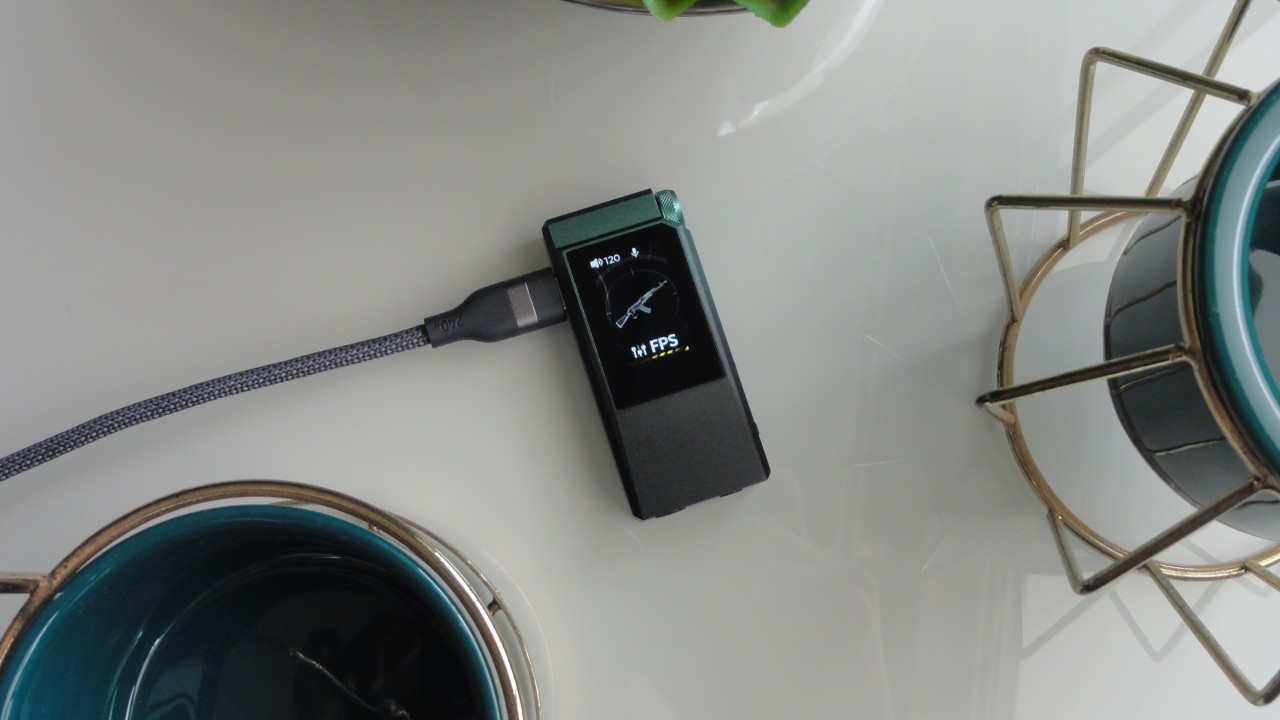
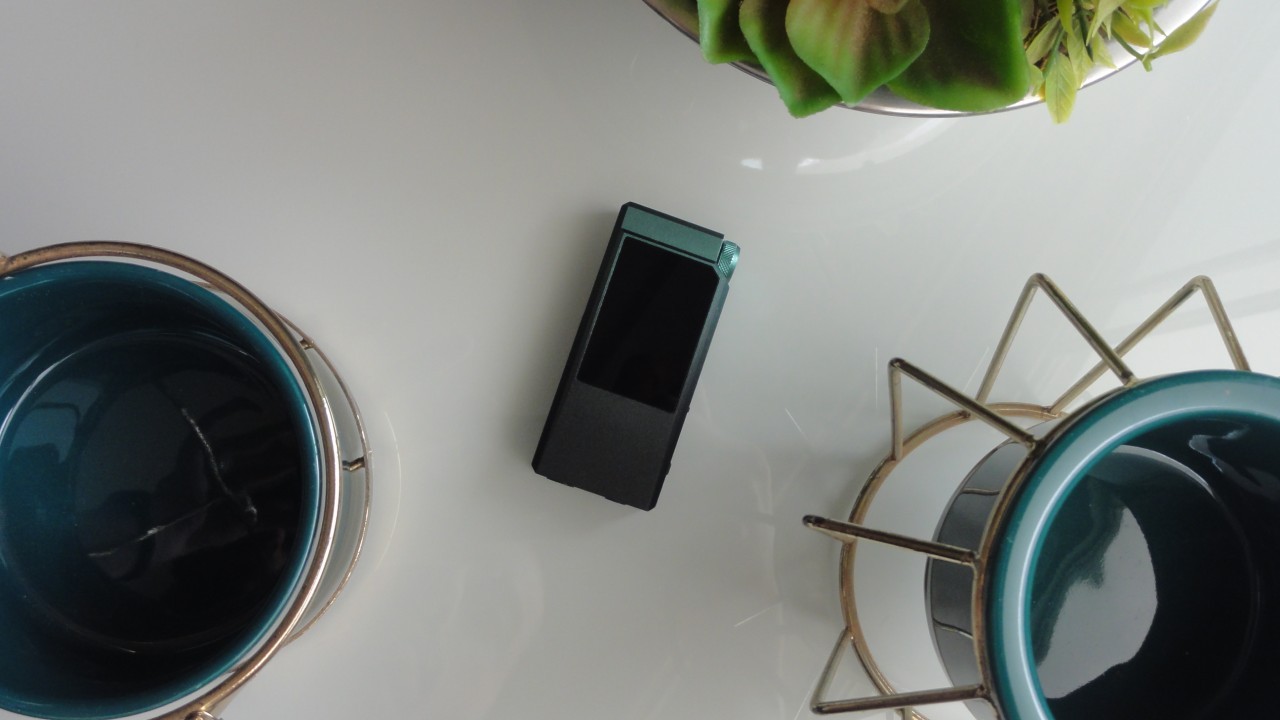 FiiO QX11 dongle DAC (portable DAC/amp) (Image: Vitor Valeri/Hi-Fi Hub)
The FiiO QX11 received its first firmware update last Saturday (October 10). Firmware version 1.27 introduces two optimizations, one bug fix, a VU meter theme, and several microphone-related features. The new microphone features were added in response to feedback from Head-Fi forum users. See below for full details.
QX11 Adds Several Features for Microphone Control and Monitoring
In FiiO QX11 firmware version 1.05, the only available microphone setting allowed users to choose between an external microphone and the local microphone. With firmware version 1.27, users can now monitor microphone audio and control the microphone volume. The microphone monitoring volume can also be adjusted.
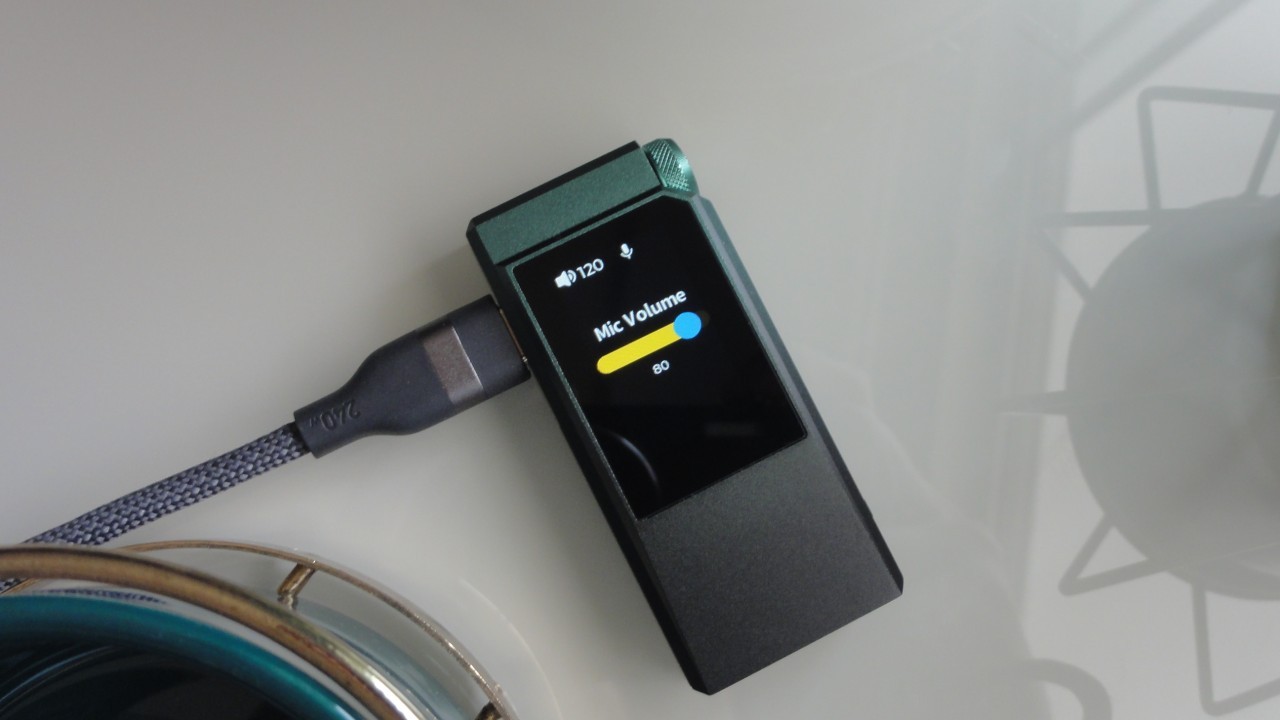
New shortcut options have also been added for the “fn” button on the side of the FiiO QX11. To simplify access to microphone-related controls, the following options have been introduced:
• Mic mute
• Mic volume
• Monitor Enable
• Monitor Volume
These options can be accessed by following the steps below:
Step 01: Press and hold the knob for a few seconds.
Step 02: Turn the knob to “user Keys,” then press it to select the option.
Step 03: Press the knob to select one of the shortcut activation options: “click,” “double click,” or “long press.”
Step 04: Turn the knob to the desired shortcut option.
Note: All microphone-related features are accessible only in “Game Mode.” The microphone cannot be used in “HIFI Mode.”
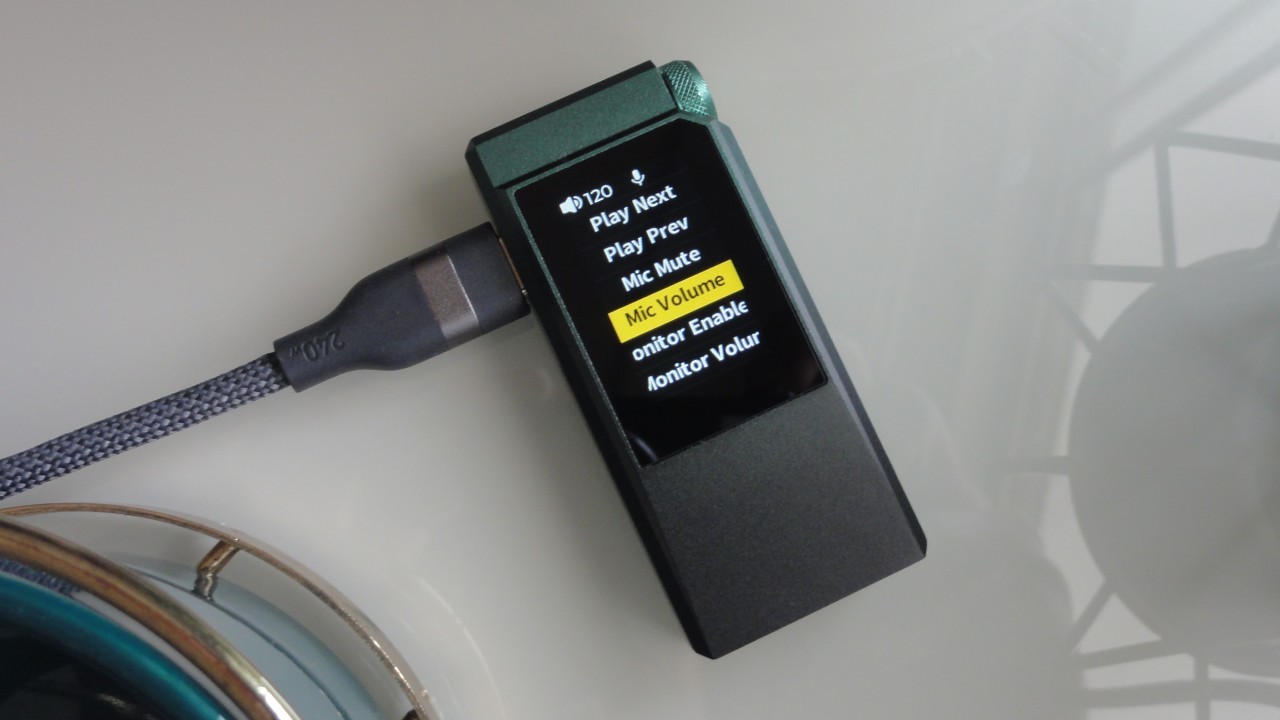
FiiO QX11: Firmware 1.27 Changelog
The changelog for FiiO QX11 firmware version 1.27 is provided below.
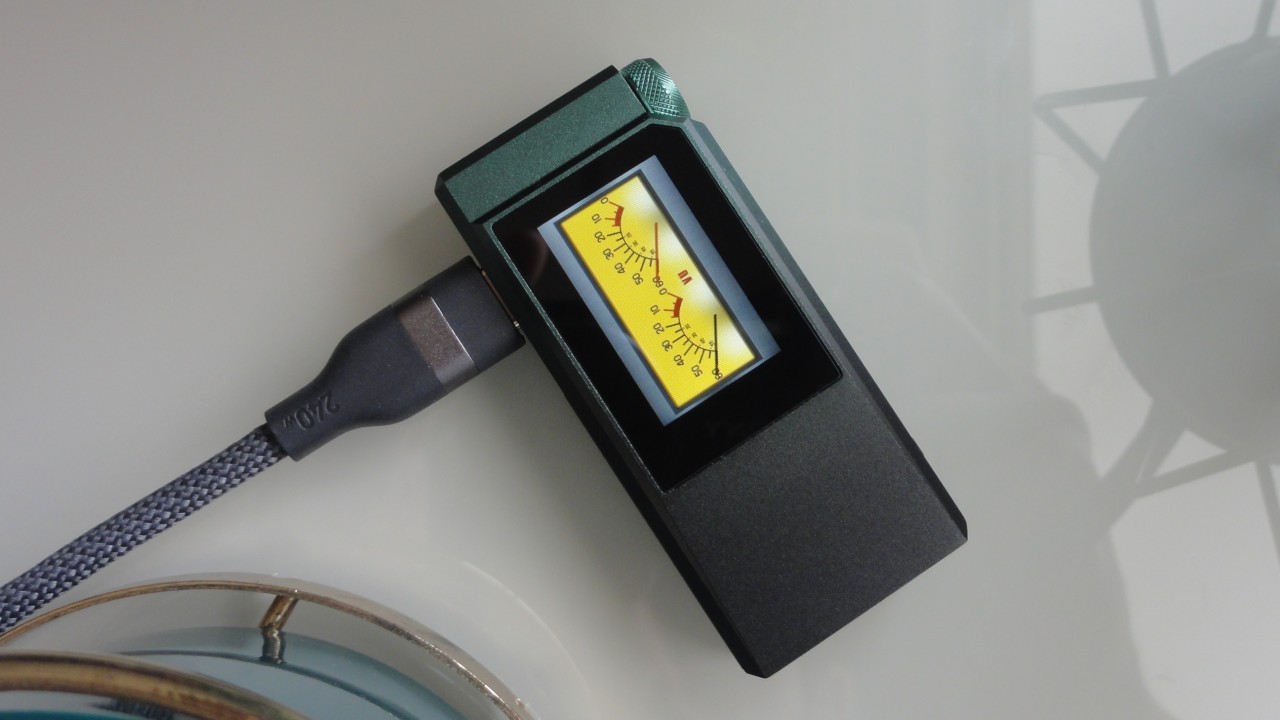
• New feature 01: VU meter theme. (Note: The original portrait and landscape themes will take effect when the screen is rotated to 90° or 270°.)
• New feature 02: Additional functions for customizable buttons, including microphone volume, monitoring, and other options.
• New feature 03: Status indicators in the microphone icon and pop-up windows for certain states.
• Optimization 01: Improved microphone sensitivity.
• Optimization 02: Improved monitoring audio quality.
• Bug fix 01: Resolved an issue that caused occasional system freezes and restarts.
Known Bugs After Installing the New Firmware
After installing firmware version 1.27 on the FiiO QX11, I noticed that the language and volume settings were no longer being retained. I observed this behavior while using the FiiO QX11 with my Windows 11 laptop.
Update (October 13): FiiO representative Alan suggested that I reset the FiiO QX11 to resolve the issue with retaining the volume level and language settings. The procedure resolved the issue on my unit.
How to Update the FiiO QX11 Firmware
Updating the FiiO QX11 firmware requires FiiO Control. You can install the app on a smartphone or access the web version of FiiO Control.
How to Update Using the FiiO Control App
To install the new firmware on the FiiO QX11 using a mobile device, such as a smartphone or tablet, follow the steps below.
Step 01: Connect the FiiO QX11 to an Android smartphone.
Step 02: If a new firmware version is available, an update pop-up will appear automatically. Tap “Update” to proceed.
Step 03: If no pop-up appears, go to “Settings > Firmware Update > Online Update” and tap “Check for Updates.” (Note: You can also select “Local Update” and locate the file downloaded from the FiiO forum. Download the firmware using this link.)
How to Update Using the Web Version of FiiO Control
To install the FiiO QX11 firmware update using a computer’s web browser, follow the steps below.
Step 01: Connect the FiiO QX11 to the computer.
Step 02: Access the FiiO Control web app by clicking here. Once the page opens, select “Connect device” and confirm the option to connect the FiiO QX11 via USB.
Step 03: Click “Configuration” and select the upward-pointing arrow icon. Then select “Device Update.”
Step 04: Wait for the firmware update to complete.
Share:


Product launches
Fosi Neo: iPod-Inspired DAP Launches at $79.99
Product launches
No comments have been made yet, be the first!