

How to Compare Audio Quality Between Music Streaming Services
From: Vitor Valeri
A headphone hobbyist for over 15 years, he founded the Hi-Fi Hub website and is an administrator of the "Fones High-End" and "Fones Low-End" groups on Facebook.


Published in: 19/01/26 at 10:58
 Illustrative image on how to compare music streaming applications (Image: Vitor Valeri/Hi-Fi Hub)
To compare audio quality between music streaming services, it is necessary to configure the application so that no alterations are applied to the playback of the tracks. There are influences both from the operating system and from the application itself, which may behave differently depending on the platform and on the type of connection used between the device responsible for playing the music and the headphones or speakers.
Why is it important to configure the music streaming app?
Music streaming applications apply DSP (Digital Signal Processing) when the user enables certain features available in the settings menu. This causes the audio signal to be degraded in several ways, directly affecting sound quality. Therefore, if you want to listen to music without interference, the first step is to disable the following functions:
• Automix
• Crossfade
• Equalizer
• Volume normalization
Automix manipulates the beginning and end of tracks in an attempt to create a shorter and theoretically smoother transition between songs. However, by doing so, audio degradation may occur, and it also eliminates the decisions made by the mastering engineer for a given album.
Crossfade removes part of the end of one song to merge it with the next track, which also has a portion removed. The process itself clearly demonstrates how this negatively affects music playback.
The equalizer is used to modify sound frequencies (bass, midrange, and treble) at various points. It is a tool designed to “correct” the sound signature of headphones or speakers, making the music more pleasant to the listener. Since it involves audio manipulation, it also causes degradation of the original data.
Volume normalization was first introduced by David Robinson in 2021, who developed ReplayGain, a system that adjusts the volume of individual tracks and albums so that all songs play at the same perceived loudness. Apple developed its own volume normalization technology, called “Sound Check.” The major issue lies in the way the volume of a track is altered.
As explained in the article “Lossless Audio: What Spotify Did Not Tell You About What Really Makes a Difference,” volume normalization can interfere with the intent of mastering engineers. The relative loudness of tracks within an album is carefully designed so that the reproduction of the sound spectrum (bass, midrange, and treble) does not compromise the tonal balance of instruments and vocals, resulting in clear and easy-to-listen audio.
Set the streaming app’s audio quality to the maximum available
It is essential to set the audio quality to the highest available level in the streaming application. There is no benefit in removing possible interferences from the app if the transmission quality of the music remains at low resolution or bitrate.
Disable data-saving features in streaming apps
Some streaming apps have data-saving features enabled by default. Make sure to disable all functions related to data saving.
How can the operating system interfere with music playback?
The operating system’s (OS) audio mixer manages the volume and audio streams of multiple applications running simultaneously on the device. This affects music playback quality. Both Windows and Android have an audio mixer responsible for:
• Adjusting the volume of specific apps without affecting others.
• Controlling application volume levels.
• Selecting which audio input and output devices are used.
In addition to controlling volume, the OS mixer also controls the sample rate (e.g., 44.1 kHz) and bit depth (e.g., 16 bits). Since multiple applications run at the same time, developers chose to apply resampling to all audio streams to a single standard value, such as 48 kHz, which is the case on Android.
Is it possible to avoid operating system interference in audio playback?
Yes, it is possible to prevent the operating system’s audio mixer from interfering with music playback.
How to avoid audio playback interference on Windows
To avoid interference in audio playback on Windows, the application used must support at least one of the following audio drivers:
• ASIO
• WASAPI Exclusive Mode
WASAPI is a Windows audio API developed by Microsoft that sends audio directly to the DAC (Digital-to-Analog Converter) or audio interface through “exclusive mode.”
ASIO was created by the German software company Steinberg Media Technologies with the goal of preventing the audio signal from passing through Windows processing, enabling a direct connection between the music application and the DAC.
The Windows music streaming applications that support WASAPI and/or ASIO are:
• Qobuz
• Tidal
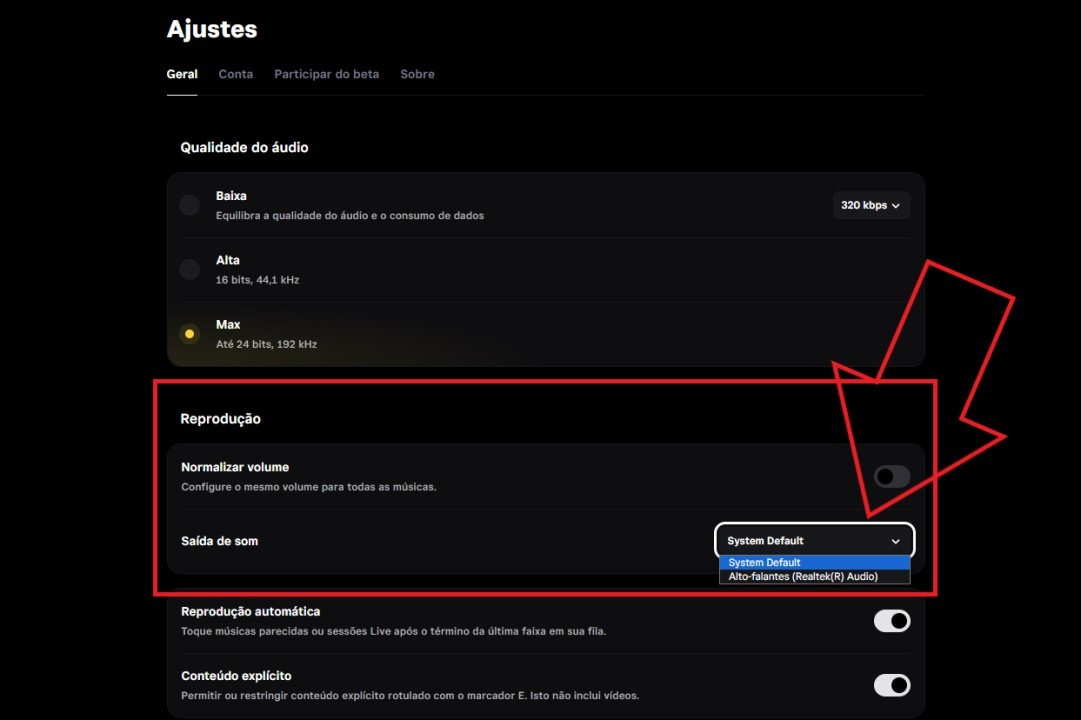
To enable WASAPI and ASIO in the Tidal desktop app, follow these steps:
Step 01: Click the three dots at the top left.
Step 02: Select Settings.
Step 03: Click the General tab.
Step 04: Locate the Playback section and select the Sound Output by clicking on the name of the DAC connected to your computer.
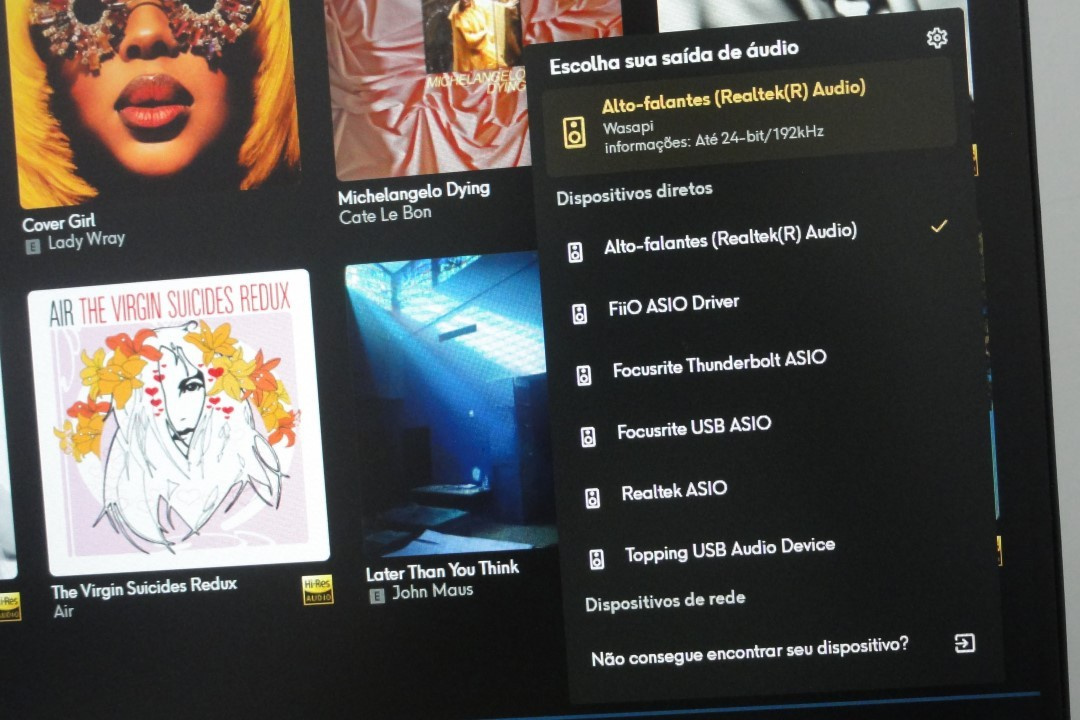
In Qobuz, you can choose between WASAPI and ASIO by clicking at the bottom right corner, as shown in the image below.
How to avoid audio playback interference on Android
To avoid interference in audio playback on Android, it is necessary to use apps that employ a driver capable of communicating directly with the DAP, bypassing the SRC (Sample Rate Conversion) [1] applied by Android’s audio APIs.
Applications that support bit-perfect playback [2] and have built-in music streaming services are:
• HiBy Music
• USB Audio Player Pro (UAPP)
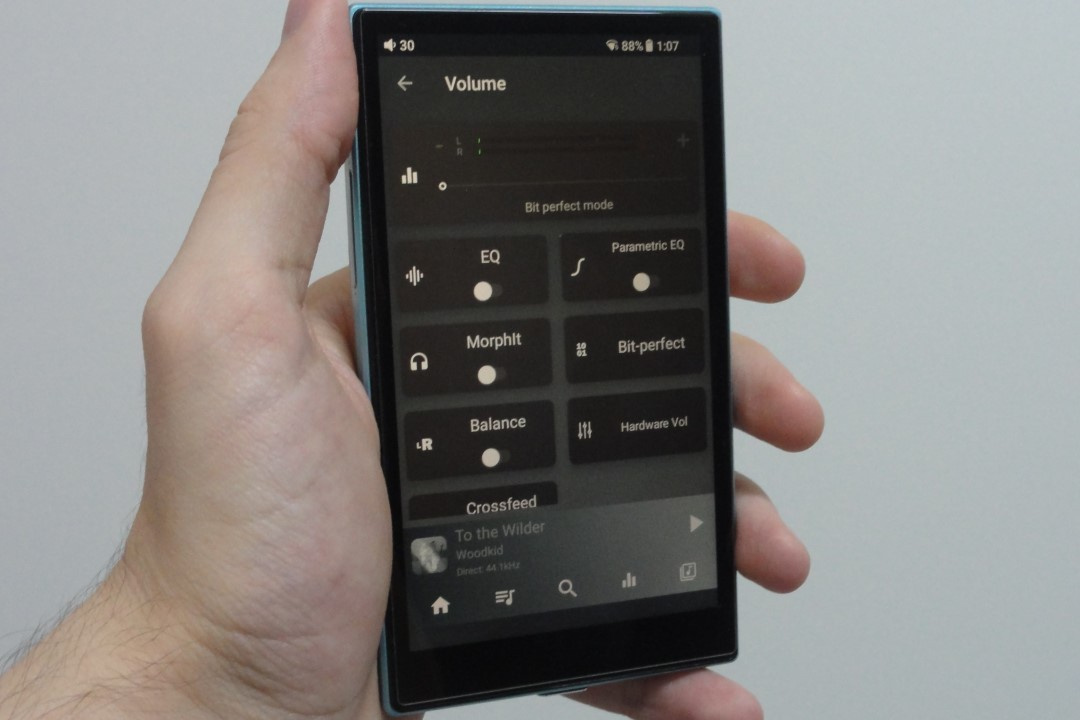
The apps listed above can play local files and also allow access to streaming service libraries. However, they only support Qobuz and Tidal.
[1] SRC (Sample Rate Conversion) performs resampling, converting all audio files to a 48 kHz sampling rate.
[2] Bit-perfect refers to audio transmission without interference from the operating system or applications.
Is there any way to use all apps without interference on Android?
Yes. Some Digital Audio Players (DAPs) allow interference-free playback on Android because their manufacturers modify the operating system to bypass Google’s audio mixer. However, it is important to note that this is only possible when using the DAP’s headphone outputs.
When connecting a DAP to an external DAC via USB, the music application must support direct communication between the app and the DAC. In this case, only UAPP and HiBy Music allow streaming applications to run in bit-perfect mode.
Starting from version 7.0.7.5, UAPP allows “audio capture” from Apple Music and Deezer, enabling bit-perfect transmission. For Spotify, it is necessary to use the Opera browser (Chrome will not work).
Share:



No comments have been made yet, be the first!