

3 Tips to Configure Android DAPs and Achieve High-Quality Sound
From: Vitor Valeri
A headphone hobbyist for over 15 years, he founded the Hi-Fi Hub website and is an administrator of the "Fones High-End" and "Fones Low-End" groups on Facebook.


Published in: 29/01/26 at 14:53
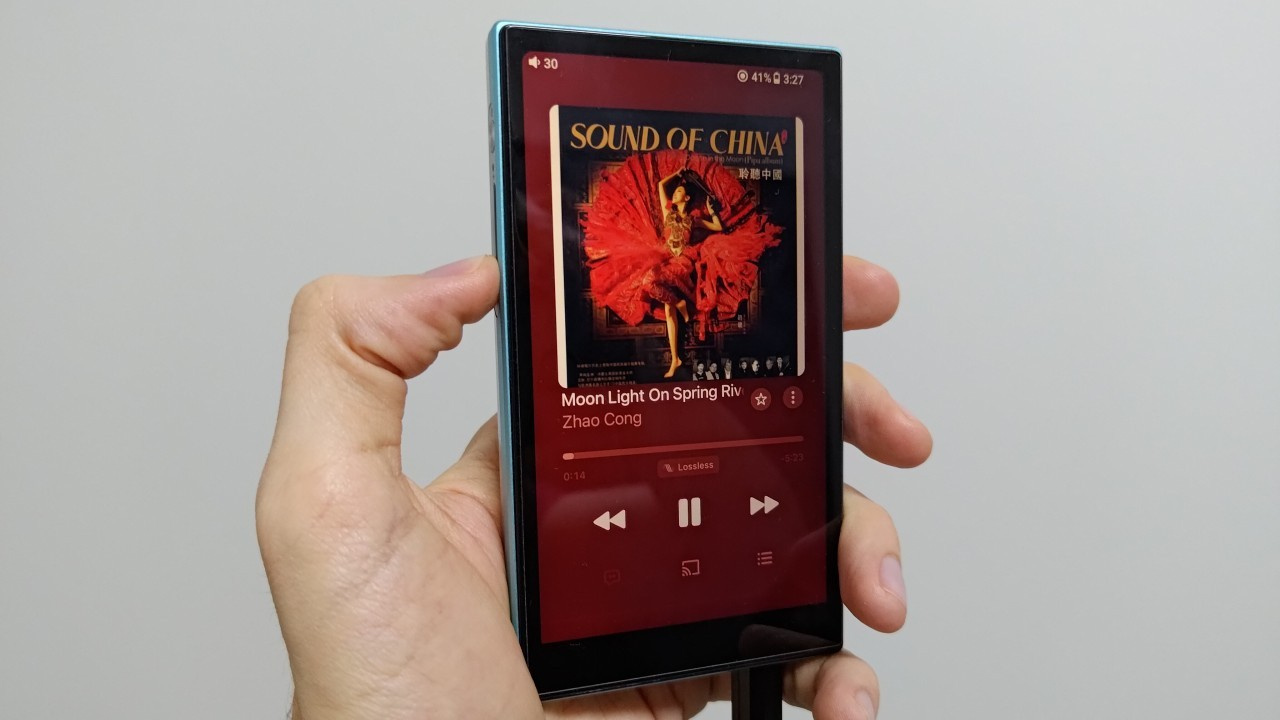 Illustrative image for tips on how to configure Android DAPs and achieve high-quality sound (Image: Vitor Valeri/Hi-Fi Hub)
Extracting high-quality sound from a DAP (Digital Audio Player) running the Android operating system (OS) requires a certain level of technical knowledge, since you must deal both with adjustments to features implemented by the device manufacturer and with configuration settings within the apps being used. With this in mind, I wrote this article listing tips for configuring Android DAPs, aiming to serve as an introductory guide to optimizing portable players in the best possible way.
3 Tips for Configuring Android DAPs
I have listed three tips for configuring DAPs (Digital Audio Players) with the Android OS (operating system) in order to optimize music players and provide high-quality sound, as well as a pleasant user experience during device operation.
1 – Properly format the microSD card
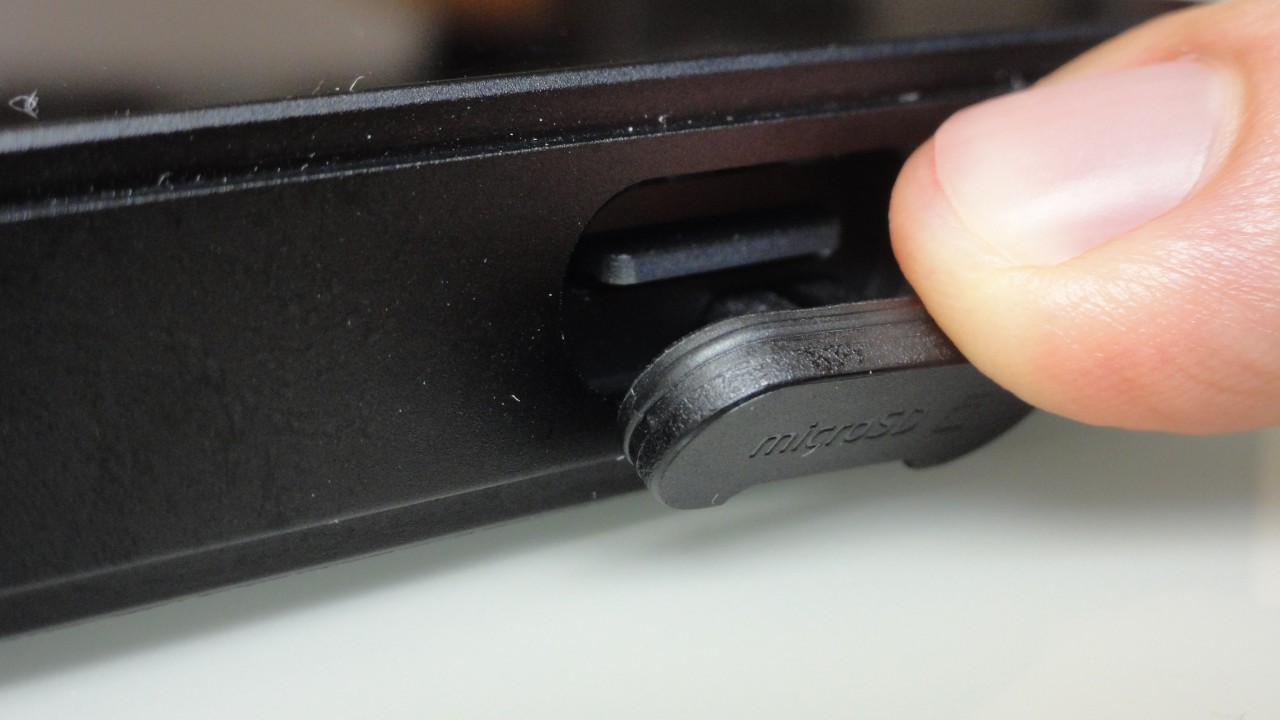
Formatting the microSD card that will be used in an Android DAP before using it for music playback is important because it directly affects audio file access performance. By formatting the card, you ensure that the interaction between the OS and the NAND flash memory (microSD) is faster.
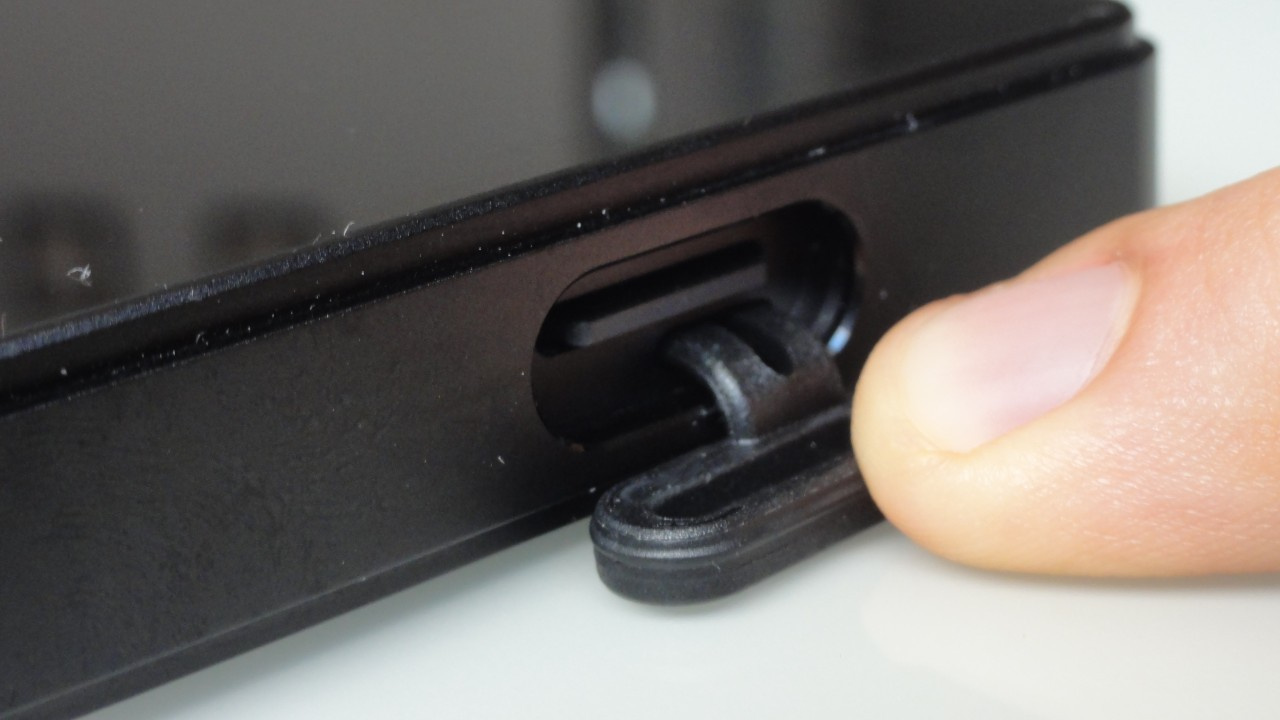
When a microSD card is formatted using the Digital Audio Player’s own operating system, an FTL (Flash Translation Layer) is created. This is a software layer whose function is to manage communication between the microSD card and the operating system. This process ensures that data are read and written properly. To learn how to correctly format the card on your Android DAP, access the tutorial provided in this article.
2 – Disable Google applications and services to improve system fluidity
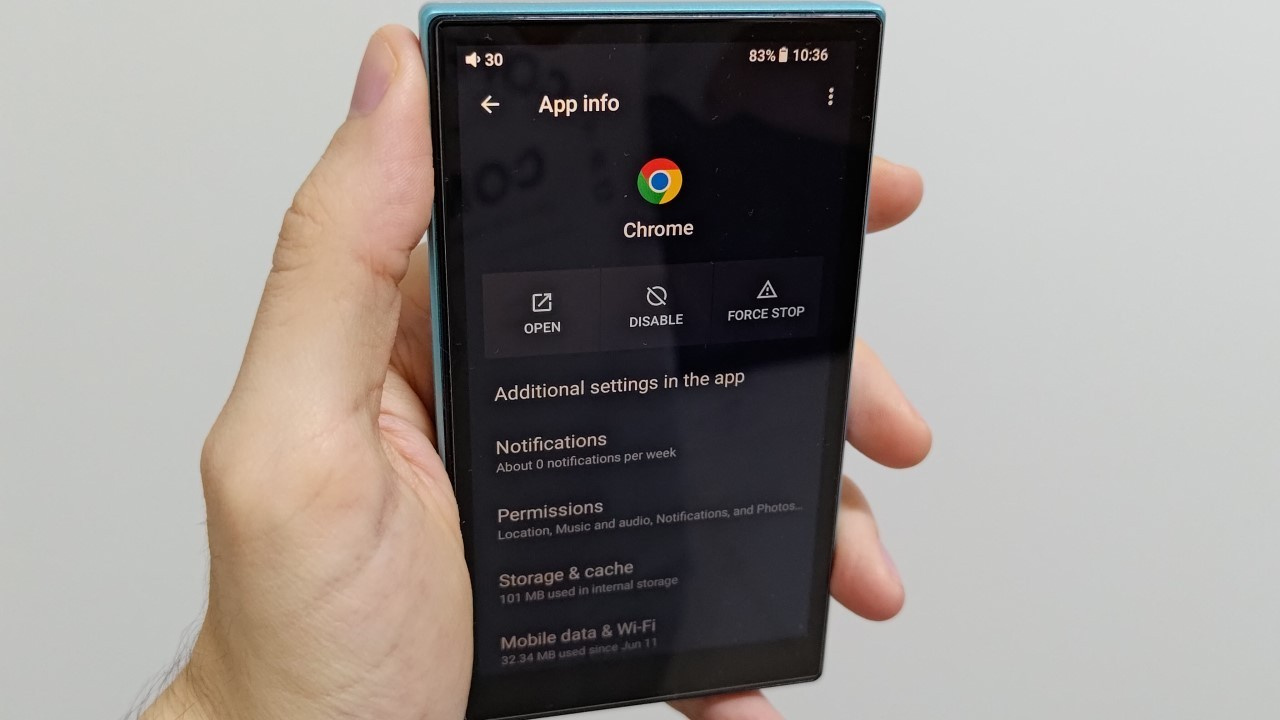
By disabling Google applications and services on Android DAPs, it is possible to achieve greater fluidity when navigating through the player’s interface. See how to do this by following the step-by-step guide provided in this publication.
3 – Properly configure the installed music applications
When you configure the music applications on your Android DAP correctly, it is possible to achieve high-quality sound. In most cases, what compromises playback is the manipulation of the audio signal by the apps themselves, which can negatively affect music reproduction.
Volume normalization in streaming apps
In streaming apps, proper configuration is crucial to enable lossless playback without interference. The first step is to disable volume normalization. In the case of Apple Music, this feature is called “Sound Check.”
There are two types of volume normalization that can be adopted by streaming services: per track and per album. When normalization is applied per track, each song is modified to have the same loudness level throughout playback. Considering that album production takes into account a specific loudness balance to achieve proper cohesion and facilitate listening without masking any nuance of the recording, per-track volume normalization is not the best choice.
According to published studies, the best option has been album-based volume normalization, as shown in this article. The reason is that, with album normalization, all tracks receive the same gain adjustment during playback. In this method, the loudest track is used as a reference for the others, so that quieter tracks are brought up to match the level of the one with the highest LUFS (Loudness Units Full Scale) [1].
The advantage of album-based normalization is reflected in the music production process, in which the artist already knows the sonic balance of all tracks once the first (and loudest) track is completed. The result of this technique is an album in which all instruments and vocals can be heard clearly and effortlessly. However, there is still another issue, namely the gradual increase in LUFS values over the decades, as discussed in this article.
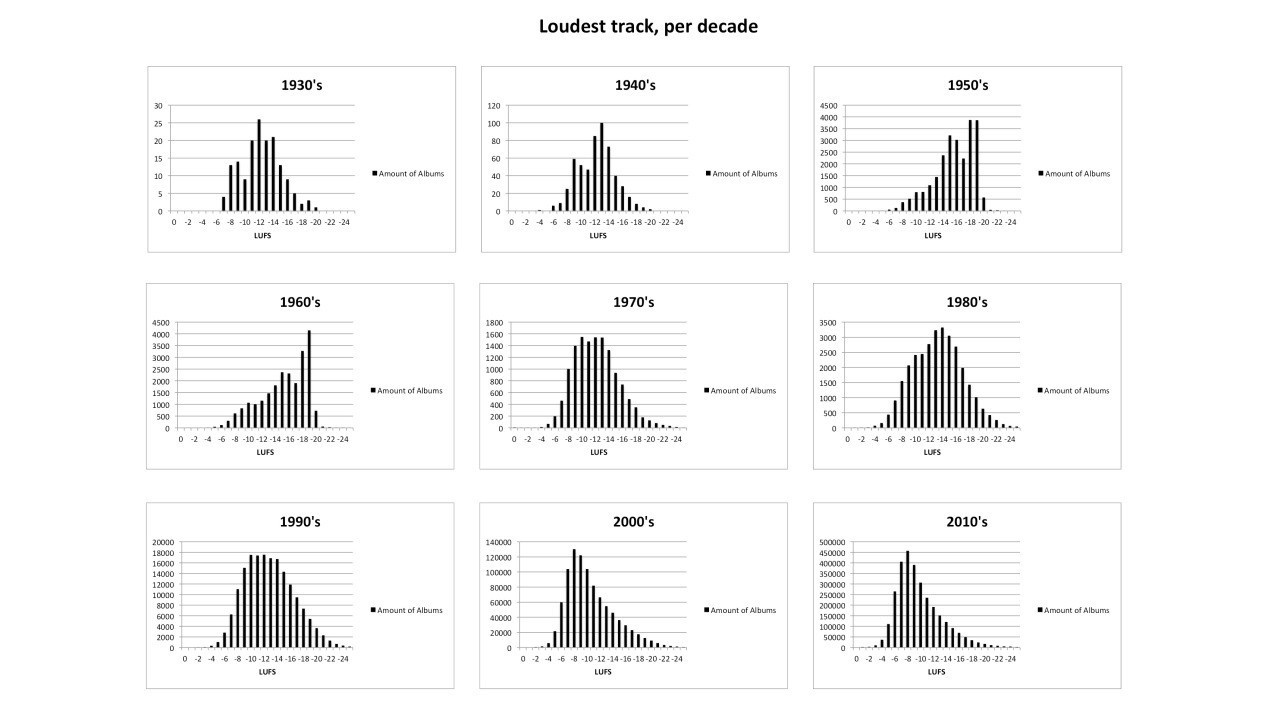
Considering all the problems related to LUFS levels in recordings, the best option ultimately is to disable volume normalization entirely. This is especially important in the case of playlists, where tracks come from different albums.
[1] LUFS (Loudness Units Full Scale) is a way of measuring perceived loudness that takes into account how humans hear sound (for example, emphasizing mid frequencies, where the human voice is located, over lows and highs). The higher the LUFS value, the louder the sound. For example, −5 LUFS is louder than −10 LUFS.
Crossfade and automix
Both crossfade and automix are features found in music apps that alter the sound at the beginning and end of each track. These functions attempt to modify the transition between songs and can literally cut portions of the audio as recorded by the artist.
The creation of an album involves intentional decisions regarding track order and how each song begins and ends. These decisions are made both by the artists and by the sound engineers who mix and master the audio files.
Therefore, if you intend to listen to music according to the intentions of the artists and sound engineers responsible for its production, the best choice is to disable crossfade and automix in the music application.
The equalizer
Using an equalizer aims to “correct” or make the sound reproduced by headphones or speakers “more pleasant.” However, this may introduce unwanted distortions into the audio, degrading sound quality. Note that applying equalization does not necessarily cause harm, provided the process is carried out with sufficient knowledge.
To minimize the risk of audio distortion, it is important to test how your headphones or speakers respond to changes in the equalizer. In addition, it is essential to have a basic understanding of sound frequencies and how to properly manipulate an equalizer, using its adjustment resources consciously and responsibly.
I encourage the use of third-party equalization apps rather than those built into streaming apps, as the results are usually superior. However, in my opinion, it is often more interesting to consider changing ear tips or ear pads, in the case of headphones, as a way to “correct” the sound signature.
As I explained in this article, an ear tip can significantly alter the sound of a headphone. If you own an in-ear monitor (IEM), I strongly recommend reading it.
4 – Bonus Tip: Use applications with bit-perfect support
Bit-perfect refers to transmitting audio from the application to the DAC (Digital-to-Analog Converter) without interference from the operating system or the music playback app. Although an Android DAP includes OS modifications to bypass Android’s SRC (Sample Rate Converter), as discussed in this article, using apps with bit-perfect support ensures lossless playback when connecting an external DAC to the Digital Audio Player.
When a wired headphone is connected directly to the headphone outputs (3.5 mm or 4.4 mm) of an Android DAP, in most cases there is no interference in the audio data transmission, regardless of the music app used. However, the situation changes when an external DAC or DAC/amp is connected to the DAP.
In the case of an external DAC connection, the manufacturer’s OS modifications will not be effective, making it necessary for the music app itself to provide bit-perfect functionality. For this scenario, I recommend using apps that support bit-perfect playback.
The USB Audio Player Pro app is ideal for users who subscribe to the Tidal and Qobuz streaming services. If you would like to learn more about this app, please refer to the article I wrote about it.
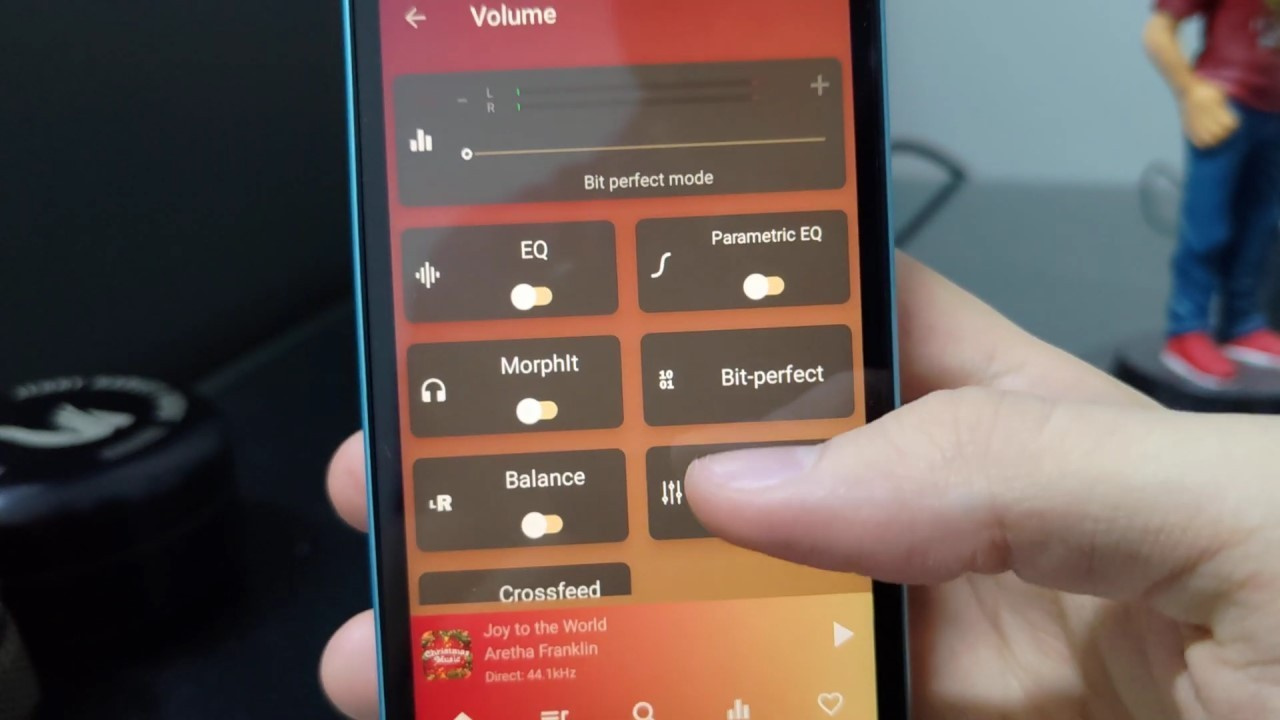
If you want to play local music stored on your microSD card, I recommend the following applications:
• FiiO Music
• Neutron Music Player
There are other interesting apps for both streaming and local playback, such as HiBy Music, Musicolet, and Poweramp, among others. However, since I have not personally used them, I prefer to recommend only those with which I have direct experience.
Frequently asked questions when configuring Android DAPs
To address common questions that arise among users when configuring their DAPs, I have prepared a list of questions and answers, as follows.
1 – Which microSD card should I use in my Android DAP?
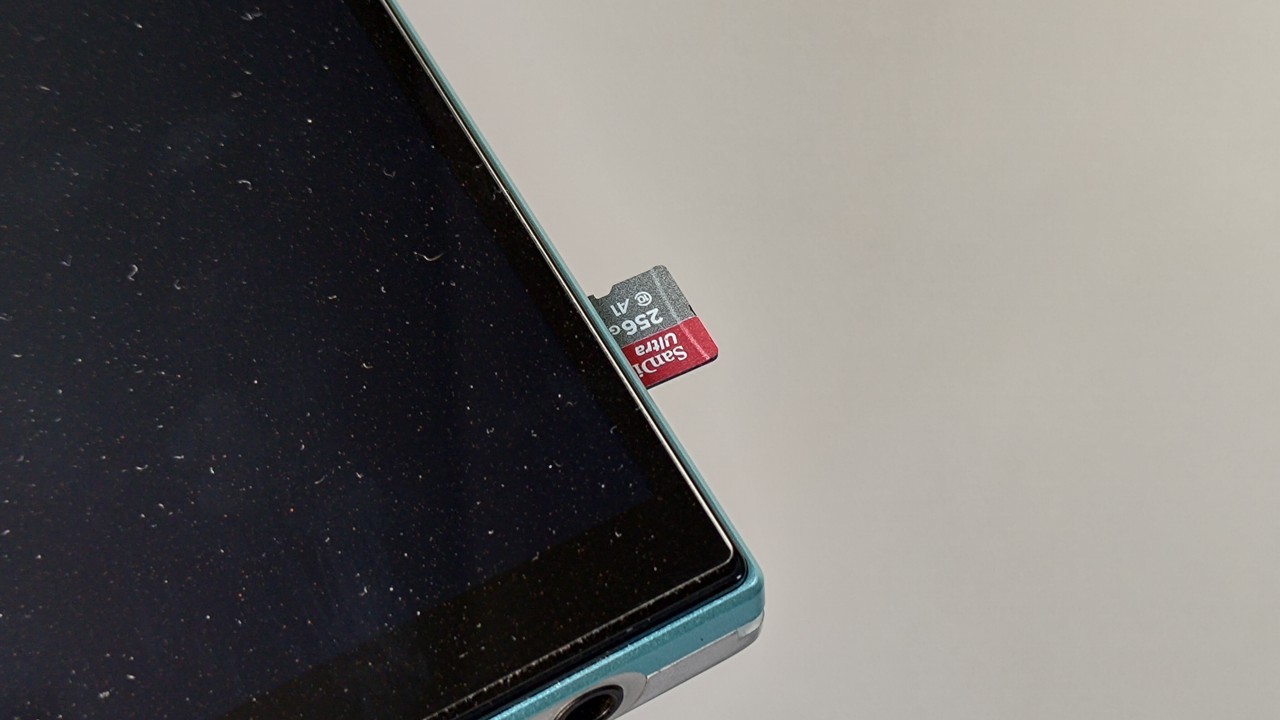
Since music playback does not require high read and write speeds, I recommend microSD cards rated as A1 and Speed Class 10.
The A1 rating refers to the Application Performance Class, a classification created by the SD Association to ensure adequate performance for apps that use the microSD card to store their data. This standard indicates the card’s IOPS performance for both reading and writing operations. In the case of A1, the requirement is a minimum of 500 IOPS for write operations and 1500 IOPS for read operations.
Speed Class 10 microSD cards guarantee a minimum sustained write speed of ten megabytes per second. In other words, under ideal conditions, you should be able to transfer your music to the card at a speed of 10 MB/s.
Paying attention to these read and write classifications is important, as music apps may store downloaded tracks on the card in order to allow album and playlist playback without relying on an internet connection, that is, to enable offline listening.
2 – How can I ensure the best possible fluidity in music applications?
Since Android DAPs do not have as much RAM as smartphones, the ideal approach is to run only one music app at a time. Whenever you want to use another application, make sure to close the one that was previously in use. If you wish to better understand how the Android operating system manages system resources, please read the article I wrote on this subject.
3 – Can music apps lose update support on Android DAPs?
Yes. At some point, music apps may lose update support via the Play Store (Google’s app store) on Android DAPs. However, the trend is that the discontinuation of support by streaming app developers occurs after approximately seven years or more, considering the current minimum OS requirements to run each app:
• Amazon Music: Android 10.0 (Q)
• Apple Music: Android 10.0 (Q)
• Deezer: Android 6.0 (Marshmallow)
• Spotify: Android 7.0 (Nougat)
• Qobuz: Android 6.0 (Marshmallow)
• Tidal: Android 7.0 (Nougat)
• YouTube Music: Android 8.0 (Oreo)
Another important point to consider is that Digital Audio Player manufacturers have adopted, in recent years, more widely used chipsets such as Qualcomm’s Snapdragon SoC, which is broadly employed in devices running Google’s operating system. This increases the likelihood of long-term compatibility. Of course, there are still other factors to consider, and I believe that the article I wrote about the evolution of Android DAPs can help clarify this issue further.
Share:


No comments have been made yet, be the first!