Which microSD Card Should You Use in a DAP? How to Format It?
From: Vitor Valeri
A headphone hobbyist for over 15 years, he founded the Hi-Fi Hub website and is an administrator of the "Fones High-End" and "Fones Low-End" groups on Facebook.
Published in: 12/01/26 at 14:40 - Updated in: 12/08/26 at 13:41
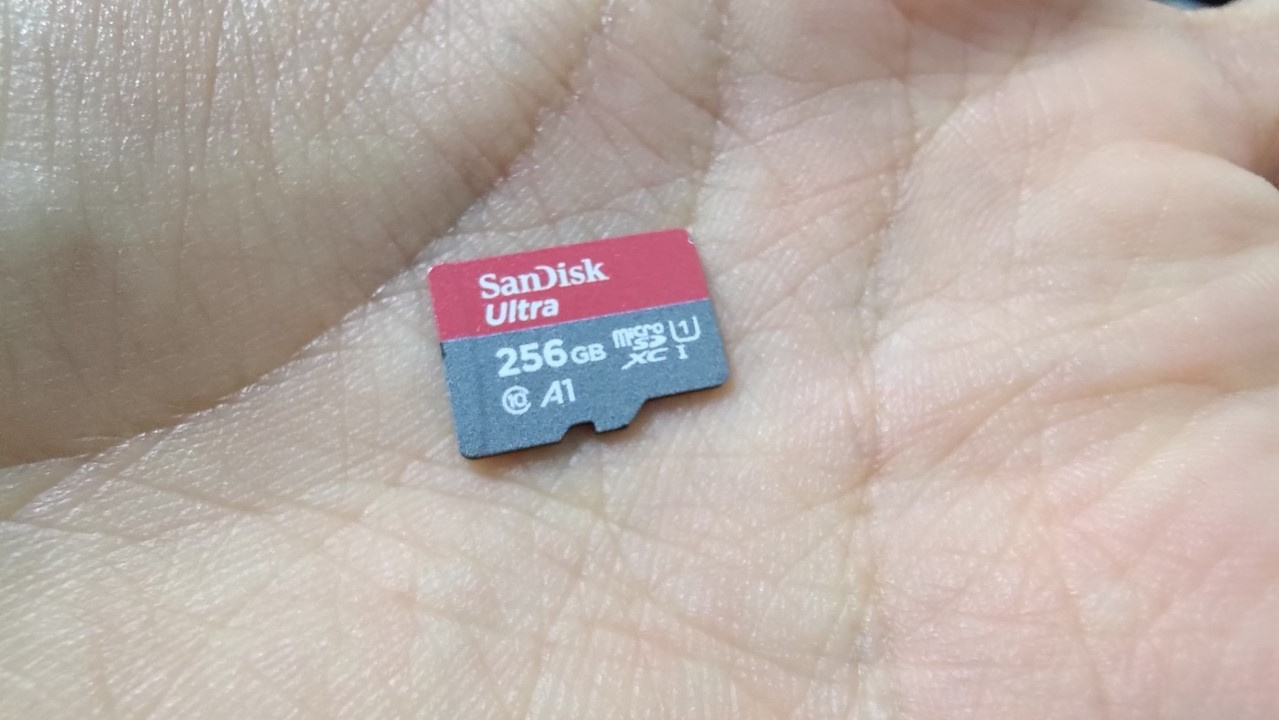
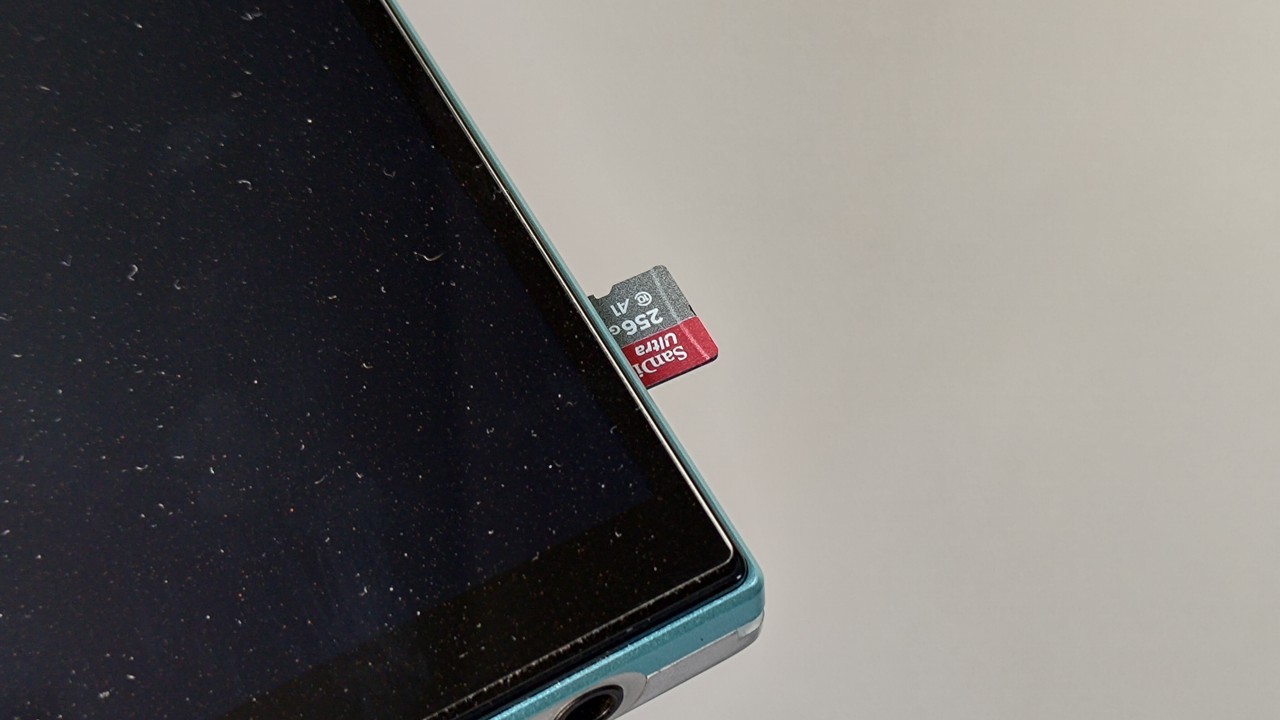
Illustrative image of a microSD card that can be used in a Digital Audio Player (Image: Vitor Valeri/Hi-Fi Hub)
Knowing which microSD card to use in your DAP (Digital Audio Player) is important, as it allows you to save money by selecting a model that is more suitable for music playback. In addition, to achieve good audio file read performance, it is necessary to know how to properly format the microSD card. With this in mind, I wrote this article.
Which storage capacity should you choose?
When choosing the storage capacity, do not think only about the music you will copy from your computer to the microSD card. It is also important to take into account the download of music from streaming applications, in case you want to play them offline to save battery or for moments when you do not have access to Wi-Fi.
What do the symbols printed on microSD cards mean?
The symbols printed on the cards indicate the type (SDHC, SDXC), the write speed, the theoretical maximum BUS speed, and the Application Performance Class.
Types of microSD cards
Currently, microSD cards are available on the market in two types: SDHC (Secure Digital High Capacity) and SDXC (Secure Digital eXtended Capacity). The difference between these two categories is basically storage capacity: SDHC cards range from 4 GB to 32 GB, while SDXC cards range from 64 GB to 2 TB (and possibly even higher in the future).
Speed Class in microSD cards
The speed class of a microSD card refers to its write speed [1]. There are six classes in total, as follows:
• Class 2 = 2MB/s • Class 4 = 4MB/s • Class 6 = 6MB/s • Class 10 = 10MB/s • U1 = At least 10MB/s • U3 = At least 30MB/s
The UHS-I and UHS-II codes on the microSD card refer to the theoretical maximum BUS speed [2]. For UHS-I, the theoretical maximum speed is 104 MB/s, whereas for UHS-II it is 312 MB/s. Do not confuse the theoretical maximum speed with the actual write speed.
[1] Write speed on a microSD card refers to how fast a file can be copied to the card.
[2] BUS is the data transfer system between components.
Application Performance Class
The “Application Performance Class” is a standard created by the SD Association in 2016 to ensure that applications installed on microSD cards achieve good performance. This classification is indicated by the letter “A” followed by a number.
Currently, there are two standards on the market: A1 and A2. With this identification, it is possible to determine the minimum IOPS [3] that the microSD card must deliver. The A1 standard requires a minimum of 500 IOPS for write operations and 1,500 IOPS for read operations, while the A2 standard requires 2,000 IOPS and 4,000 IOPS, respectively.
This performance class refers to the minimum IOPS [3] that the microSD card must be able to deliver. These classifications influence the data read and write times of applications, which directly affects how quickly apps open and how fast their content loads during navigation.
[3] IOPS (Input/Output Operations Per Second) is the number of read or write operations per second that a microSD card can perform.
Which microSD card should be used in a DAP?
The ideal microSD card for your device depends on the type of equipment being used. For DAPs, it will depend on the type of usage.
If you have an Android DAP and want to install music streaming apps, it is recommended to purchase a microSD card with an A1 application rating.
For local (offline) music storage and playback, a card with Class 10, U1, or U3 is sufficient.
Why format the microSD card in the DAP?
In most cases, DAP manufacturers do not provide instructions on whether a new microSD card should be formatted before use. To ensure compatibility with the file and folder organization used by the Digital Audio Player, it is advisable to format a new microSD card before using it.
Each DAP model may use a different file system (FAT or exFAT), allocation unit size, among other parameters.
That said, it is best to use the DAP itself to format the card, ensuring that the appropriate parameters are used for proper operation of the device. Note that the formatting option may be located in different menus depending on the model, but it is generally found in the storage section.
How to format the microSD card for use in a DAP (Digital Audio Player)
To properly format the microSD card for use in a DAP (Digital Audio Player), follow the steps below.
If your microSD card is new (never used), start from Step 04.
If you already have music on the microSD card, format it as FAT32 in Windows to ensure compatibility with most DAPs, since many of them do not support exFAT.
Step 01: If your microSD card already contains music, create a folder on your computer to make a backup copy of the files stored on the card.
Step 02: Use a USB microSD card reader, if available, to achieve faster file transfer.
Step 03: After copying the files to the folder on your PC, format the microSD card using the SD Card Formatter program from the SD Association and select the overwrite format option. This will delete file and directory entries by reinitializing the file system parameters of the card and will erase all data, as it completely overwrites the user data area.
Step 04: Insert the microSD card into the DAP and format it using the device’s own operating system.
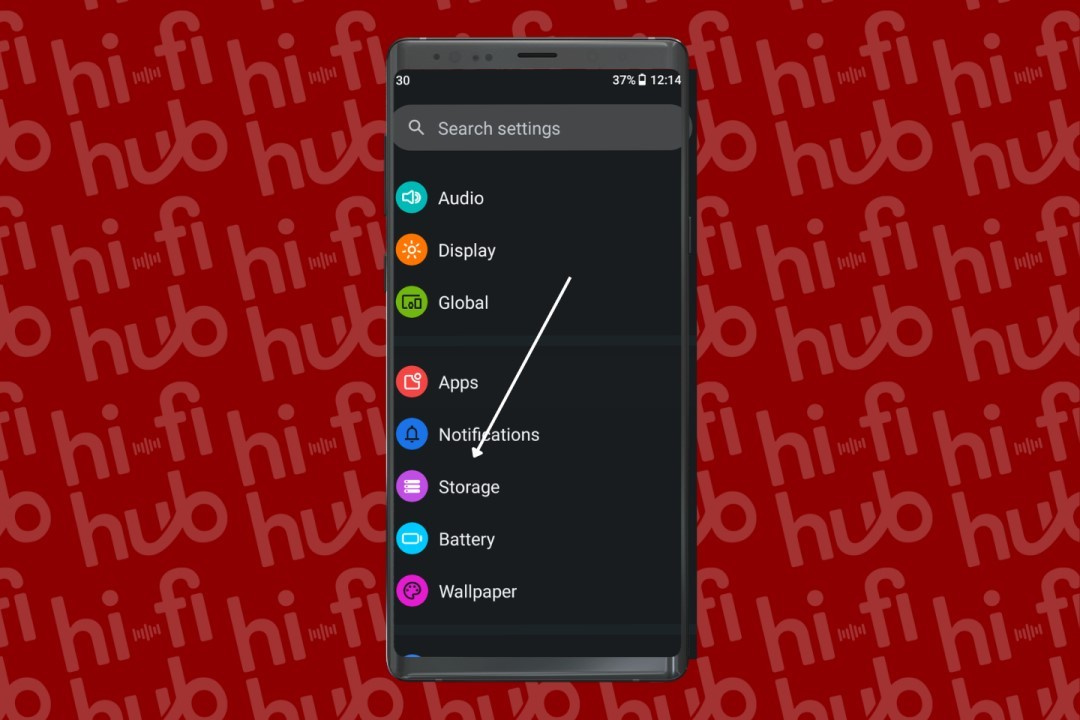
Step 05: On the home screen of the Android Digital Audio Player, select the “Settings” app and look for the “Storage” option.
Step 05 – How to format the microSD card for use in an Android DAP (Digital Audio Player) (Image: Vitor Valeri/Hi-Fi Hub)
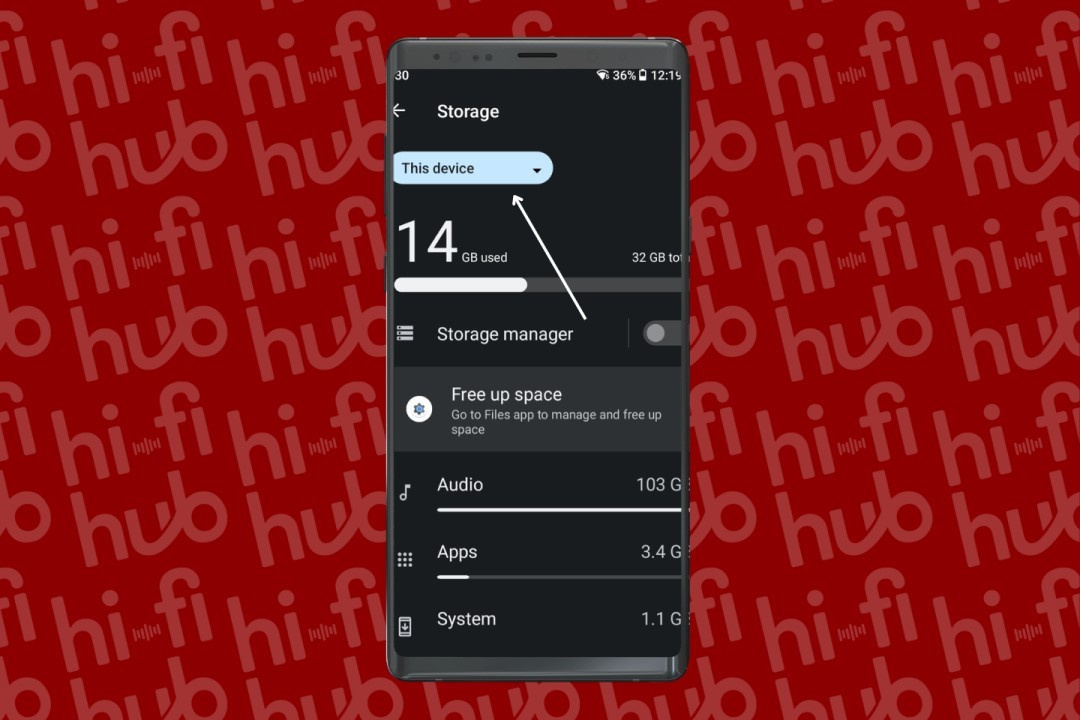
Step 06: Select “This device” and tap on “microSD”.
Step 06 – How to format the microSD card for use in an Android DAP (Digital Audio Player) (Image: Vitor Valeri/Hi-Fi Hub)
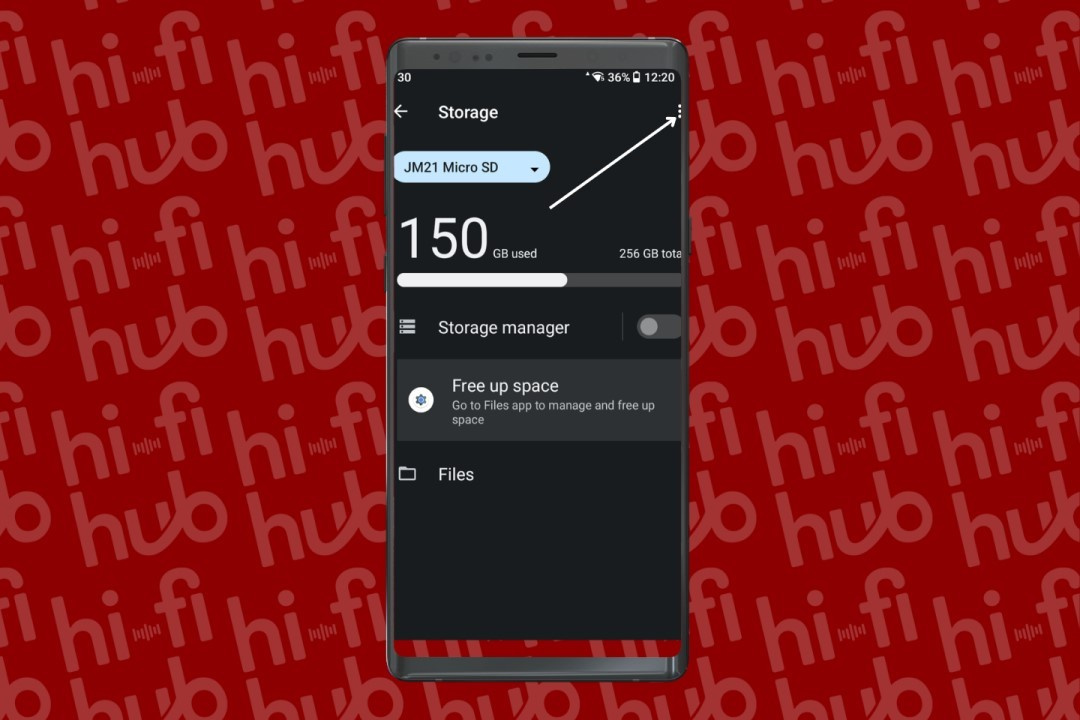
Step 07: Tap the three dots in the upper-right corner and select “Format”.
Step 07 – How to format the microSD card for use in an Android DAP (Digital Audio Player) (Image: Vitor Valeri/Hi-Fi Hub)
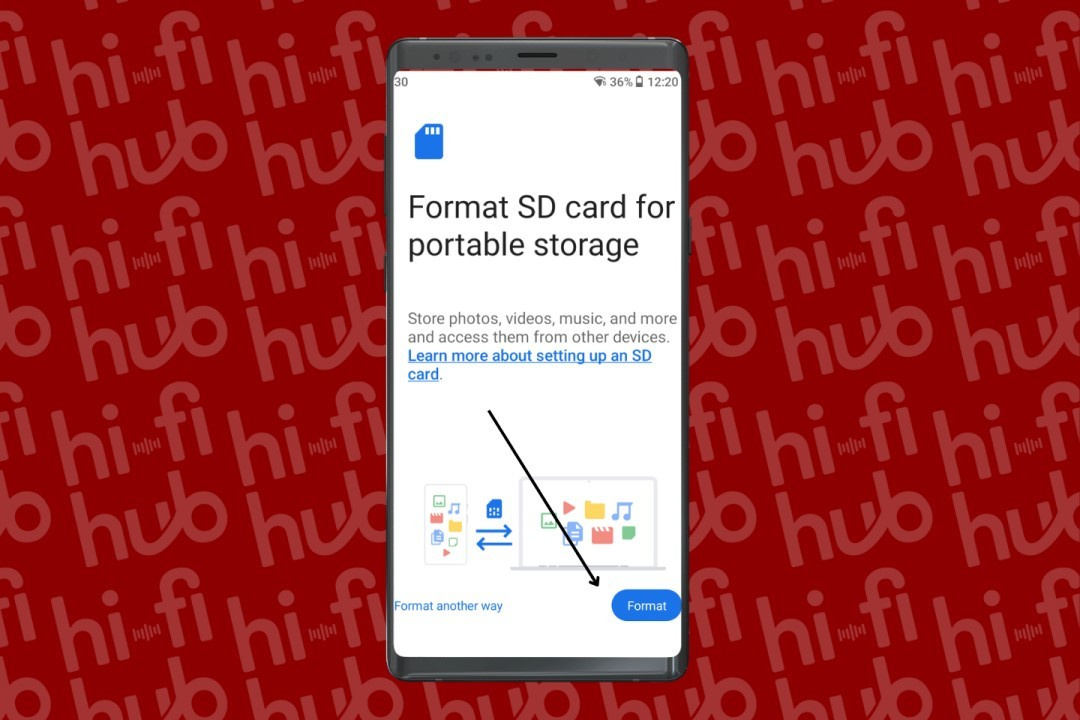
Step 08: A window will appear in which you must select the “Format” button and confirm your choice.
Step 08 – How to format the microSD card for use in an Android DAP (Digital Audio Player) (Image: Vitor Valeri/Hi-Fi Hub)
Step 09: After formatting the microSD card, you will see that folders have been created inside it. Now simply copy your music folders saved on the computer into the folder named “Music” on the microSD card.
As a former tech writer, I appreciate the work you've put into this. These days customers are pretty much on their own when it comes to figuring out how to use the products they buy.
The "user guide" for the Fii0 M21 that I'm trying to learn to use now is a case in point. The fact that it's translated from another language is only half the problem: the main problem is that it's written by engineers who are deep in the technical weeds of their beautiful machine, but have no clue what users need to know to succeed in using it.
The other extreme is the Wild West of forums like reddit, where power users insult newbies for not knowing everything all at once.
¡Muchas grácias!
V
Vitor Valeri
Hi Denis, thank you for your recognition. I hope you're having a good reading experience on my website. Any feedback is welcome. Feel free to browse and welcome back! Thanks again!