

How to Install a microSD Card in a DAP
From: Vitor Valeri
A headphone hobbyist for over 15 years, he founded the Hi-Fi Hub website and is an administrator of the "Fones High-End" and "Fones Low-End" groups on Facebook.


Published in: 12/08/26 at 16:46 - Updated in: 14/08/26 at 11:11
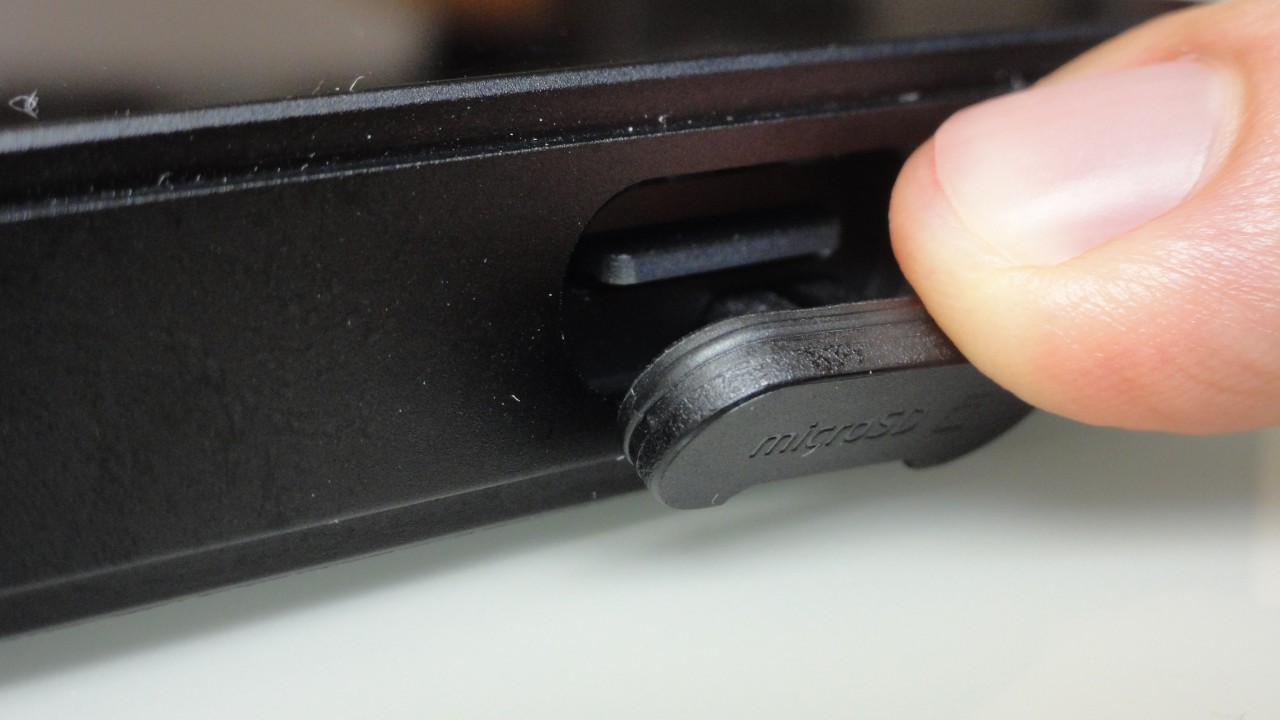
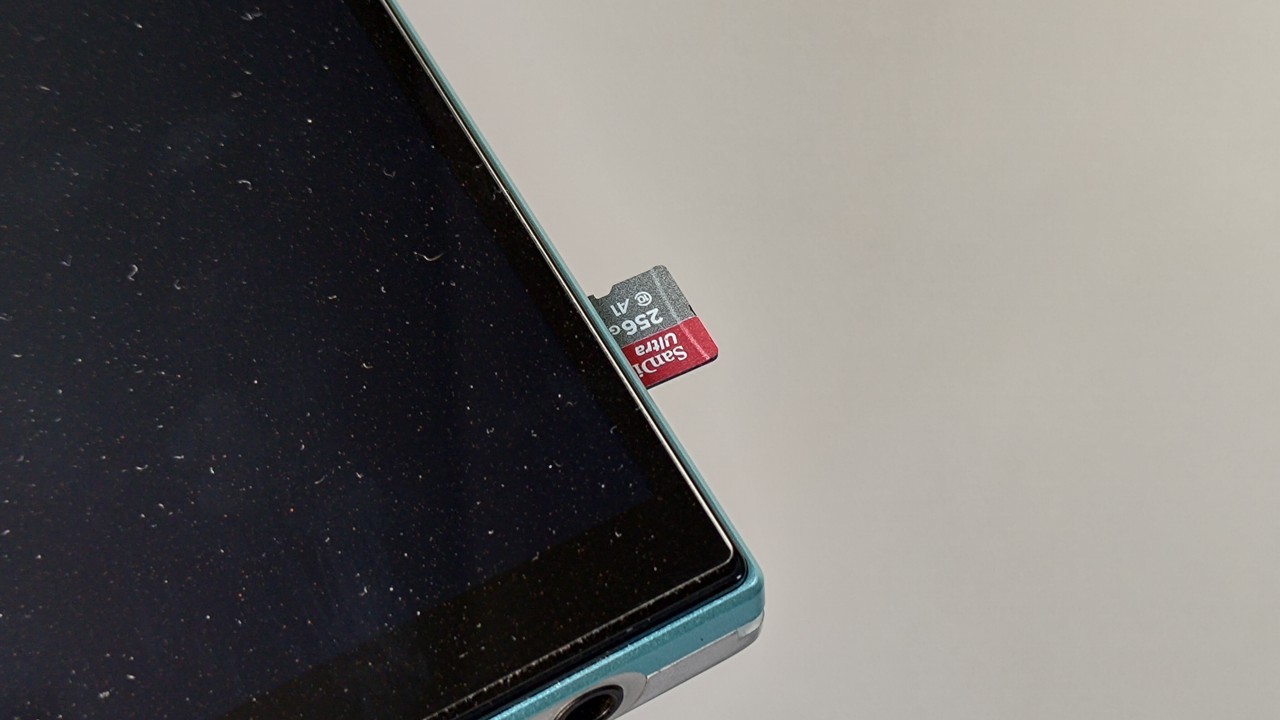 SanDisk microSD card being inserted into the FiiO JM21 DAP (Image: Vitor Valeri/Hi-Fi Hub)
Installing a microSD card incorrectly in a DAP (Digital Audio Player) can cause damage or negatively affect the user experience. Problems or difficulties can arise from how the microSD card is inserted to how it is formatted. With this in mind, I wrote this article to guide users through the proper process of installing and using microSD cards in DAPs.
However, before discussing the subject, I would like to remind you that I wrote another guide in which I recommended which microSD cards to buy. In addition to suggesting affordable and reliable models, I explained why you do not need a high-speed microSD card. Without further ado, let us proceed with the guide on how to properly install a microSD card in a DAP.
How to Properly Insert a microSD Card Into a DAP
To prevent damage to both the card slot and the microSD card itself, it is important to pay attention to certain aspects. To make the process easier, I have compiled a list of what should be checked and considered before inserting a microSD card into a DAP (Digital Audio Player).
Make Sure the DAP Is Turned Off
Before attempting to insert or remove the microSD card from the DAP, make sure the device is turned off. This helps prevent potential issues if the card is incorrectly oriented or fails to lock into the Digital Audio Player’s microSD card slot.
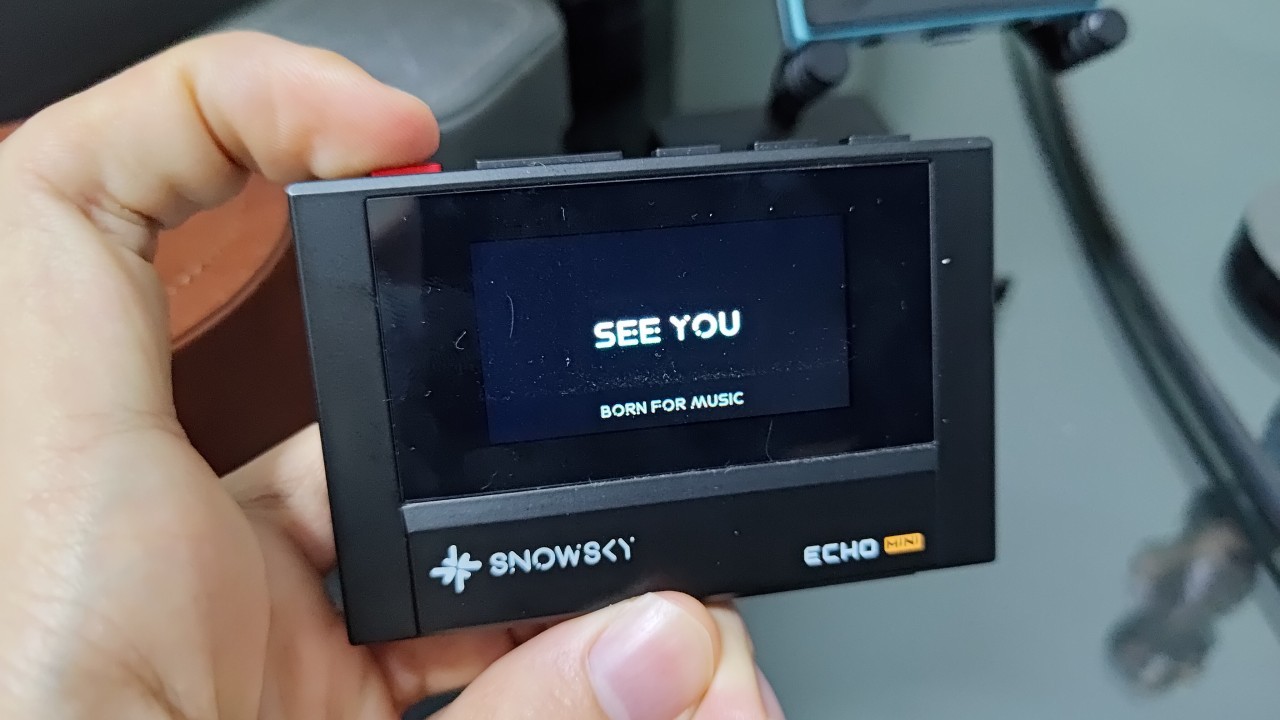
Check the Orientation of the Card
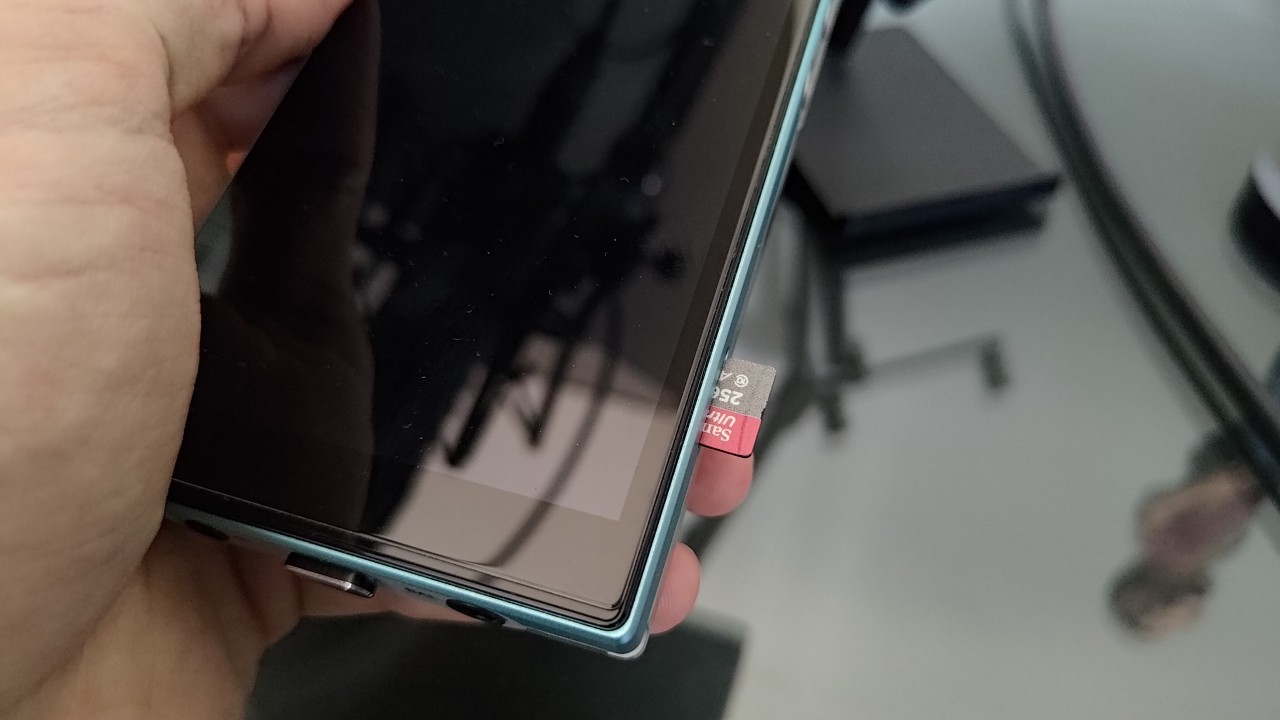
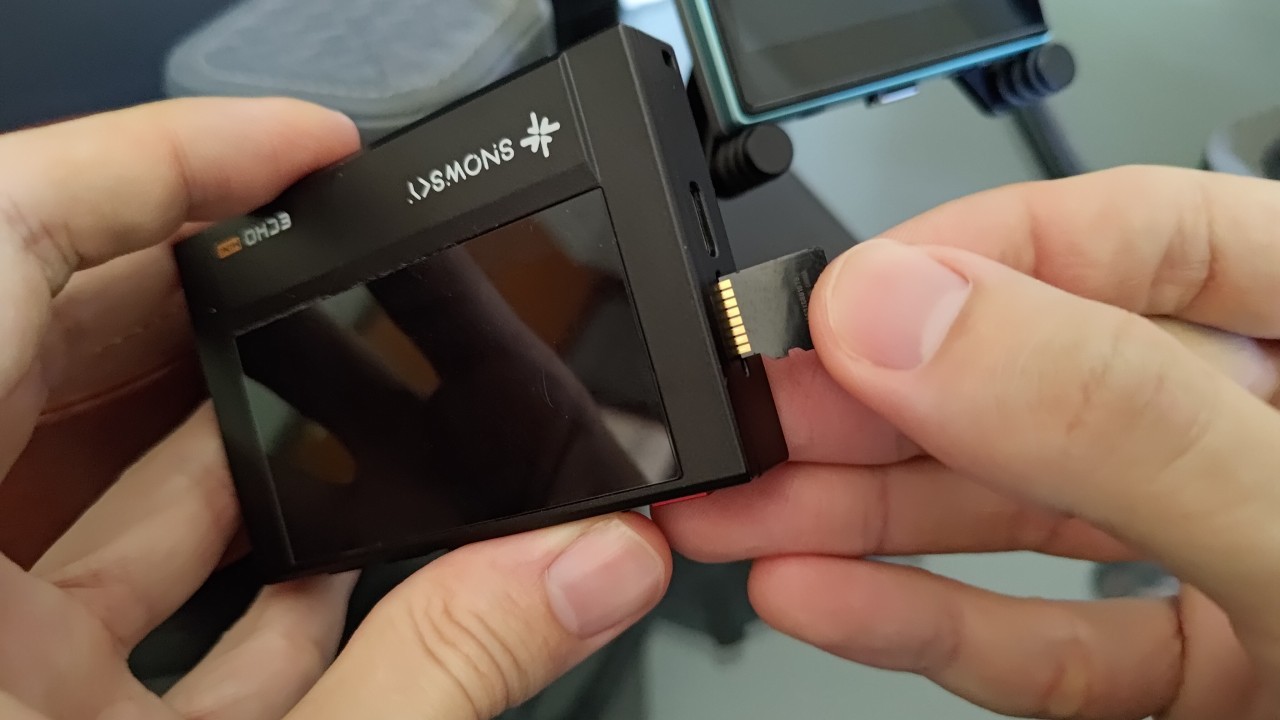
It is important to verify the correct orientation before inserting the microSD card, as the orientation required by the slot can vary between DAPs.
On the FiiO JM21, the microSD card is inserted with its printed side facing the screen.
On the Snowsky Echo Mini, the microSD card is inserted with its metal contacts facing the screen.
Do Not Force the Card Into the Slot
If you attempt to force a microSD card into the slot incorrectly, you may damage the slot and prevent it from properly locking the card in place.
To determine whether you are inserting the microSD card incorrectly, check whether you encounter resistance as the card slides into the slot. Also observe whether one side of the card begins to enter farther than the other, causing the card to become misaligned.
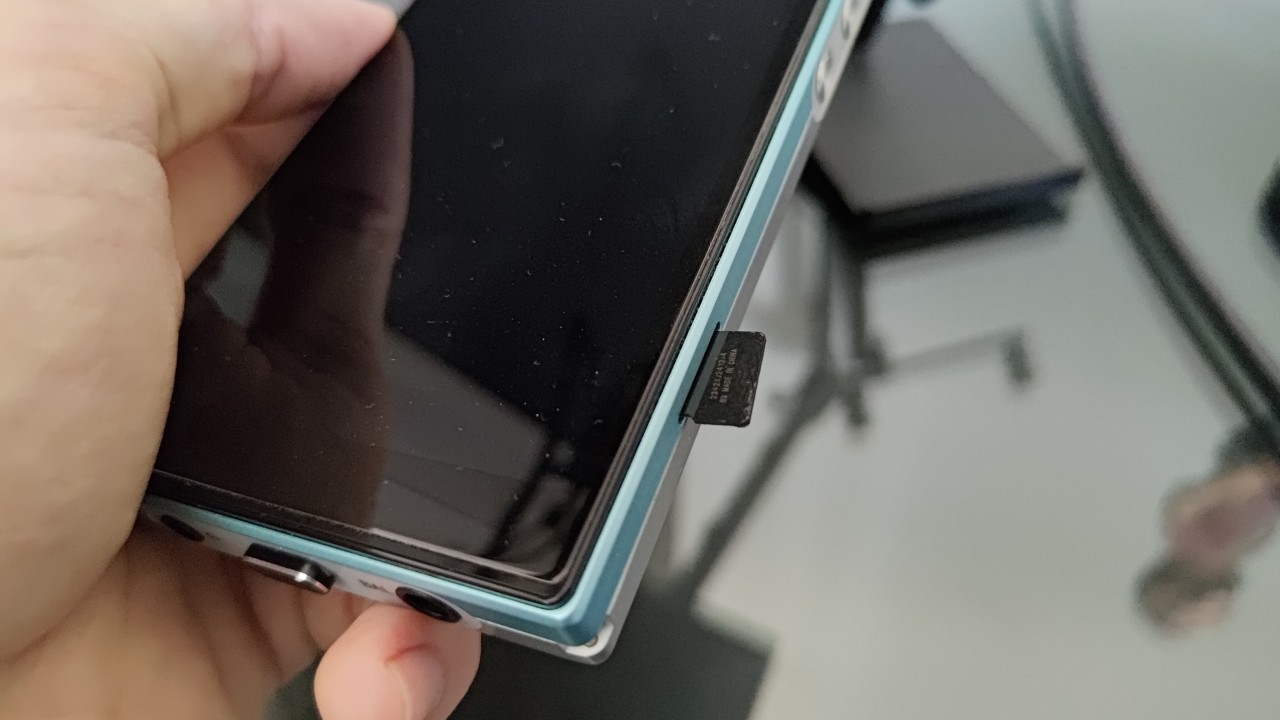
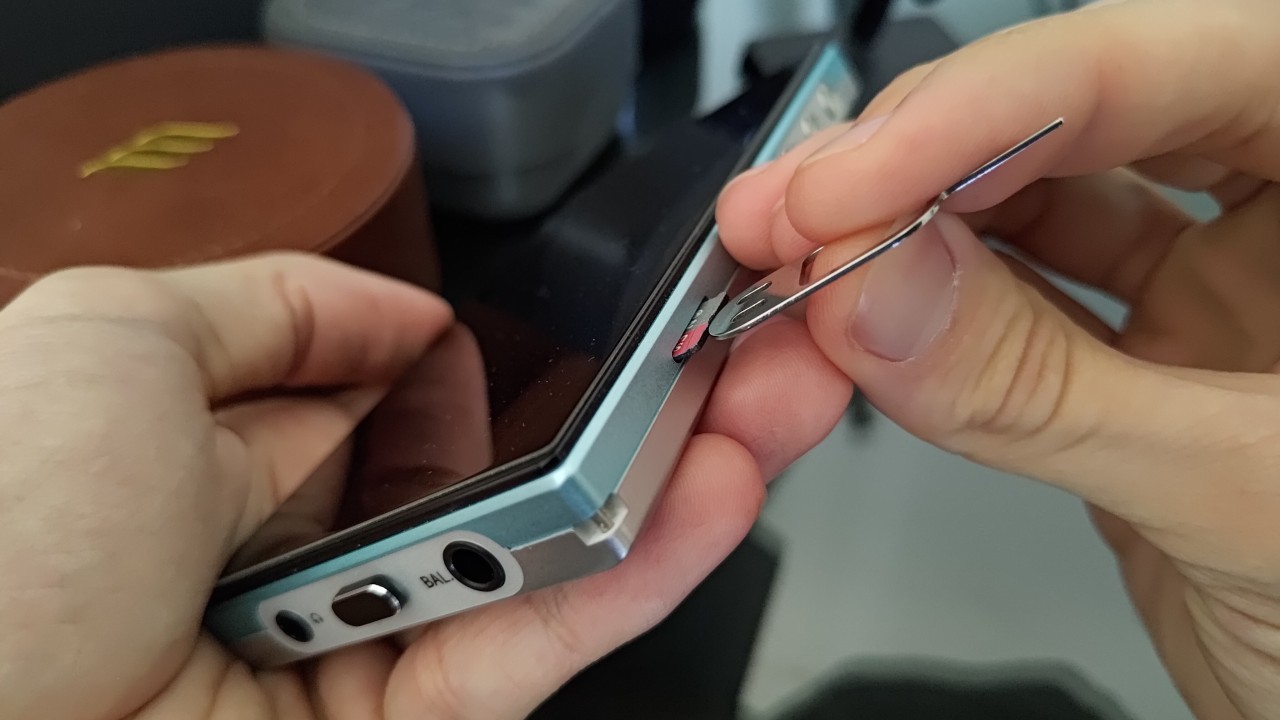
An Easier Way to Insert a microSD Card Into a DAP
Using your fingernail to insert a microSD card into a DAP may not always be effective. In my experience, the best method is to use the SIM tray eject tool commonly included with smartphones. Simply use the rounded part of the tool to gently push the microSD card into the slot. The same method can also be used to remove the card from the DAP.
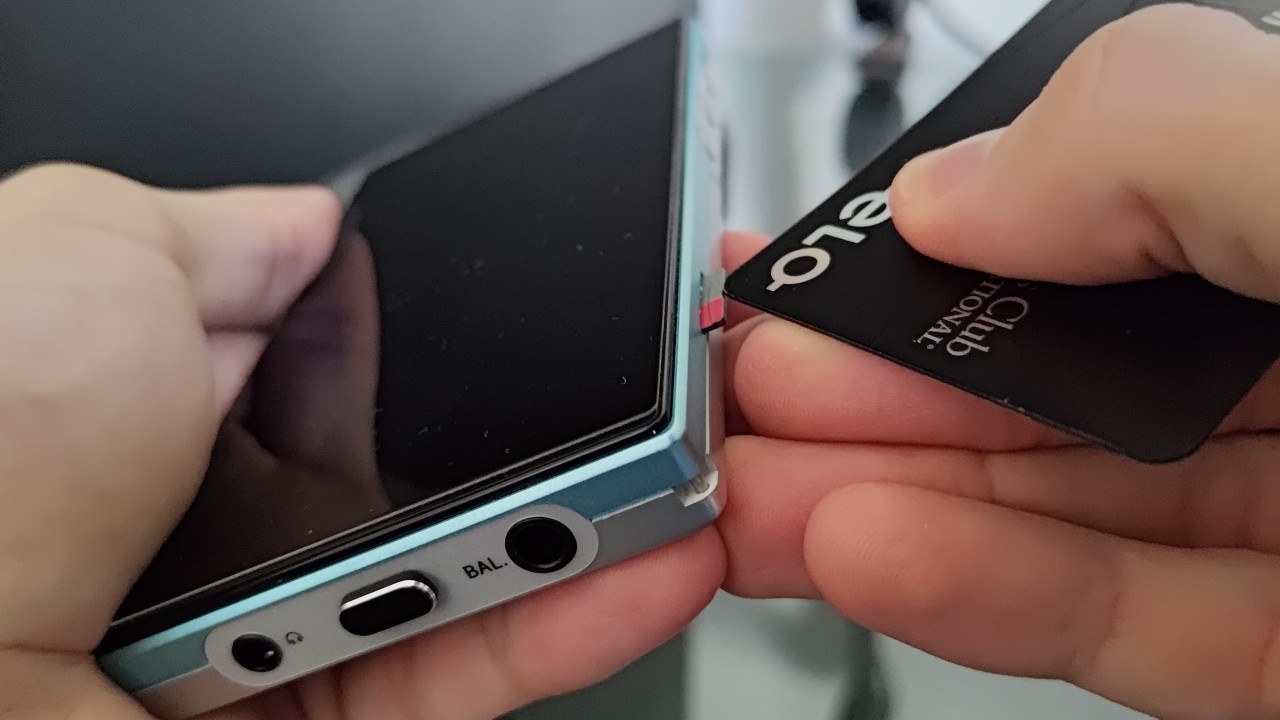
Bonus tip: Use a credit card if you don’t have a SIM tray eject tool
Reader “Elie Ro” suggested, after reading this article, using a credit card to insert or remove the microSD card from the DAP. This can be a more practical alternative if you don’t know where your tray eject tool is.
How to Tell Whether the microSD Card Has Been Inserted Correctly
To make sure that you have inserted the microSD card correctly into the DAP, you should hear a “click.” This indicates that the card has locked into the Digital Audio Player’s microSD card slot.
What Should You Do After Inserting the microSD Card Into the DAP?
Check the capacity of the microSD card by accessing the DAP’s settings menu. Note that it is normal for the storage capacity displayed on the screen to be slightly lower than the capacity stated by the manufacturer. This occurs because the microSD card manufacturer and the DAP’s operating system may use different methods to report storage capacity.
If the microSD card capacity displayed on the DAP is significantly lower than the stated capacity, this may indicate that you purchased a counterfeit product. However, if the card you purchased is genuine, it is important to format it before use.
Why Is It Necessary to Format the microSD Card Before Using It in a DAP?
Although it is always preferable to follow the manufacturer’s instructions regarding the proper formatting of a microSD card, this information is often omitted. Therefore, before you begin copying music to the microSD card, I recommend formatting it.
Ideally, the microSD card should be formatted directly using the DAP’s built-in formatting function, if available. This ensures that the file system parameters (FAT32 or exFAT) and allocation unit size are configured according to the Digital Audio Player’s operating system.
After formatting the microSD card using my FiiO JM21 DAP, I inserted it into a USB card reader to check which file system was being used on a Windows PC. I found that the JM21 uses exFAT. See this article for step-by-step instructions on how to format Android-based DAPs.
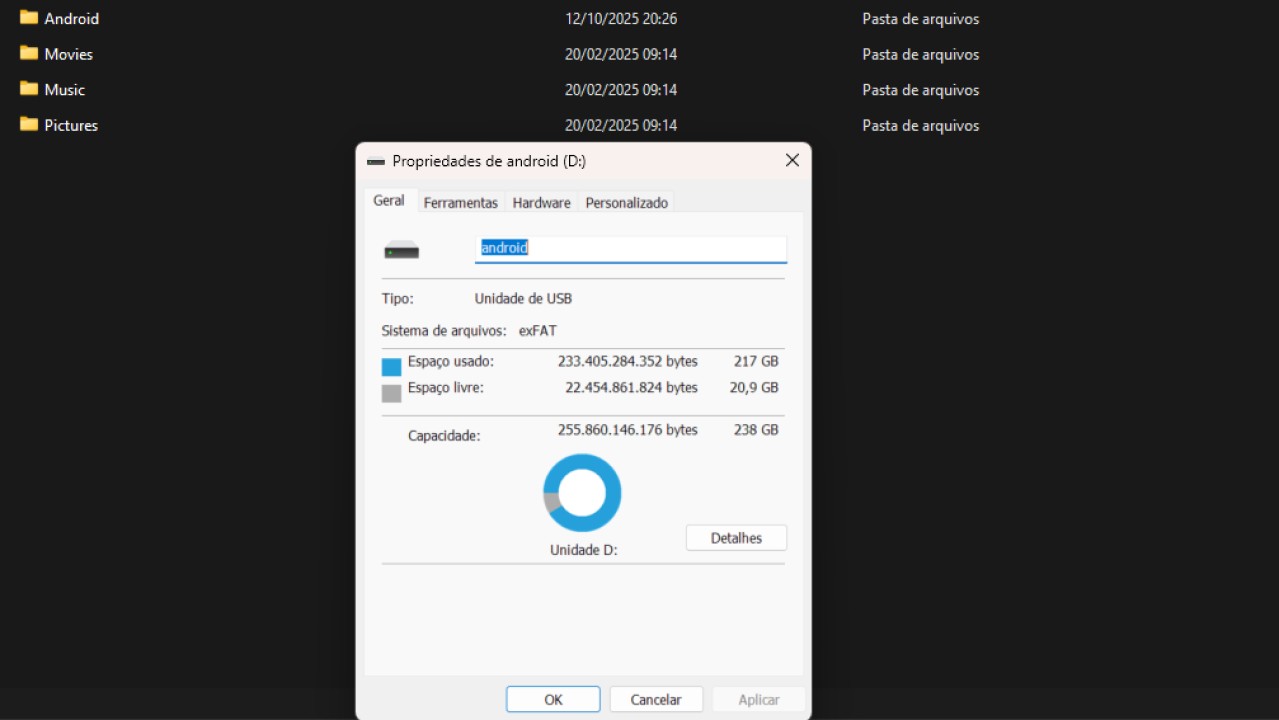
What Should You Do If the DAP Does Not Have a Formatting Option?
If the DAP does not offer a function for formatting the microSD card, the best alternative is to use the “SD Memory Card Formatter” software. Since it was developed by the SD Association itself, you can be confident that the “SD File System Specification” is followed.
The SD Memory Card Formatter can also be useful for restoring a card experiencing corrupted file issues. The software is compatible with Windows PCs and Macs, and you can download it directly from the SD Association’s website.
Do Not Use microSD Cards From Other Devices in Your New DAP
Because each DAP may use a different file structure, it is necessary to format the microSD card. Therefore, I recommend the following procedure:
- Back up your music tracks to an HDD or SSD.
- Format the microSD card using the Digital Audio Player.
- Copy the music back to the microSD card.
The Best Way to Transfer Music to a microSD Card
Inserting the microSD card into the DAP and connecting the player to a PC via a USB cable is not the best way to copy music. This can limit data transfer speeds because the microSD card readers built into Digital Audio Players are often slow. For this reason, I recommend using a USB microSD card reader, which can typically take better advantage of the maximum transfer speeds supported by microSD cards.
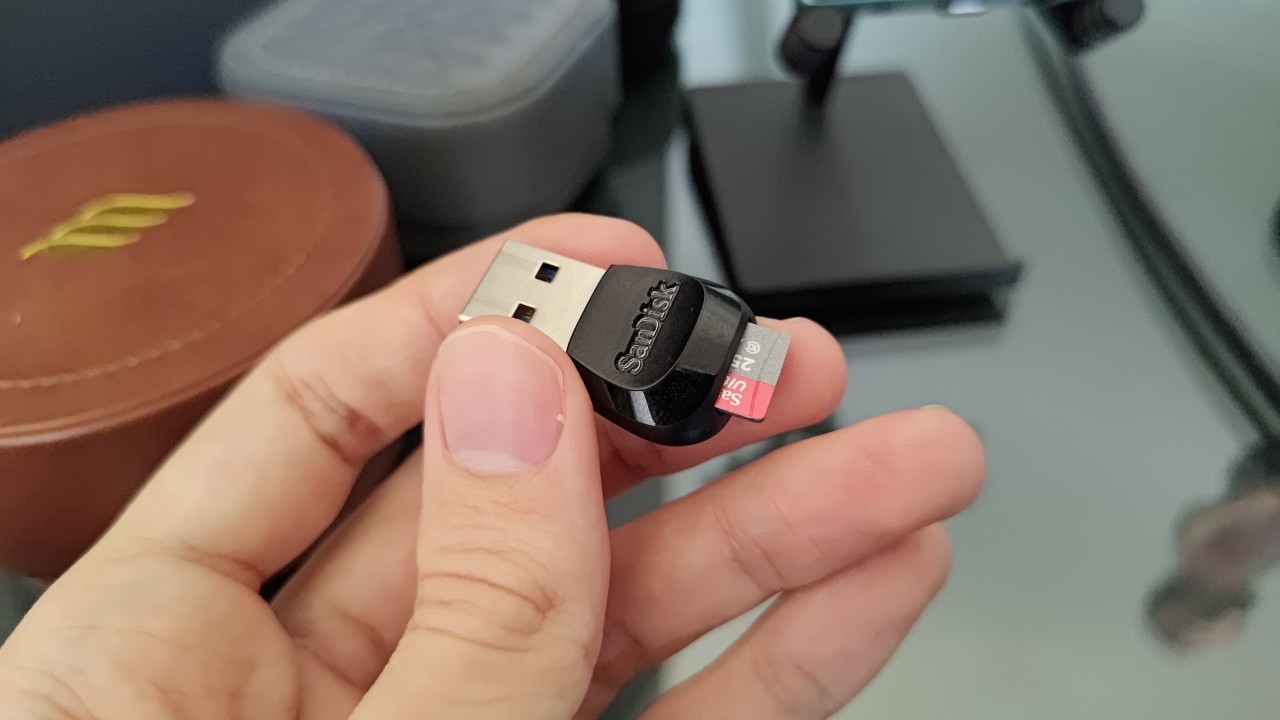
Note that file transfer speeds may vary depending on the capabilities of your computer’s USB ports. Therefore, check which USB port on your PC provides the highest transfer speed.
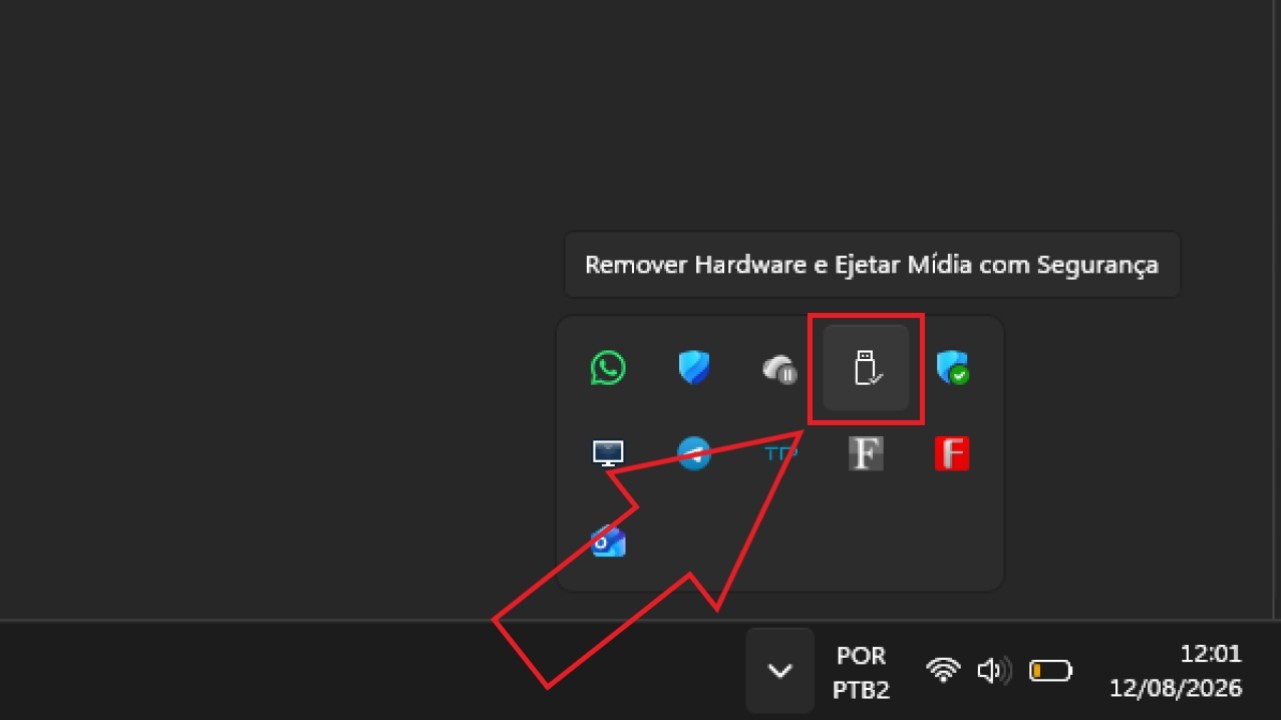
After the music transfer process is complete, properly eject the microSD card reader using the corresponding option in the lower-right corner of the screen. The screenshot below demonstrates this process in Windows 11.
How to Make the DAP Recognize and Display Music Stored on the microSD Card
In most cases, for the DAP to recognize and display music stored on the microSD card, you need to perform a file scan. To do this, look for a “Scan” option in the DAP’s settings or in the music playback app you are using.
How to Save Music From Streaming Apps to the microSD Card
Music streaming apps generally offer an option to listen to tracks offline, meaning that they can be played without an internet connection. By default, however, downloaded music is often stored in the device’s internal memory. To save downloads to the microSD card, access the app’s download settings, which may be labeled “Storage Location,” “Download Options,” or “Download Destination.” From there, you can select “SD Card” or “Memory Card.”
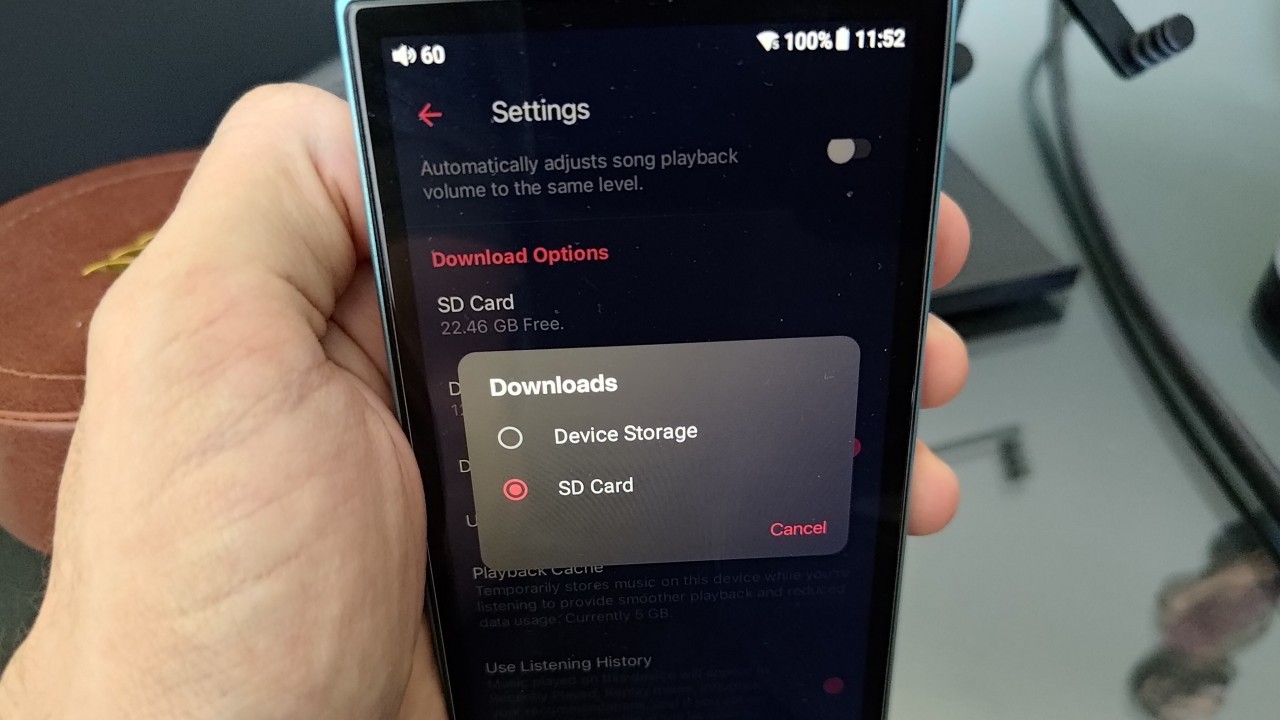
Note that there is no universal setting that forces all installed streaming apps to save their downloads to the microSD card. You need to open each app individually and configure the destination for downloaded music.
It is important to remember that music files downloaded by streaming apps to the microSD card cannot generally be copied and used as conventional music files. These downloads are protected against unauthorized copying, helping prevent the unauthorized distribution of albums and/or playlists.
Share:


No comments have been made yet, be the first!