

How to Build a Budget Audio Setup for PC and Consoles
From: Vitor Valeri
A headphone hobbyist for over 15 years, he founded the Hi-Fi Hub website and is an administrator of the "Fones High-End" and "Fones Low-End" groups on Facebook.


Published in: 27/11/26 at 15:28 - Updated in: 27/11/26 at 15:29
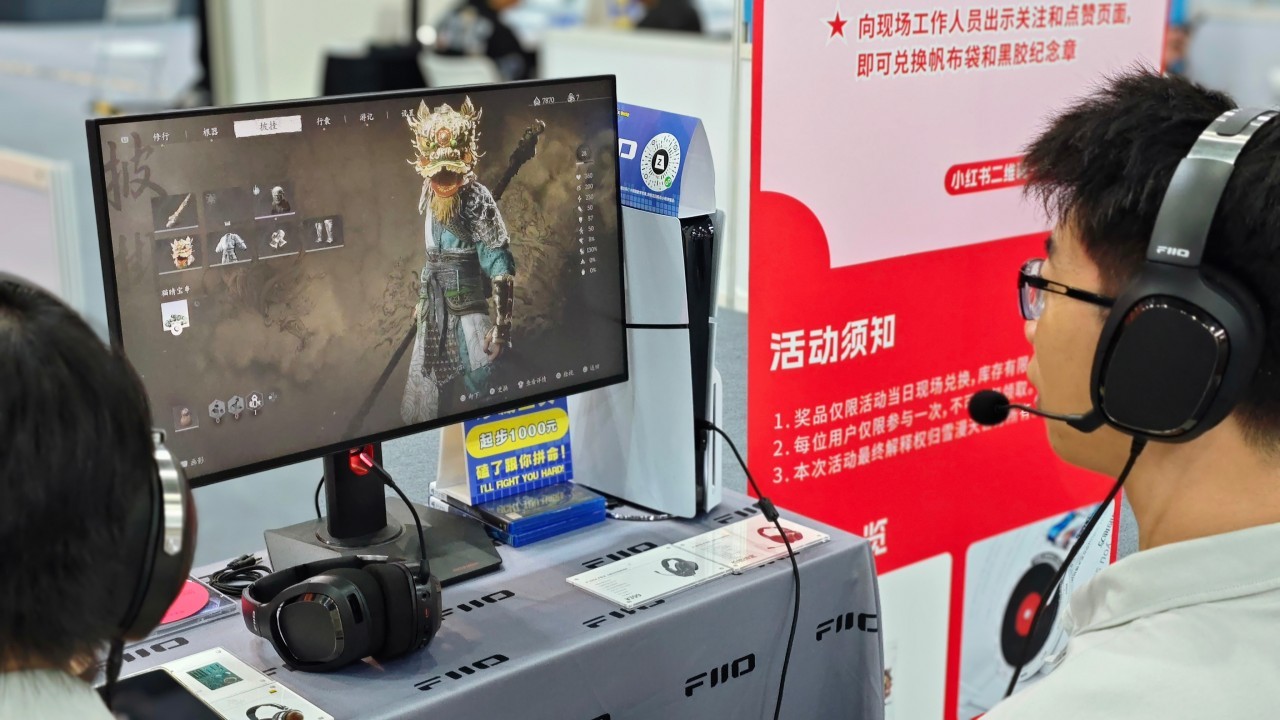
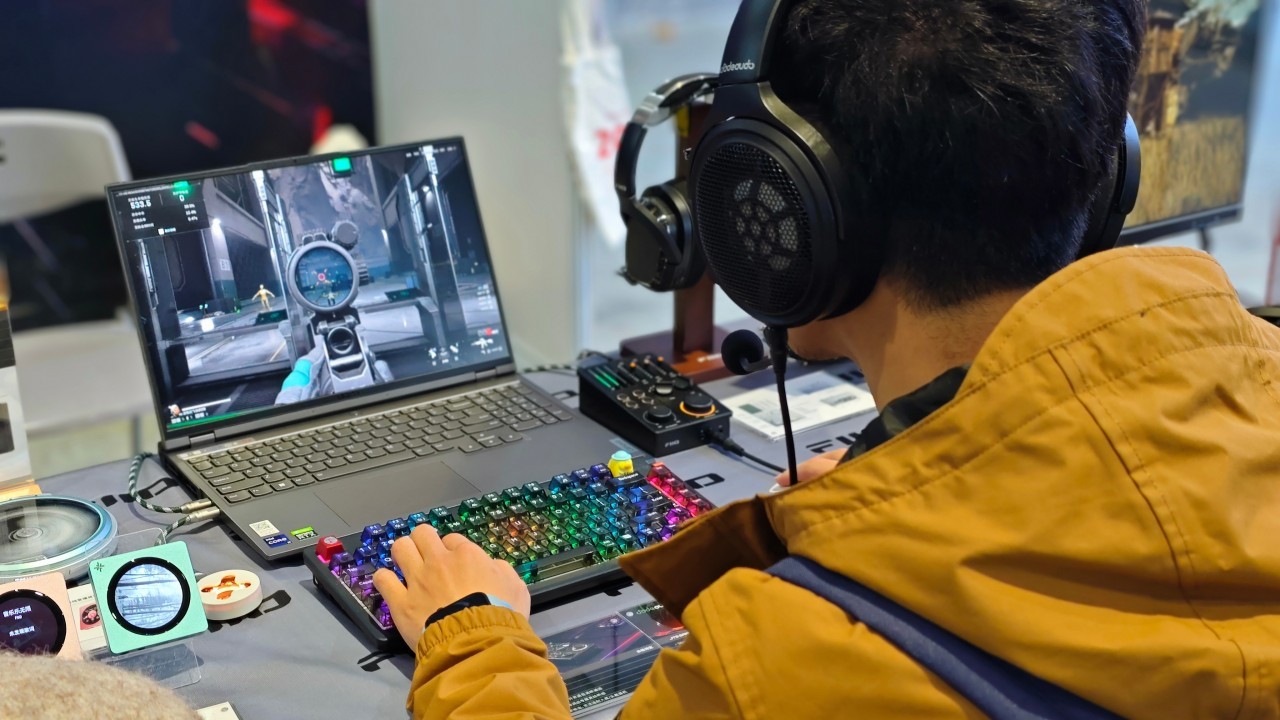 Person playing an FPS game with the JadeAudio JT7 headphones and FiiO LL-3.5A cable (Image: FiiO)
Investing in an audio setup for a PC or gaming console can transform the listening experience. The sound quality of both the headphones and the microphone is essential for users who prioritize performance. Whether you are gaming, listening to music, or attending online meetings for work, choosing the right equipment matters.
This article explains how to choose headphones, in-ear monitors (IEMs), digital-to-analog converters (DACs), amplifiers, and microphones that meet your everyday needs. It also shows how to assemble a reliable audio setup on a modest budget and get good value for your money.
Before discussing specific setups, I will explain the reasoning behind several equipment choices. This background will make it easier to understand why I recommend particular combinations for different situations.
Why use headphones?
Using headphones frees up desk space. Headphones also eliminate the need for acoustic treatment in the room. Another advantage is that headphones and IEMs generally avoid disturbing others who share the space.
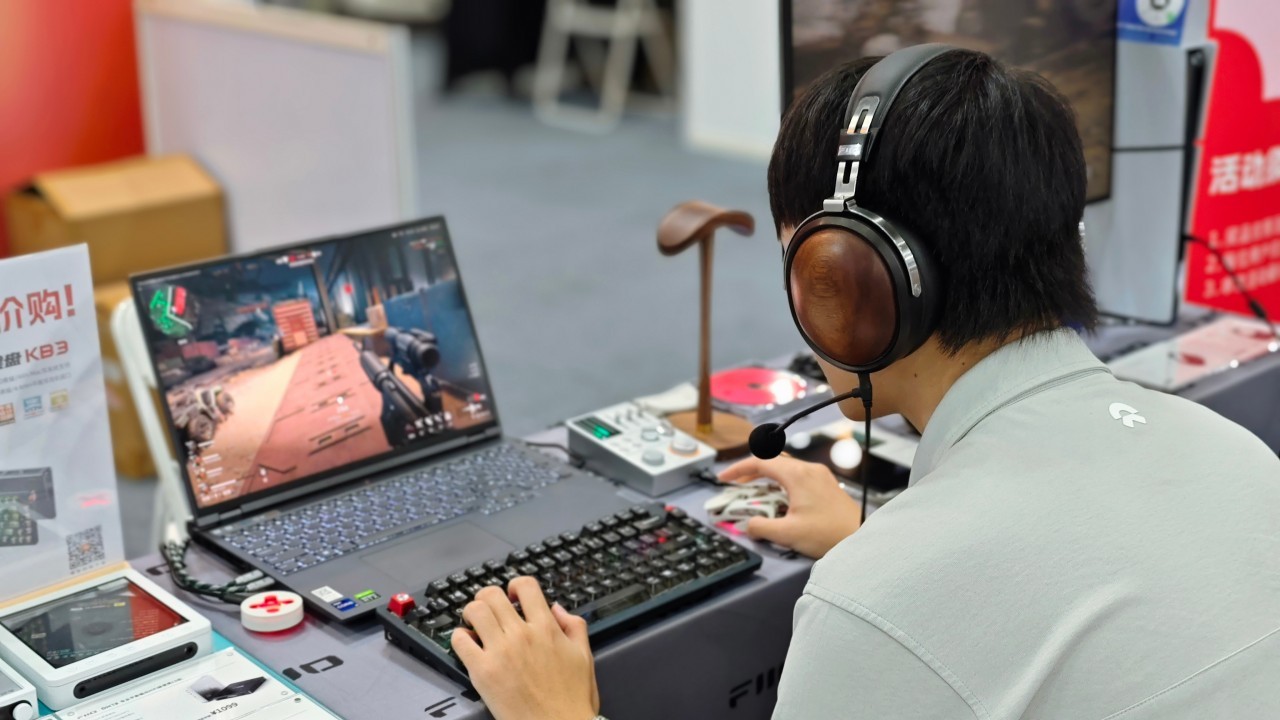
Reasons to buy headphones and a DAC instead of a gaming headset
When I look for gaming headsets, I find that budget and midrange models tend to lack durable components. Most of the models I come across have synthetic leather ear pads made of polyvinyl chloride (PVC) or polyurethane (PU). These pads retain heat around the ears and peel over time. The cable is also usually fixed, so the headset can become unusable when the wire strands inside the cable begin to break.
Headphones without a microphone are generally designed with sound quality, comfort, and durability in mind. Over-ear headphones with fabric ear pads are readily available. Fabric pads keep the ears cooler and are generally more durable and comfortable than those made of PU or PVC. Models with detachable cables are also easy to find, so you can replace a faulty cable or choose a higher-quality one.
Gaming headsets often include a combined DAC and headphone amplifier (DAC/amp) built into the cable. With a separate pair of headphones, you can choose a more capable external DAC and amplifier. This gives you greater scope to get the best possible sound from the headphone drivers.
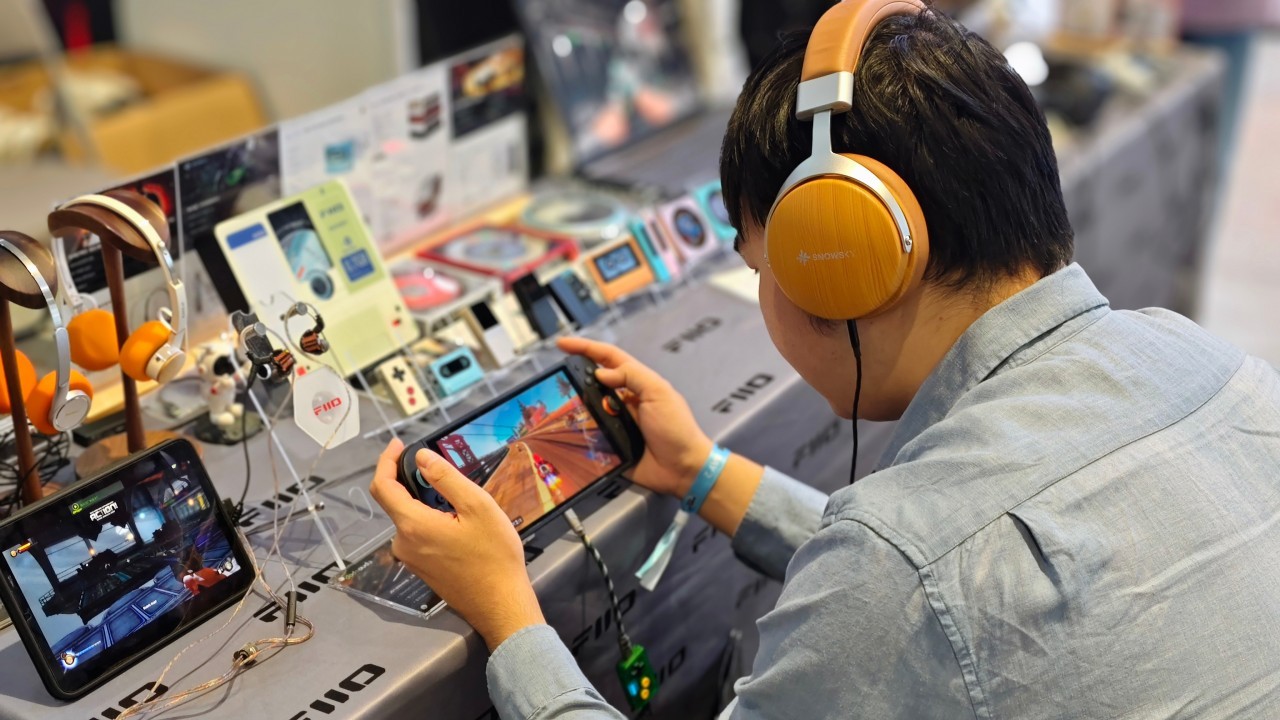
Why headphones need a DAC and an amplifier for playback
Headphone drivers operate on analog signals. A PC or console processes digital signals (0s and 1s), so playback requires a digital-to-analog converter. The DAC chip converts the information in digital audio files into an analog signal.
The analog signal must then be amplified to drive the diaphragm of the headphone driver, causing it to vibrate and produce sound. The amplifier can share an enclosure with the DAC or occupy a separate enclosure.
When you connect headphones using a USB cable, a DAC and an amplifier are built into the USB-C connector. Circuitry this small cannot always deliver the best sound that a pair of IEMs or headphones can produce. For this reason, I consider pairing headphones with a separate USB DAC/amp the best approach.
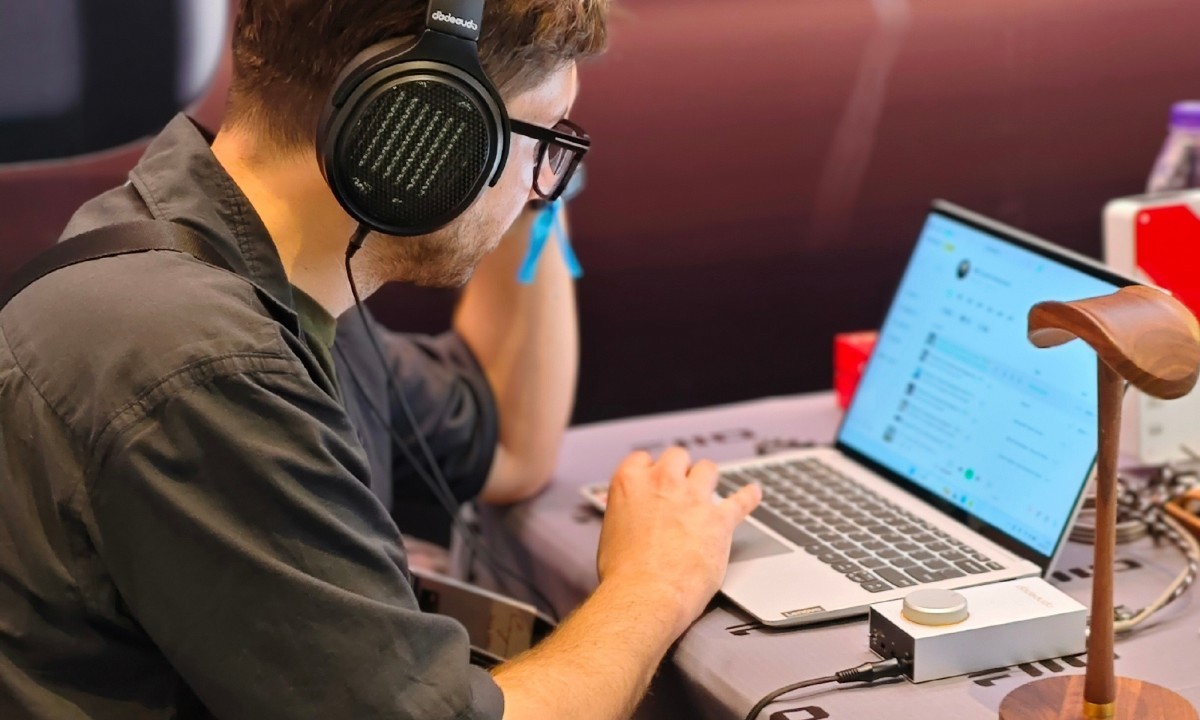
Why do some USB DACs lack microphone support?
To accept an analog microphone input, a device needs an internal analog-to-digital converter (ADC). A microphone produces an analog signal, and the ADC performs the reverse of the conversion performed by a DAC.
To transmit your voice to another person, the variations in voltage produced by the microphone must be converted into digital data (0s and 1s). The ADC performs this conversion so that the application running on the PC can process the sound captured by the microphone.
Audio setup features for different uses
To build a flexible audio setup that delivers the sound quality and performance you need, it helps to understand what each combination of components supports. Relevant considerations range from the cables used to connect the equipment to features such as parametric equalization (PEQ) and a headphone jack that supports a microphone.
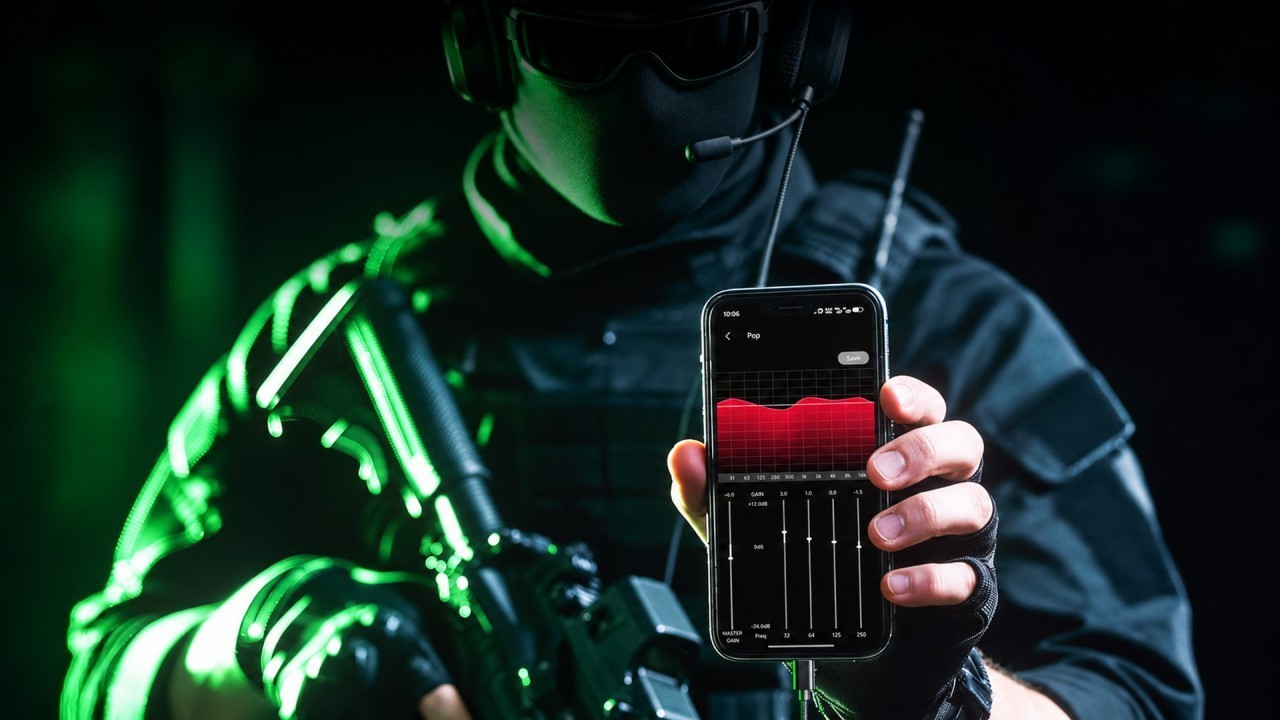
Equalization profiles stored in the USB DAC’s onboard memory
If you want to adjust the frequency response of your headphones, check the USB DAC’s specifications to see whether it can store equalization profiles in its onboard memory.
You can typically make these adjustments using a parametric equalizer in a smartphone app or a web app. Once you have saved your preferred settings, the USB DAC applies the equalization independently of any app on your PC, console, or phone. This avoids software compatibility issues when, for example, you play a game or listen to music through a streaming service.
For consoles such as the PlayStation 5 (PS5) and Nintendo Switch, it is important to choose a USB DAC that supports USB Audio Class 1 (UAC1).
UAC1 support for console gaming
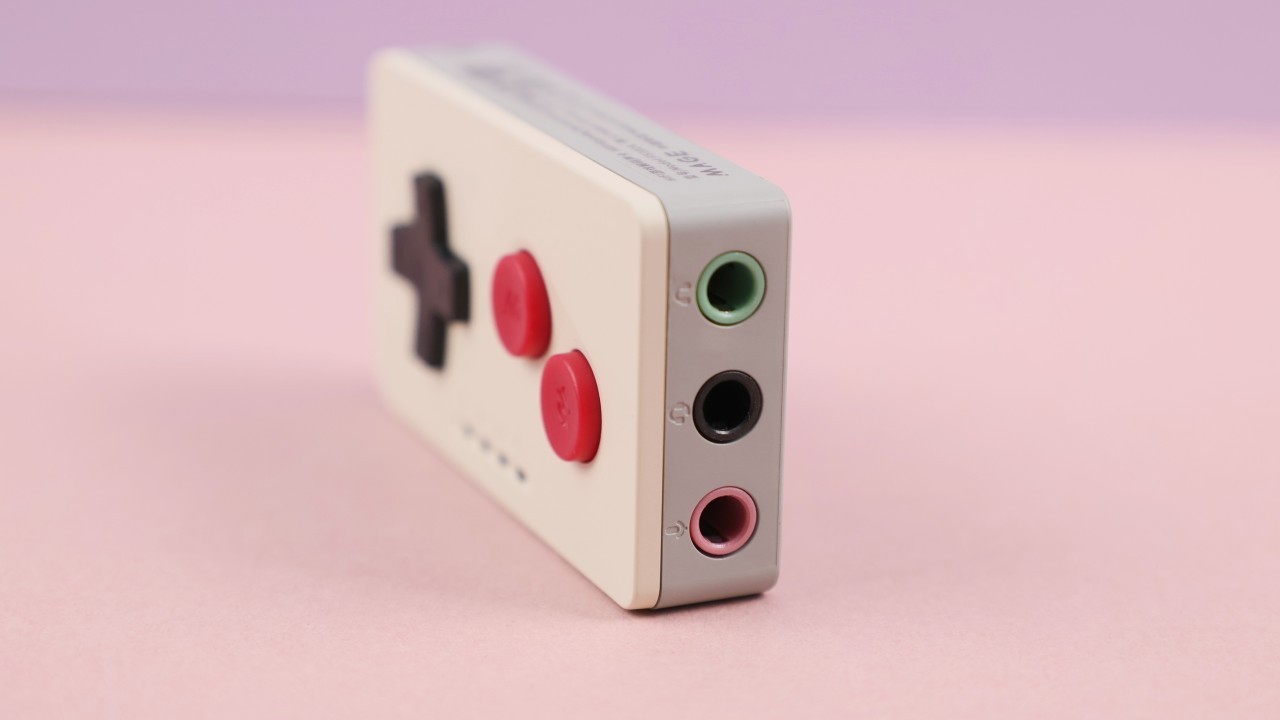
UAC1 is a protocol that allows devices to connect without proprietary drivers. It allows USB DACs to work with the Nintendo Switch and PlayStation 5. If you also want to use a microphone, the USB DAC must have at least one 3.5 mm TRRS headset jack that follows the CTIA standard.
CTIA support for cables with an inline microphone
The Nintendo Switch has a CTIA-standard 3.5 mm TRRS headset jack, as do the wireless controllers for the PS5 and Xbox. These jacks accept headphones with a microphone built into the cable. A USB DAC with a CTIA-standard 3.5 mm jack, however, can deliver better sound quality because it provides more power to drive the headphones.
TOSLINK optical input
The best way to route audio from all the devices connected to a TV to a DAC is to use the TV’s TOSLINK optical connection. The TV can pass audio from gaming consoles, cable TV boxes, and other connected devices through its TOSLINK optical output. This requires a DAC with a TOSLINK optical input and analog or digital outputs.
Connecting a DAC to the TV’s optical output allows you to connect powered speakers, amplifiers, and even Bluetooth headphones. Wireless connections, however, offer no high-quality option for using a microphone while listening to the TV audio. For this reason, Bluetooth transmitters are a poor choice if you want to avoid a loss of sound quality or a delay between the sound and the picture.
USB-C power
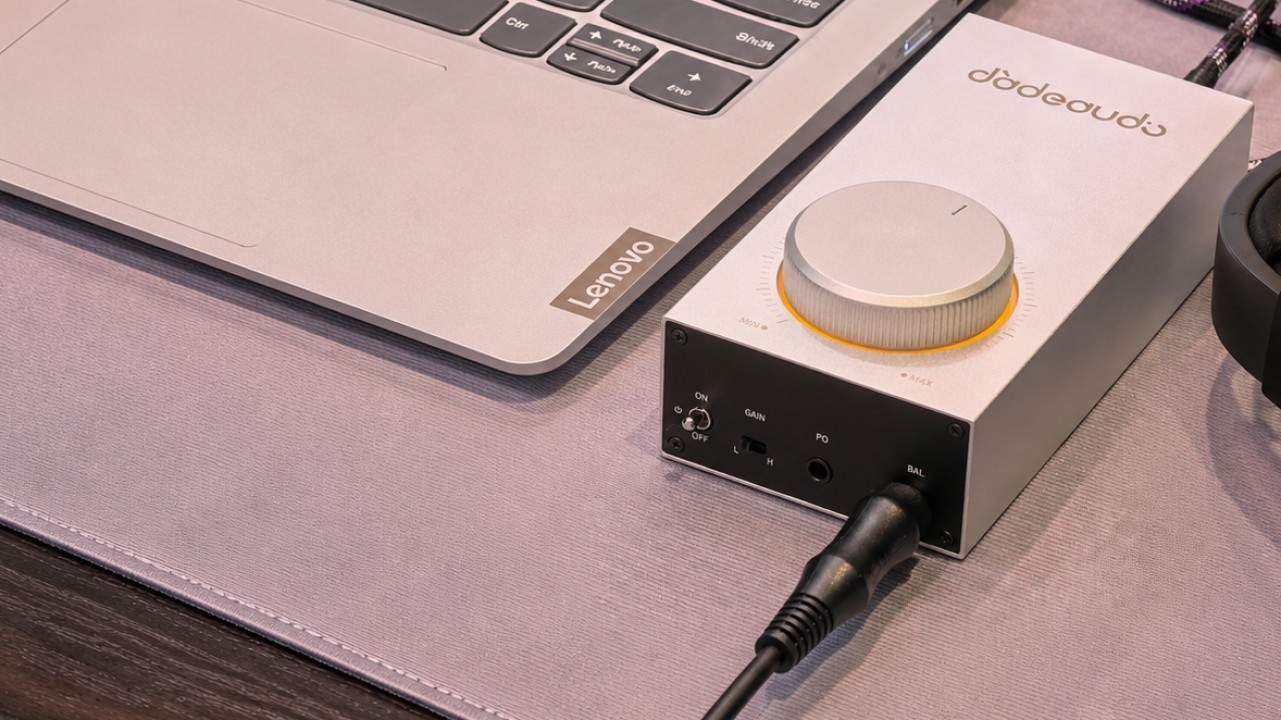
A DAC with a dedicated USB-C power port can receive “cleaner” power because the port allows you to power the DAC from a power bank. Check the DAC’s voltage and current requirements to ensure that the power bank can supply the necessary power.
When checking a DAC’s specifications, distinguish between a USB-C port that handles both data and power and a dedicated USB power port. Some amplifiers, including the JadeAudio GIGAS 1, can also be powered via USB-C.
Cables for connecting DACs and amplifiers to PCs, consoles, and TVs
With so many types of cables and connectors available, it can be difficult to determine which cable to use between two devices. The following examples describe common cables and their uses.
Recommended article for Reading: FiiO Trust: Coaxial Cable Joins the Line of Affordable Cables for DACs, Amps, and DAPs
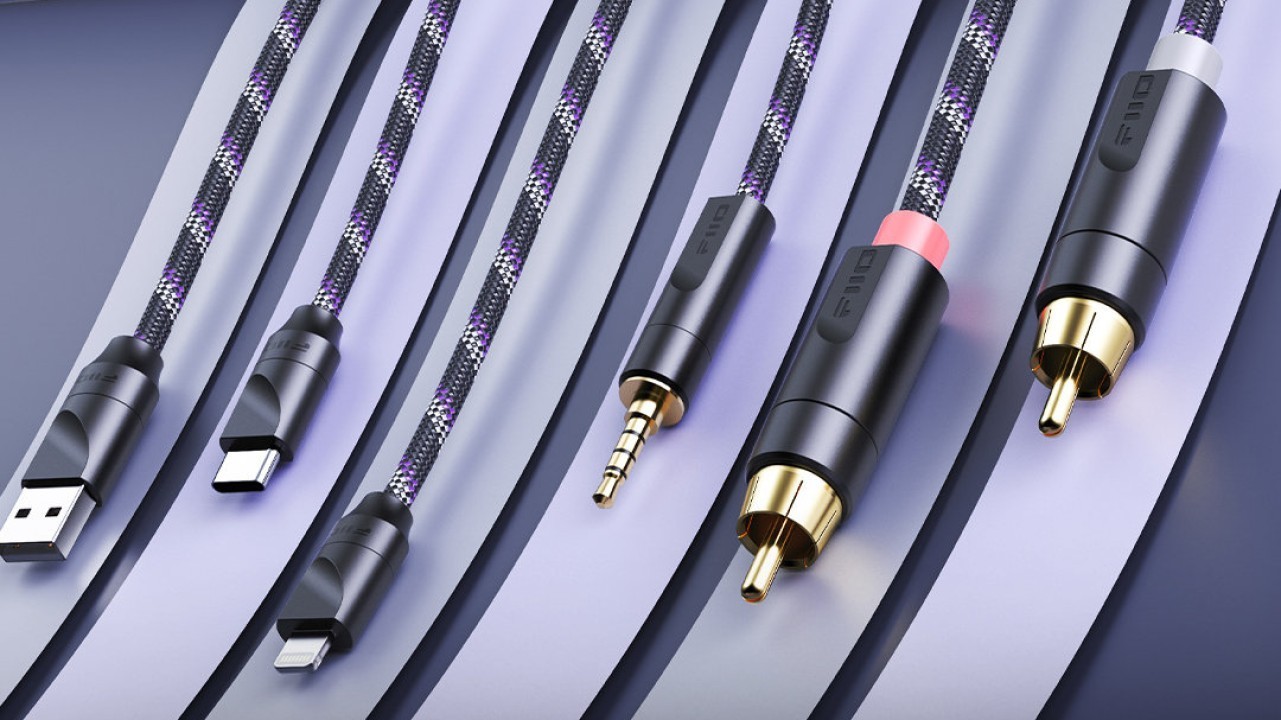
USB-C to 3.5 mm cable
To minimize interference generated by a PC or smartphone, the preferred approach is to use a USB-C port. If you have purchased a standalone amplifier, you will also need a DAC. A USB-C to 3.5 mm cable with a DAC built into the USB connector can be an excellent low-cost option.
3.5 mm to 3.5 mm cable
If purchasing a USB DAC to connect to an external amplifier is not feasible, the remaining option is to use a 3.5 mm to 3.5 mm cable. With this connection, the signal passes through the DAC and amplifier in the built-in audio circuitry of your PC, smartphone, or console. This generally means less usable output power, a lower-quality DAC, and the possibility of audible noise.
Both TRS and TRRS cables are available with 3.5 mm plugs. The 3.5 mm TRS plug is the more common type on headphones and does not support an inline microphone. A 3.5 mm TRRS plug supports an inline microphone, and the microphone module may also include playback controls. To tell the plugs apart, count the insulating bands. A TRS plug has two, and a TRRS plug has three.
TOSLINK optical cable
A TOSLINK optical cable is particularly suitable for connecting PC sound cards, consoles, or TVs because it is immune to electromagnetic interference (EMI) and radio-frequency interference (RFI). It carries a digital signal and therefore requires a DAC with a TOSLINK optical input. Check the connector type, as both standard TOSLINK and 3.5 mm mini-TOSLINK connectors are available.
RCA to RCA cable
RCA cables are widely used to connect DACs to amplifiers. They are also commonly used to connect a PC sound card to an external amplifier or a DAC to a powered speaker.
If your sound card lacks an RCA output, you can use a 3.5 mm to RCA cable.
Balanced headphone cable
A balanced cable is worth considering because the 4.4 mm balanced output on an amplifier or DAC/amp provides more power. Check the connectors on your headphones or IEMs before choosing a cable. Common types include 3.5 mm, 2-pin, and MMCX connectors. Proprietary variants of both MMCX and 2-pin connectors also exist.
Additional tip on cable shielding
When choosing RCA cables, look for models with shielding against EMI and RFI. The shielding helps prevent this interference from introducing audible noise.
Recommended audio setups for PCs and consoles
The table below presents examples of equipment combinations that can improve sound quality when used with a PC or console. For ease of comparison, the setups are grouped by price range based on the total cost of all components.
Attention: If you are viewing the following table on a smartphone, swipe to the side to see all the data.
| Price range | DAC/amp | DAC | Amplifier | Headphone | Cable with Microphone | Interconnect cable | Compatibility |
| Up to US$ 45 | Snowsky MAGE | None | None | Final E500 | None | FiiO Trust TypeC-TypeC | PC and consoles |
| Up to US$ 70 | Snowsky MAGE | None | None | Final E3000C | On the E3000C cable | FiiO Trust TypeC-TypeC | PC and consoles |
| Up to US$ 100 | Snowsky MAGE | None | None | Snowsky Nature | FiiO LL-3.5A | FiiO Trust TypeC-TypeC | PC and consoles |
| Up to US$ 200 | Não há | FiiO Trust TypeC to 3,5mm | JadeAudio GIGAS 1 | JadeAudio JT7 | FiiO LL-3.5A | FiiO Trust TypeC to 3,5mm | PC and consoles |
| Up to US$ 260 | Topping DX1 II | None | None | JadeAudio JT7 | FiiO LL-3.5A | FiiO Trust TypeC-TypeC | PC and consoles |
Share:



No comments have been made yet, be the first!