

Snowsky DISC Firmware 2.4 Adds M3U Playlist Support
From: Vitor Valeri
A headphone hobbyist for over 15 years, he founded the Hi-Fi Hub website and is an administrator of the "Fones High-End" and "Fones Low-End" groups on Facebook.


Published in: 03/09/26 at 15:33
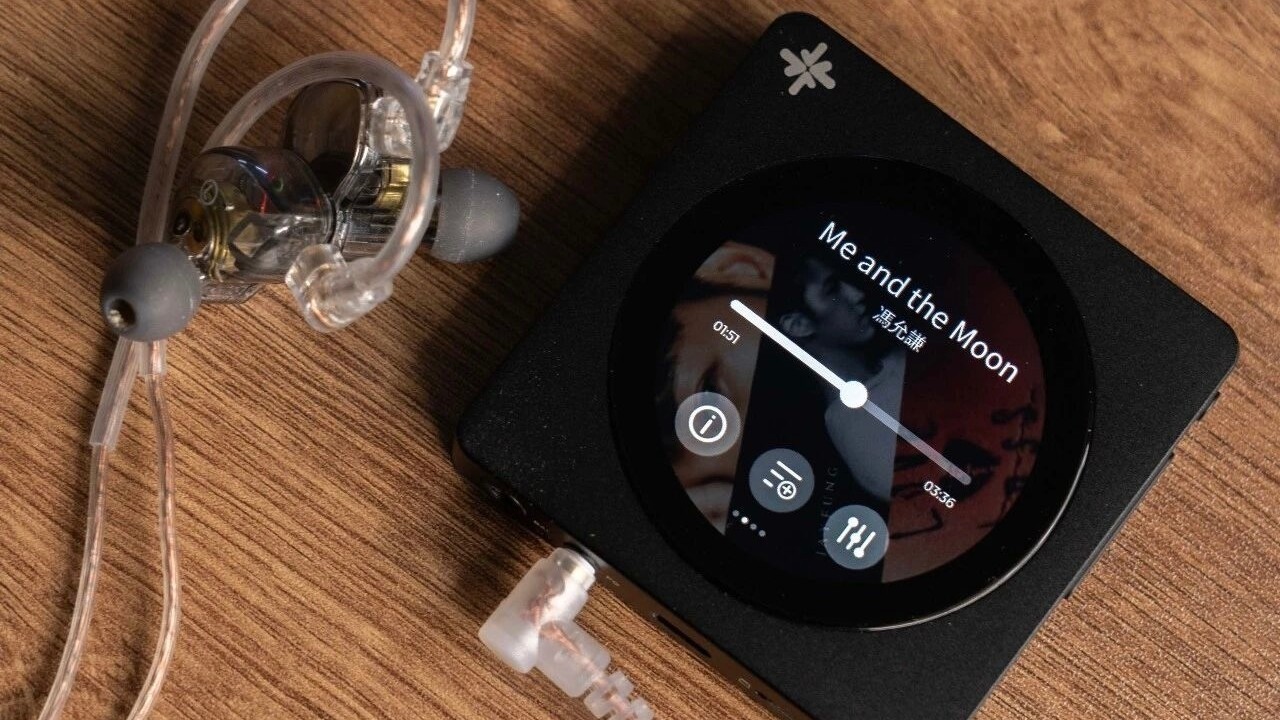 Snowsky DISC Digital Audio Player (DAP) (Image: rock-yong/Weibo)
The Snowsky DISC received a new update on August 24 that adds support for M3U files, allowing users to create and use music playlists. After installing the new firmware version 2.4 on the Snowsky DISC, users can add their favorite playlists to the DAP (Digital Audio Player). In addition, Snowsky, FiiO’s sub-brand, has introduced features such as separate volume memory for each operating mode. Below are all the details about the DISC’s latest update.
DISC Gains Playlist Support, Per-Mode Volume Memory, and More
The Snowsky DISC firmware 2.4 update introduced support for playlist files in the M3U (MP3 URL) format. This new feature had been widely requested by DISC users and even by prospective buyers, as some consider it essential. In addition, separate volume memory has been implemented for each operating mode, including USB DAC, Pure Music, and Bluetooth Receiver modes.
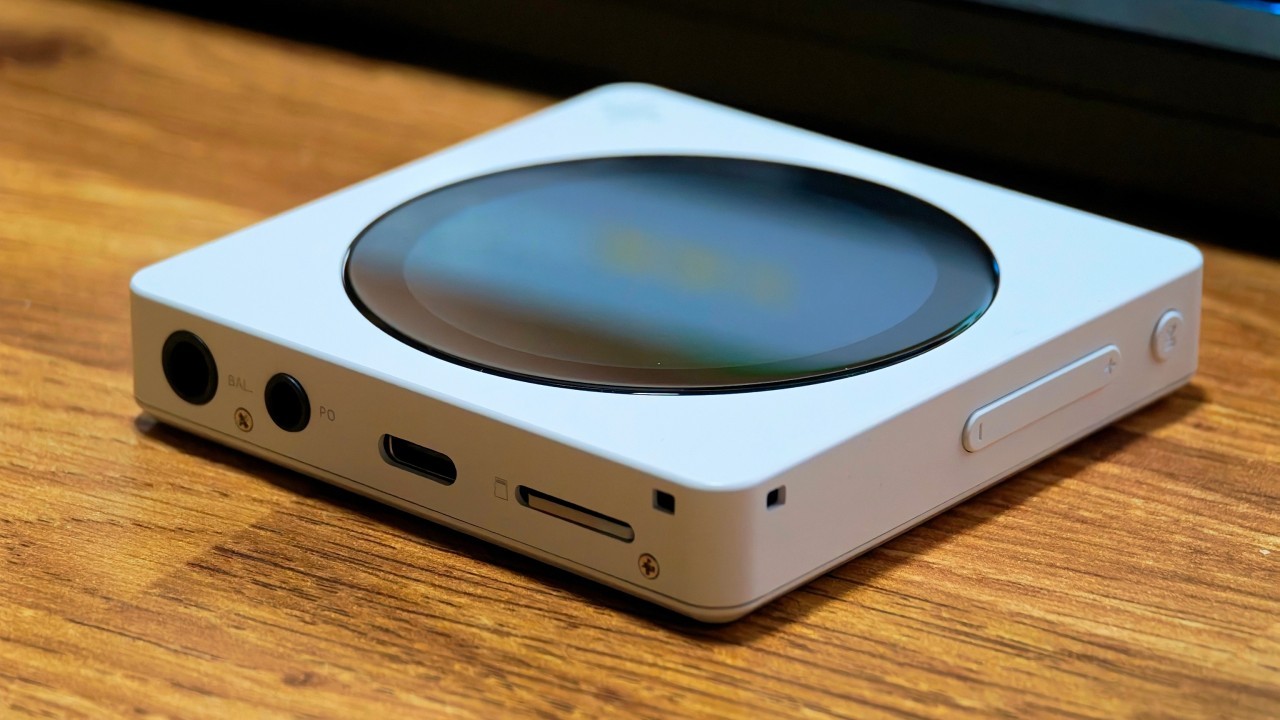
Another feature requested by users and implemented in this new firmware is the display of the disc number for album tracks. Note that this feature must be enabled in the DISC’s playback settings.
Finally, wireless control through the FiiO Control app has also been added. The FiiO app can be used to configure features such as custom lock-screen wallpapers.
Recommended reading: Snowsky DISC Firmware 2.09 Adds Gapless Playback and Bluetooth Receiver Mode
Fixes and Optimizations for Bluetooth Transmission, Music Scanning, and More
Snowsky DISC firmware 2.4 also includes an optimization addressing the lack of audio output when connecting for the first time in Bluetooth Receiver mode. In addition, the DAP received fixes for unexpected restarts and music-scanning issues.
Snowsky DISC: Firmware 2.4 Changelog
See below for the changelog for Snowsky DISC firmware V2.4.
• New feature 01: Wireless control through the FiiO Control app, with support for custom lock-screen wallpapers.
• New feature 02: Support for custom playlists, including M3U playlist import and export.
• New feature 03: Display of the disc number for album tracks (must be enabled in the playback settings).
• New feature 04: Separate volume memory for each operating mode.
• Optimization 01: Addressed the lack of audio output upon the first connection in Bluetooth Receiver mode.
• Fix 01: Fixed unexpected restarts and music-scanning issues, along with other fixes intended to improve performance.
Snowsky DISC Users Report Bugs Affecting Track Order and Lock-Screen GIFs
After installing firmware 2.4, Snowsky DISC users reported problems with track ordering and the display of GIFs on the lock screen.
Head-Fi forum user “nluna86” reported problems with the ordering of songs in playlists created on a laptop. The user explained that the intention was to preserve the curated order of the tracks, but the songs are unfortunately displayed and played in alphabetical order.
“I’m very happy with the addition of m3u support in firmware 2.40! However, it seems to “clash” with other features. I’ve created a playlist using my laptop, added it to my SD card, and imported it on the Disc. All songs are there (yay) but they are listed alphabetically, while I intended to keep the “curated” order of the songs intact.”
User “Costia” also stated that the same track-ordering issue has occurred since the Snowsky DISC was released.
“It’s been more than half a year since the disc released and it still sorts album tracks alphabetically.”
Even when browsing music through its metadata, such as album, artist, or genre, “Costia” said that the correct track order is not preserved.
“this is not folder or file based navigation. the mp3tag metadata is all correct. this is a bug in the snowsky disc that existed since release. if your metadata contains any of the “total” tags it will use them instead of the track number for sorting.”
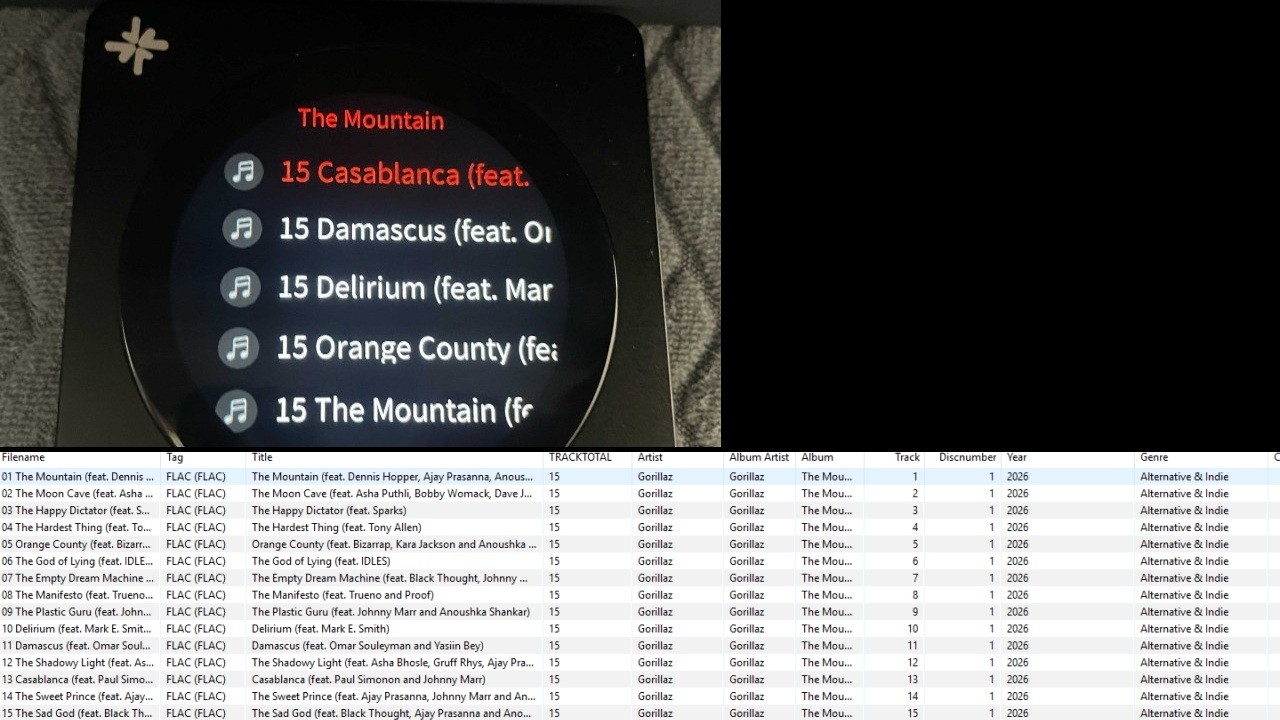
“Costia” emphasized that this does not mean ignoring track-tag editing, but rather that there is no intention to delete metadata that is normally accepted by most DAPs.
“by not messing with tag data i didnt mean ignoring it. i meant not deleting valid metadata from my library to bypass a bug for one specific device.”
Another complaint that emerged during discussions following the release of firmware 2.4 concerns a bug affecting the display of GIFs on the lock screen. User “Purp” reported that the DISC began displaying duplicate images when GIF files were used.
“I have been experiencing a weird bug with the newest update…it’s with the lock screen gif, it is doubled for some reason..picture attached.”
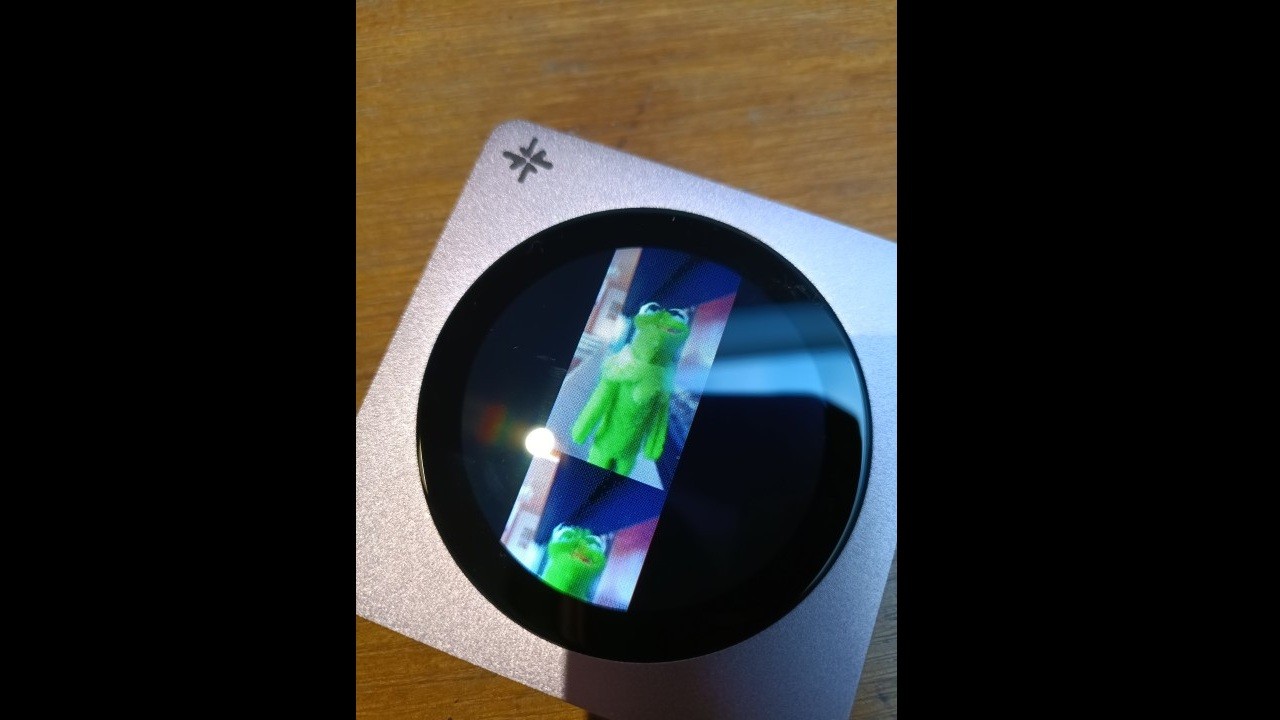
If you are experiencing any other bugs after installing Snowsky DISC firmware 2.4, see the instructions below.
Where to Submit Feedback About the DISC
The best place to report problems, suggest features, or request improvements for the DISC is the dedicated DAP thread on the Head-Fi forum. This link provides access to the thread, where users can interact with the FiiO representative known as “FiiO ALAN.”
How to Update the Snowsky DISC Firmware
Before updating the Snowsky DISC firmware, it is recommended that the DAP’s battery level be above 30%. The easiest way to perform the update is over Wi-Fi, although it is also possible to update the device by downloading the firmware file. In addition, FiiO recommends using a microSD card formatted as FAT32 or exFAT for the procedure.
How to Update the DISC via Wi-Fi
Step 01: Enable Wi-Fi, select “Settings,” and tap “System Settings.”
Step 02: Locate and tap “System Update,” then select “Online Upgrade.”
Note that the update takes approximately 10 minutes. The DAP will restart automatically after the firmware installation is complete.
How to Update the DISC by Downloading the Firmware File
Step 01: On your computer, download the firmware file through this link.
Step 02: On the DISC, open “Settings,” select “Working Mode,” and tap “Storage Mode.”
Step 03: Connect the DISC to your computer using a USB cable.
Step 04: Copy the firmware file to the root directory of the DISC’s storage. Do not place it inside a folder.
Step 05: Disconnect the USB cable and exit “Storage Mode.”
Step 06: Open “Settings” and select “System Settings.”
Step 07: Scroll down, tap “System Updates,” and select “Local Upgrade.”
Step 08: Confirm your selection and wait.
The procedure is now complete. Wait for the update process to finish, after which the DISC will restart with the new firmware.
Share:


Product launches
FiiO BTR25 Launches With aptX Lossless and Magnetic Clip
Product launches
SNOWSKY MAGE: Gaming USB DAC With Mic Input at US$ 20
Product launches
No comments have been made yet, be the first!