

How to Fix Apple Music Sign-In Issues on FiiO DAPs
From: Vitor Valeri
A headphone hobbyist for over 15 years, he founded the Hi-Fi Hub website and is an administrator of the "Fones High-End" and "Fones Low-End" groups on Facebook.


Published in: 26/11/26 at 12:25
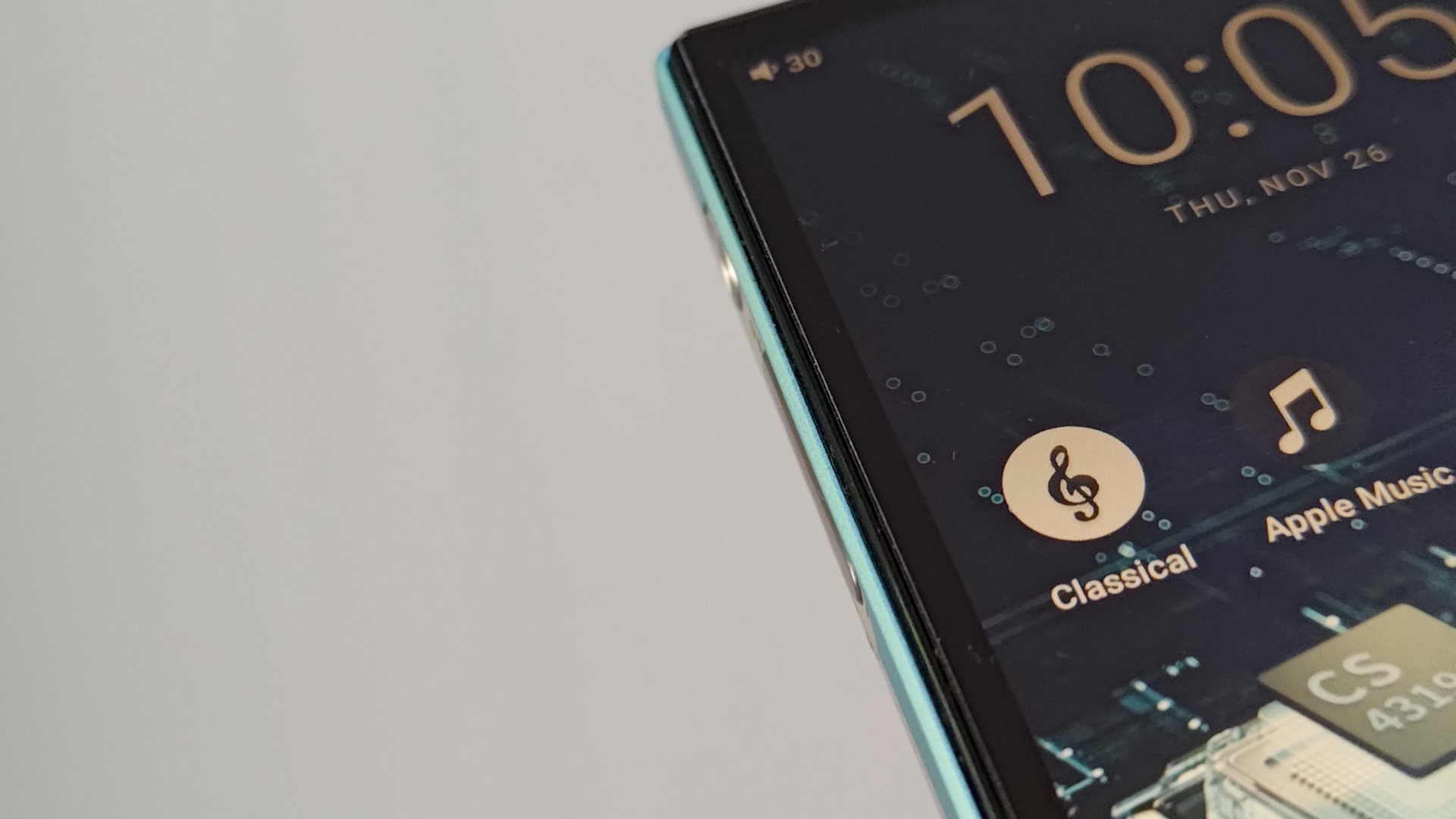 FiiO JM21 digital audio player (DAP) (Image: Vitor Valeri/Hi-Fi Hub)
Users are experiencing difficulty signing in to Apple Music on FiiO’s Android-based digital audio players (DAPs). The issue likely stems from a bug in recent versions of Apple’s music streaming app, but a workaround is available. The instructions below explain how to resolve the Apple Music sign-in issue.
How to resolve the Apple Music sign-in issue on FiiO Android DAPs
Follow the steps below to resolve the sign-in issue in the Apple Music app on a FiiO Android DAP. I tested this procedure on the FiiO JM21 and the FiiO DT11 digital transport, and it worked on both devices.
Step 1 – From the home screen of your FiiO Android DAP, open the Settings app.
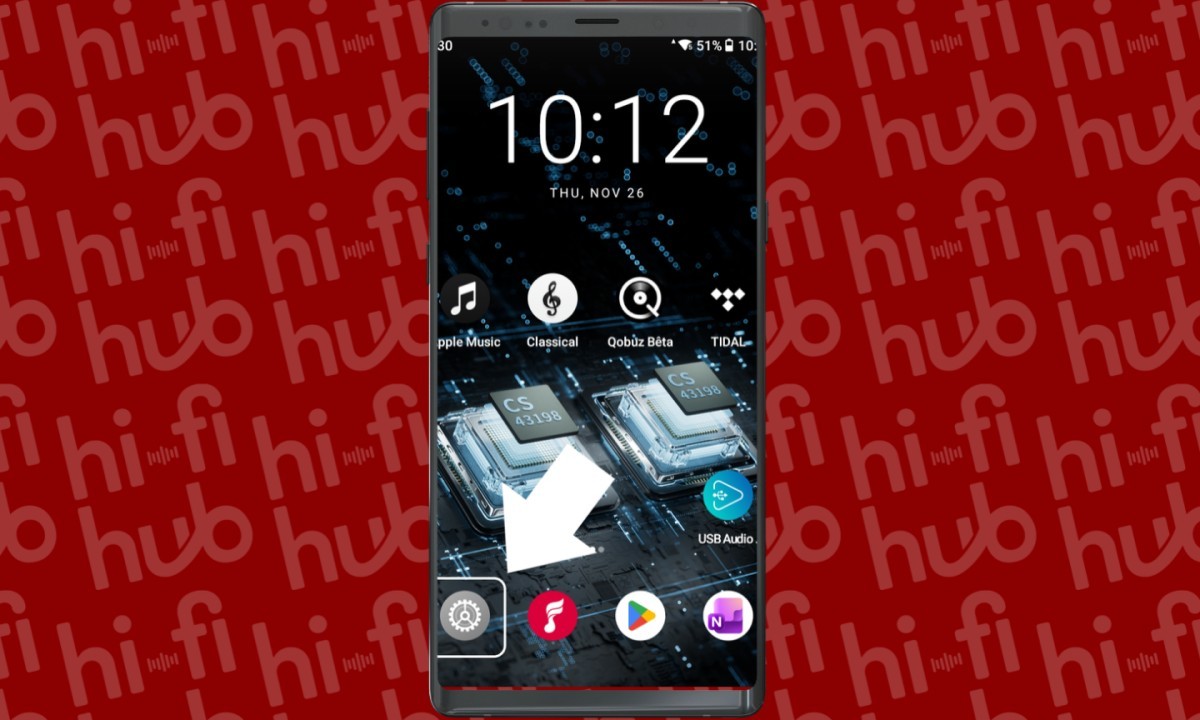
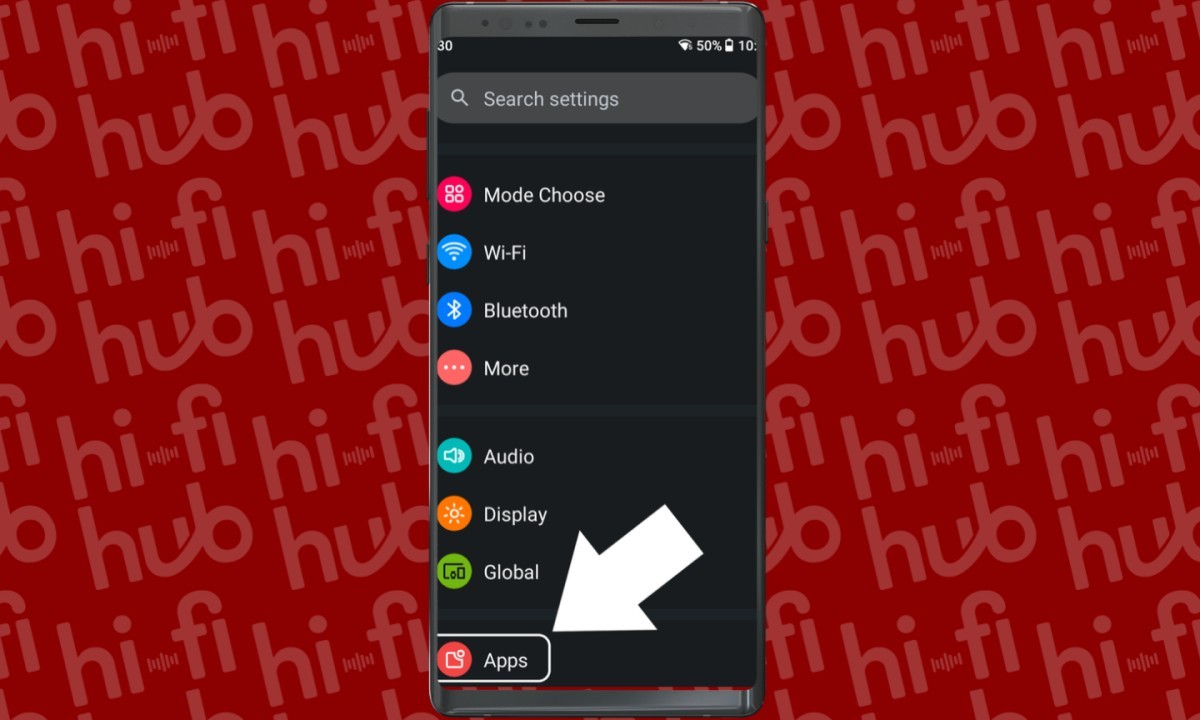
Step 2 – In Settings, find and tap Apps.
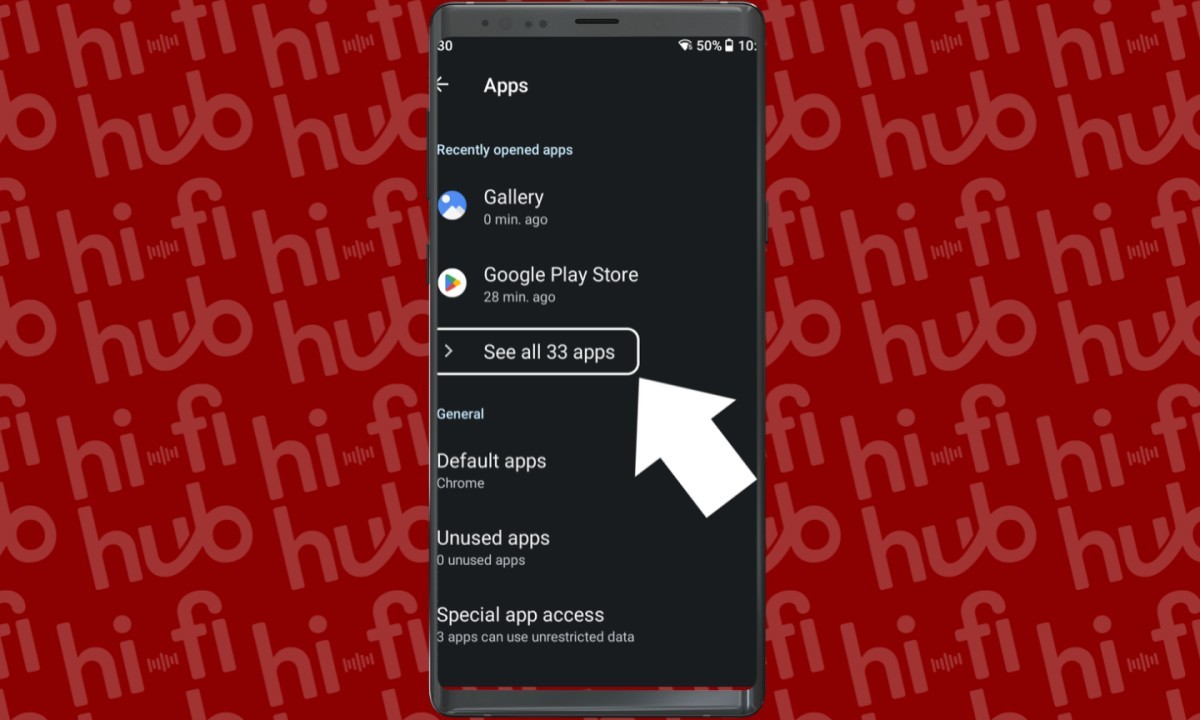
Step 3 – Tap See all apps.
Step 4 – Find Apple Music in the list of apps and tap it.
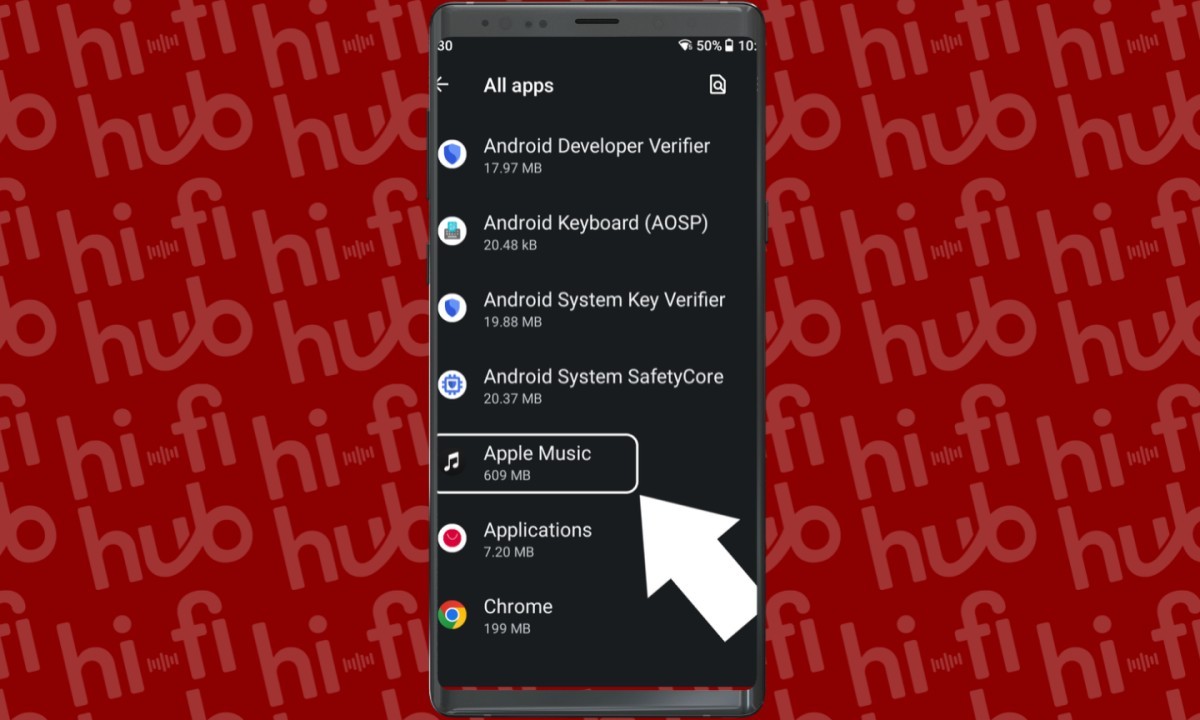
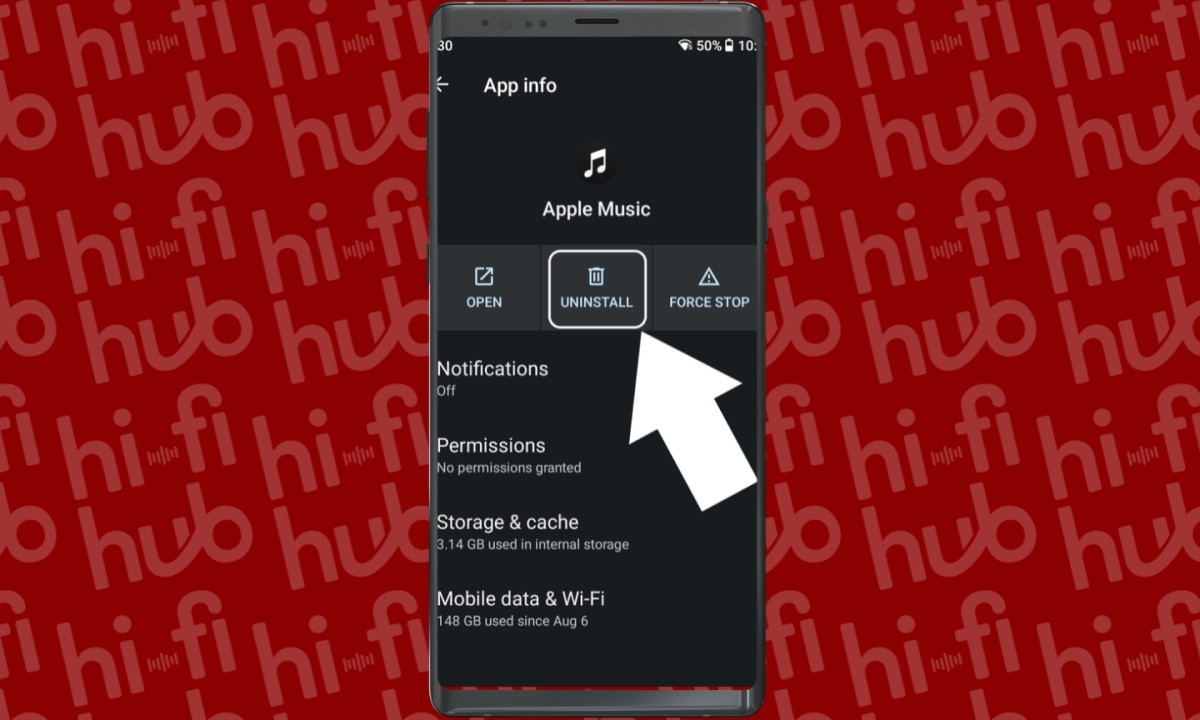
Step 5 – Tap Uninstall.
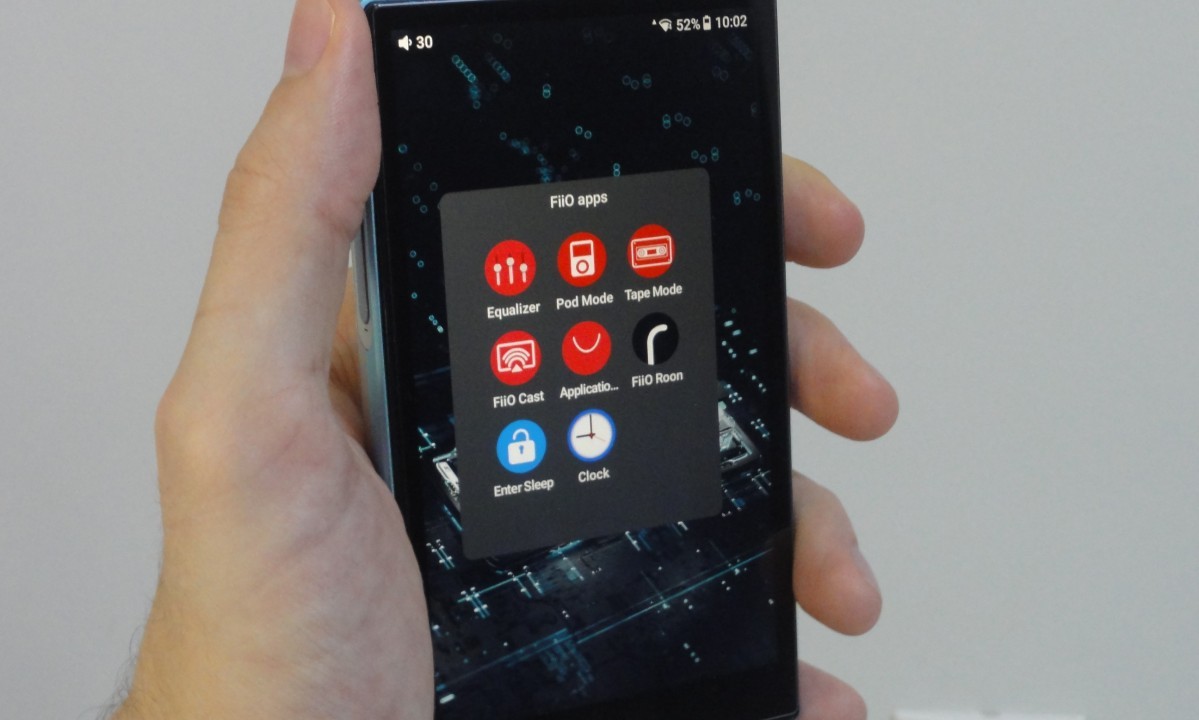
Step 6 – Return to the home screen of your FiiO DAP and open the Applications app.
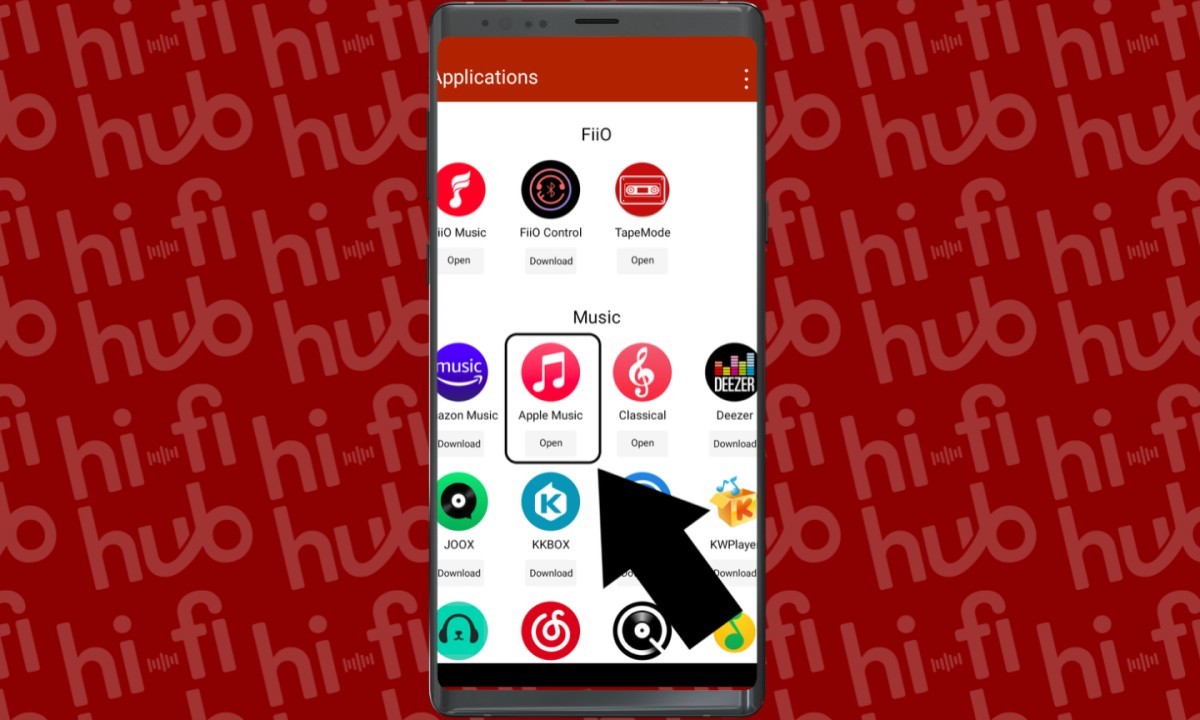
Step 7 – Find Apple Music and tap the Download button.
Step 8 – Return to the home screen, open Apple Music, and sign in to your account.
You should now be able to access Apple Music as usual on your FiiO Android DAP. Once you have signed in, you can also update Apple Music through the Google Play Store. I believe this procedure may also work on other Android-based DAPs if you install Apple Music from the manufacturer’s own app store.
Share:




No comments have been made yet, be the first!