

FiiO JM21, M21 and M33 Firmware Adds Pod Mode and EQ Sharing
From: Vitor Valeri
A headphone hobbyist for over 15 years, he founded the Hi-Fi Hub website and is an administrator of the "Fones High-End" and "Fones Low-End" groups on Facebook.


Published in: 29/04/26 at 15:21
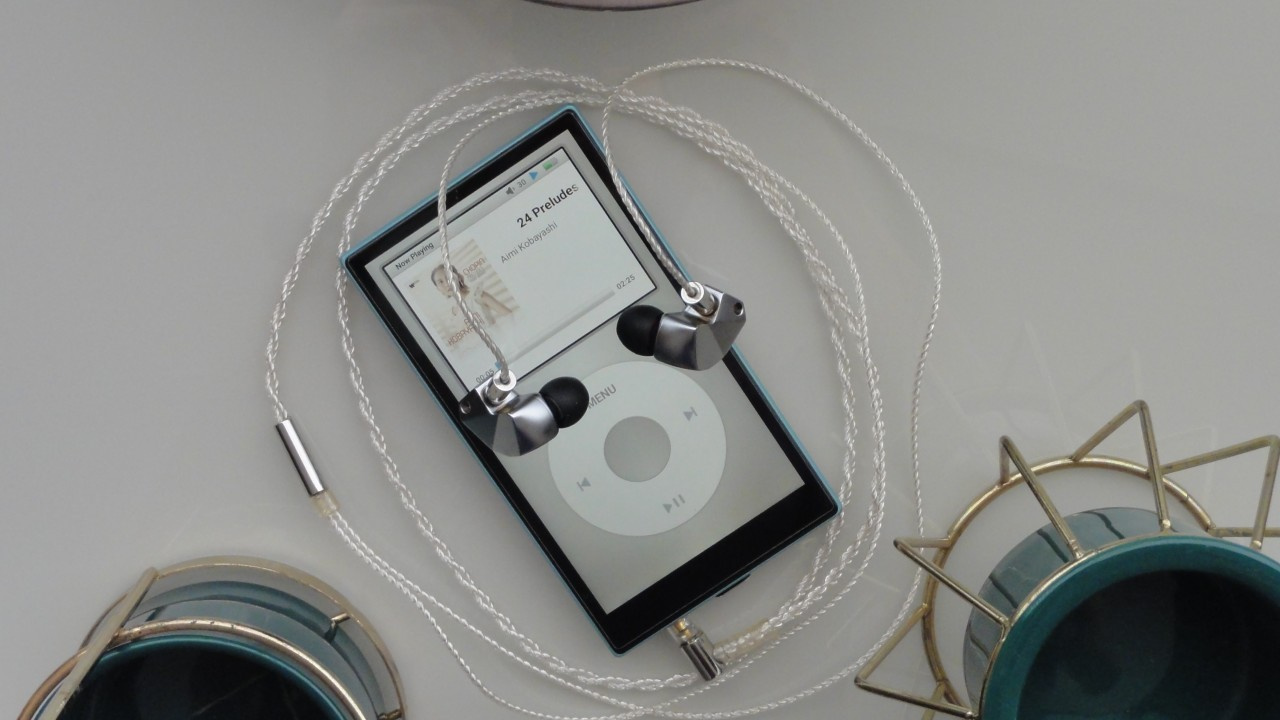 FiiO JM21 DAP with the Pod Mode app open (Image: Vitor Valeri/Hi-Fi Hub)
A new firmware update was released today (April 29) by FiiO for its JM21, M21, and M33 Digital Audio Players (DAPs). The changes implemented across the three music players are nearly identical. Three new features were added, along with a new theme for “Tape Mode” and three bug fixes. The most significant highlights are the new “Pod Mode” and the community sharing feature for user-created equalization profiles within the global equalizer.
FiiO JM21, M21, and M33 gain a music player that “simulates” the iPod
FiiO has implemented a music player interface on the JM21, M21, and M33 DAPs that simulates both the screen and physical body of Apple’s iPod. To achieve this, the company developed a new app called “Pod Mode,” which can be accessed directly from the Digital Audio Player’s home screen.
As with “Tape Mode,” music playback must first be initiated through FiiO Music or a streaming application. Once playback has started, users only need to open “Pod Mode” to control the track directly within the “iPod simulator.”
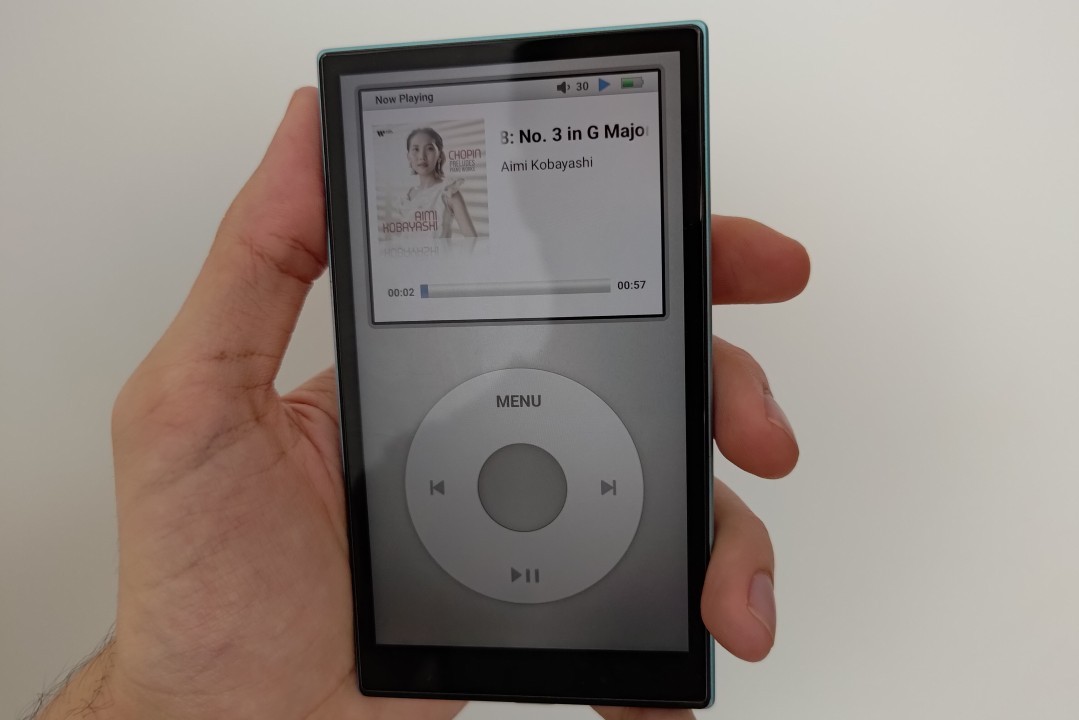
The Pod Mode user interface
Initially, I assumed that “Pod Mode” would simply be an animated recreation of the iPod music player interface. However, FiiO actually implemented functional virtual controls that allow users to operate the currently playing tracks.
The “play/pause” button functions as expected, as do the controls for skipping to the next track and returning to the previous song. In addition, sliding a finger around the virtual click wheel advances or rewinds the playback position according to the direction of the movement. Below is a video demonstrating the controls.
The different iPod themes
Clicking the “Menu” button reveals several iPod-themed interface options. There are two versions featuring the silver iPod body and two additional versions with a black chassis.
Each color variant includes one theme with a music progress bar and another featuring an audio spectrum visualization. In addition to changing the theme itself, users can also switch the spectrum bar colors between blue and gray.
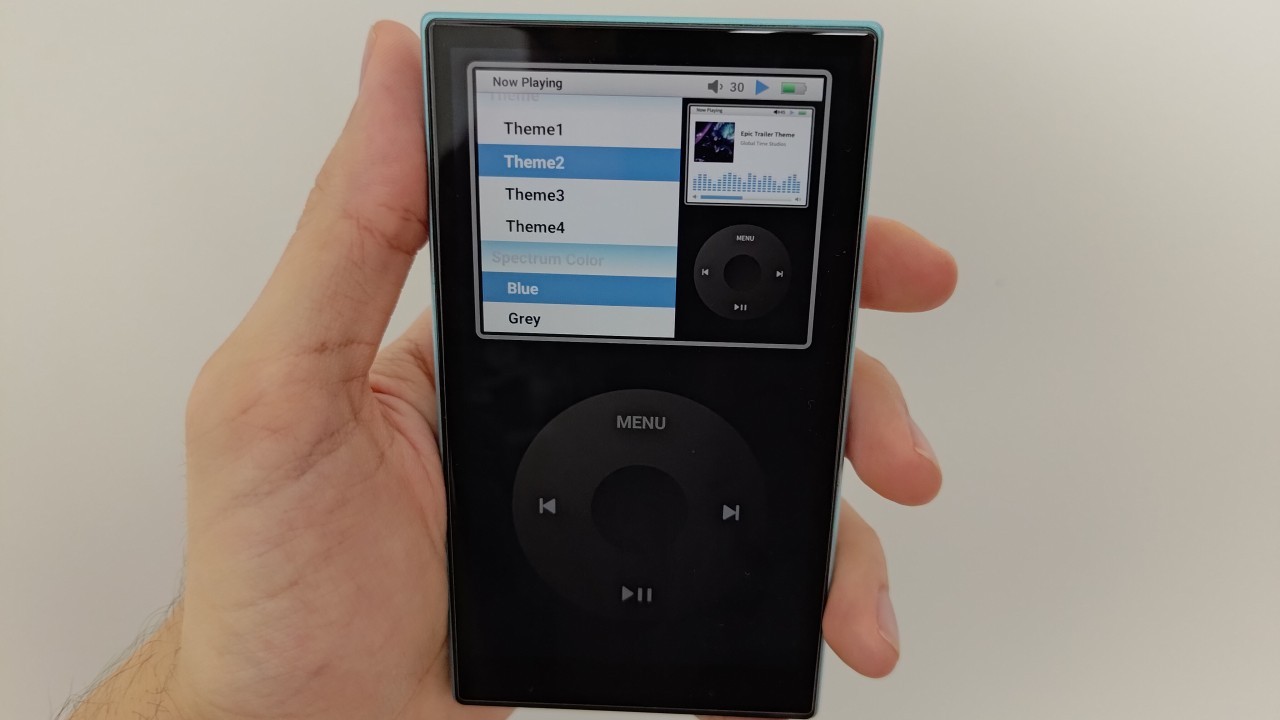
Interestingly, when the volume level is adjusted, the number displayed at the top-right corner of the player changes accordingly. I also believe that the green battery indicator reflects the DAP’s current battery level.
Global equalizer (EQ) on the JM21, M21, and M33 gains a sharing feature
Users of the FiiO JM21, M21, and M33 DAPs can now share equalization profiles saved within the “Equalizer” app [1]. This also means that users will be able to download EQ presets created by other users.
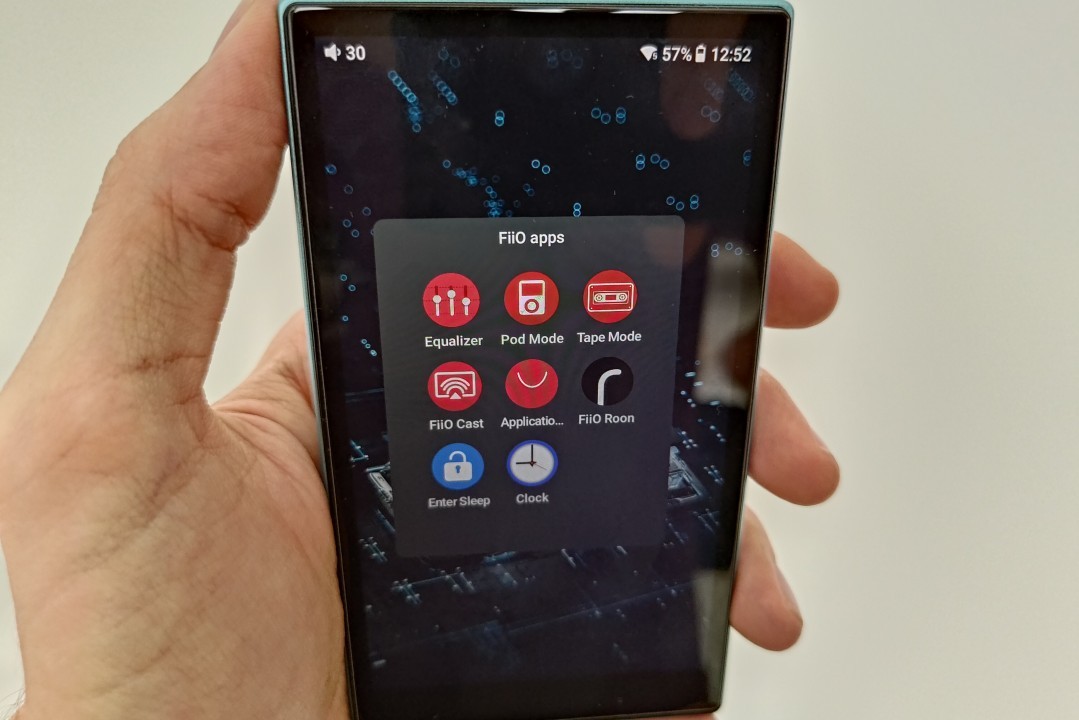
To access the sharing feature, open the “Equalizer” app from the DAP’s home screen and select the “Share” option. Within this tab, users will see a list of EQ profiles published by the community. Note that an internet connection is required to access shared presets.
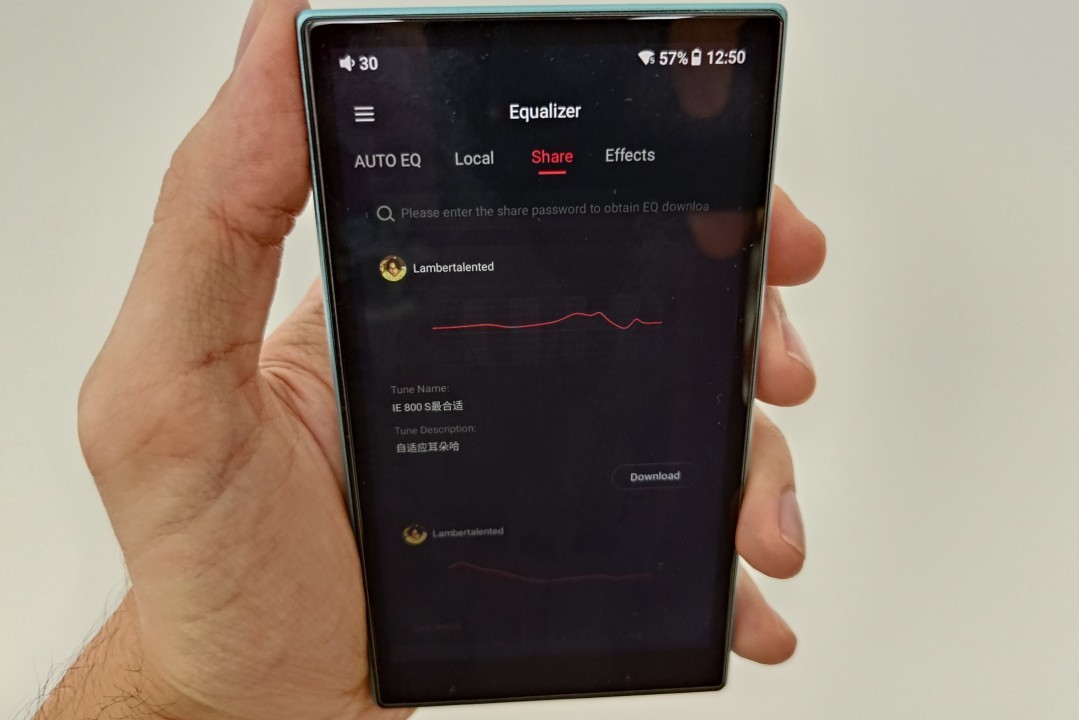
[1] The “Equalizer” app included with the FiiO JM21, M21, and M33 DAPs was developed by FiiO to provide “global equalization.” When EQ adjustments are made through this app, all installed applications will use the saved equalization settings.
FiiO JM21, M21, and M33 DAPs receive three bug fixes, another “Tape Mode” theme, and more
FiiO implemented three bug fixes for the JM21, M21, and M33 DAPs in the new firmware update released on April 29. In addition, a new “Tape Mode” theme was added, along with a new function for the multifunction button available on the M21 and M33 models.
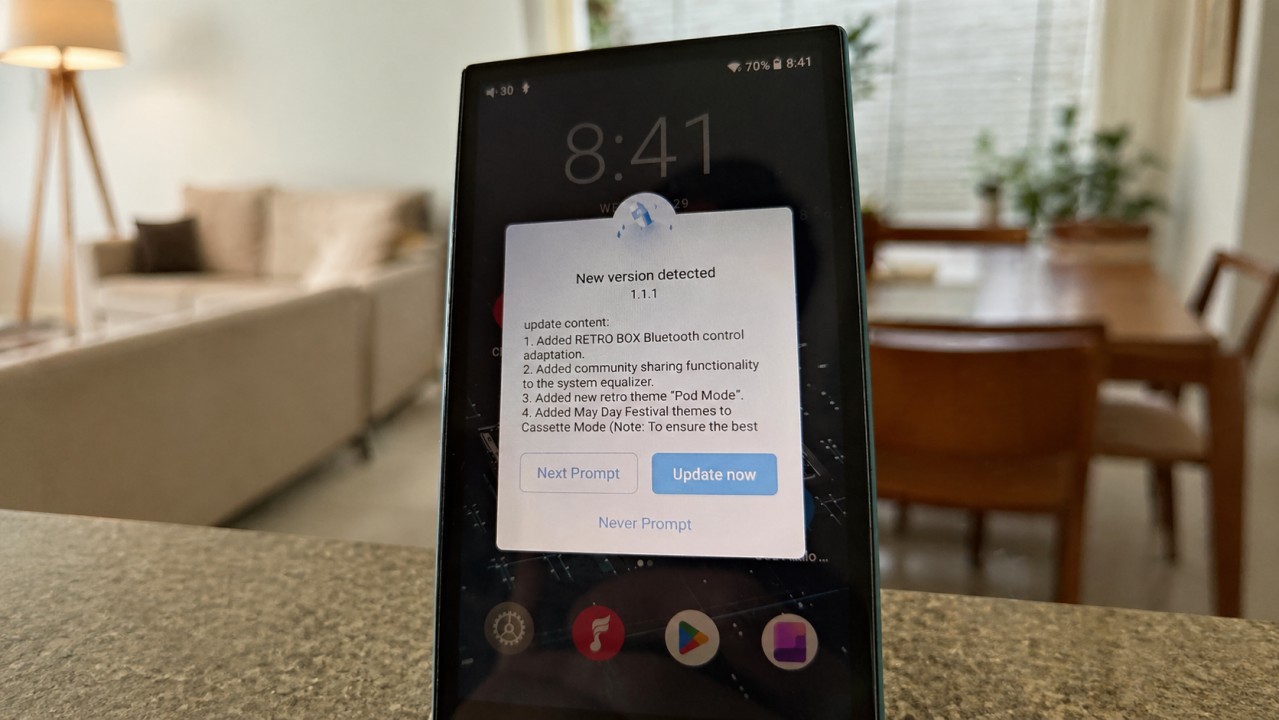
The changelog for the new firmware versions released for the JM21, M21, and M33 contains eight identical modifications:
- Added support for RETRO BOX Bluetooth control.
- Implemented community sharing functionality within the system equalizer.
- Introduced a new app called “Pod Mode.”
- Added May Day Festival themes to “Tape Mode.” (Note: To ensure the best visual presentation of the festival themes, some themes will not display album artwork.)
- Optimized the system to prevent repeated reboot issues when connecting the power adapter after low-battery shutdown.
- Fixed a bug causing occasional Bluetooth transmission malfunctions.
- Resolved an issue involving occasionally low charging current.
- Other performance optimizations and bug fixes.
Since only the FiiO M21 and M33 feature a multifunction button, there was one additional change that was not implemented on the JM21. This update adds the option to double-press the multifunction button to exit “Tape Mode.” To access this option, open the “Settings” app, select “Global,” and tap “Multifunction button.”
How to update the firmware on the FiiO JM21, M21, and M33 DAPs
There are two methods available for updating the FiiO JM21, M21, and M33 DAPs. The easiest approach is to enable Wi-Fi on the Digital Audio Player (DAP), as an update notification will then appear automatically. Simply tap the notification to be redirected to the firmware update screen.
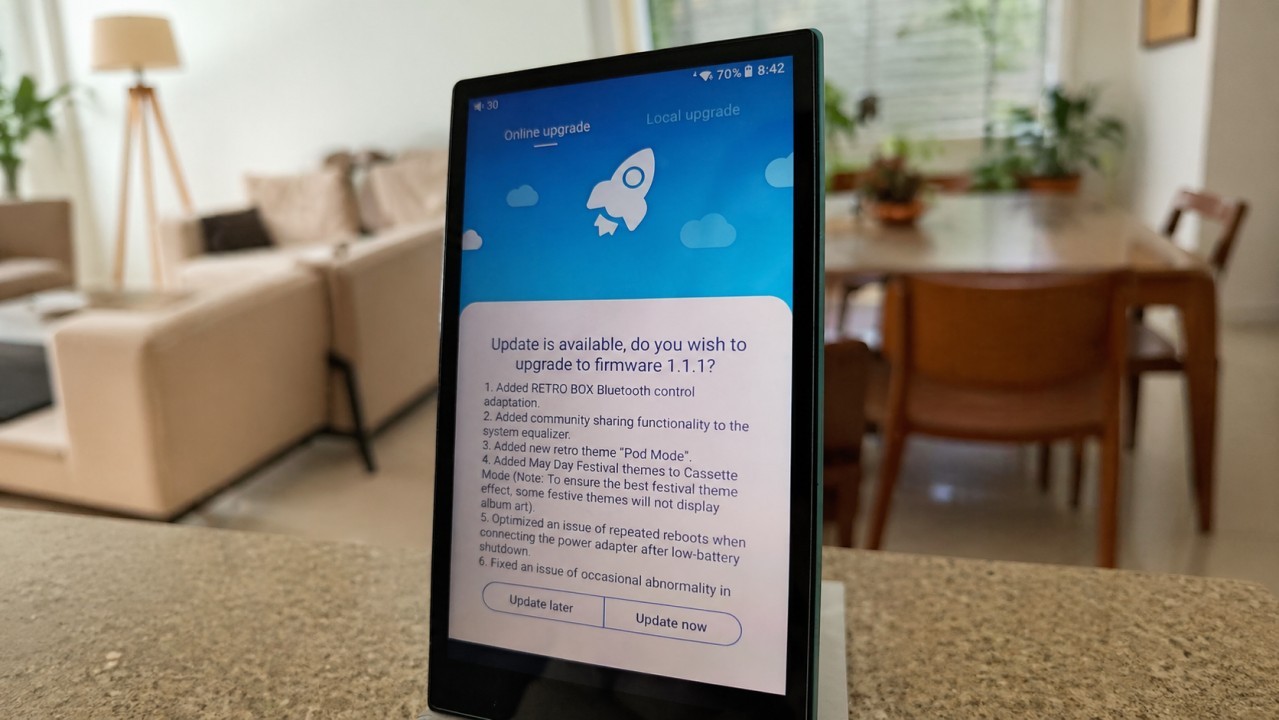
If downloading the firmware via Wi-Fi is not possible, there is also an alternative method for obtaining the update file. In this case, the firmware must be installed locally. Follow the steps below.
Step 01 – Download the firmware package file through the links below:
- Link to download firmware 1.1.1 for the FiiO JM21
- Link to download firmware 1.0.8 for the FiiO M21
- Link to download firmware 1.0.2 for the FiiO M33
Step 02 – Copy the file to the internal storage of the FiiO JM21, M21, or M33.
Step 03 – Open the “Technical Support” application.
Step 04 – Select the “Firmware Upgrade” option.
Step 05 – Tap “Local Upgrade” and locate the firmware package file.
Share:


Product launches
YBA VIBE P1: Portable R2R DAC/Amp Announced
Product launches
FiiO FT15 Launches With New Planar Driver and Lighter Build
Product launches
No comments have been made yet, be the first!