

How RAM usage works in Android DAPs
From: Vitor Valeri
A headphone hobbyist for over 15 years, he founded the Hi-Fi Hub website and is an administrator of the "Fones High-End" and "Fones Low-End" groups on Facebook.


Published in: 19/12/25 at 00:22 - Updated in: 16/01/26 at 10:46
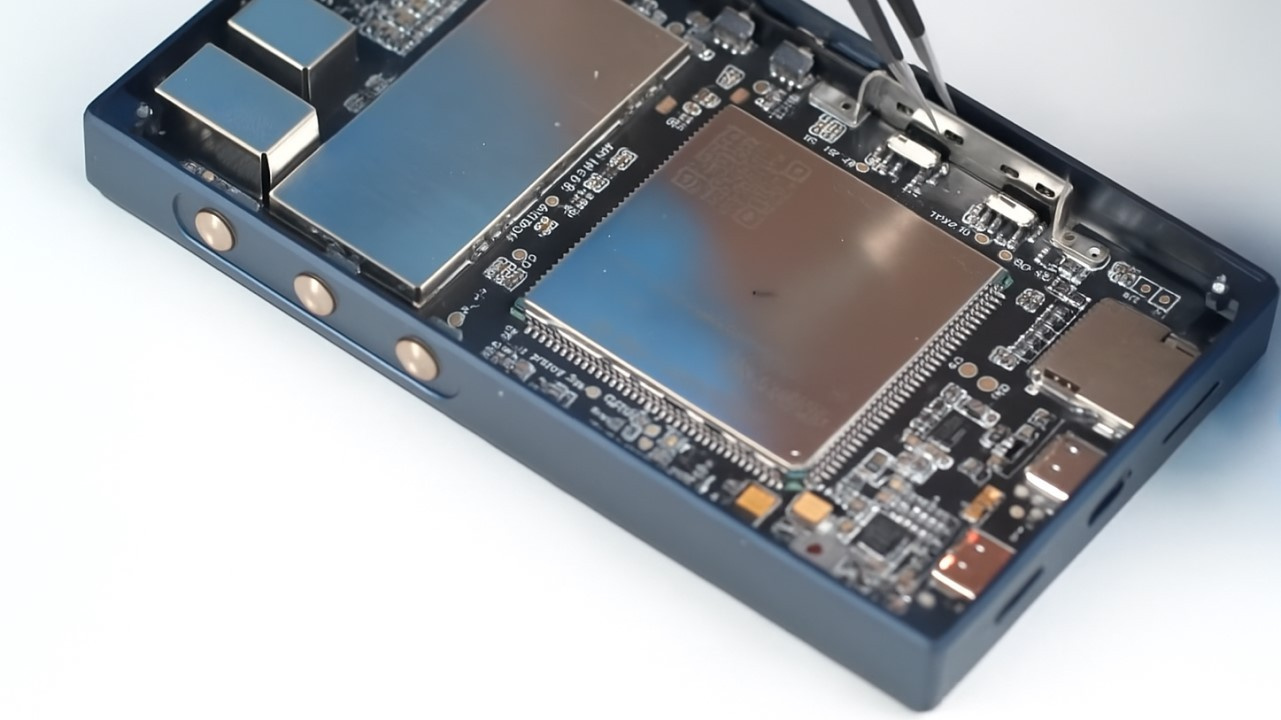 Illustrative image of an open Digital Audio Player (DAP) – shown here is the FiiO M21 (Image: FiiO/YouTube)
RAM memory in Android-based DAPs (Digital Audio Players) has been a recurring concern. This is mainly due to the search for a smoother experience when using music applications or simply navigating the operating system. However, the amount of RAM may not be as critical a barrier as most users assume.
Music streaming applications such as Spotify, Apple Music, and Tidal do not require large amounts of RAM. If only one application is opened at a time, 3 GB of RAM will hardly impose a critical limitation on navigation fluidity or track playback.
Nevertheless, there are factors that can increase RAM consumption. Google applications and Android system services/features can affect the fluidity of navigation through both the operating system and music apps. If the Digital Audio Player manufacturer does not properly optimize these elements, performance issues may arise.
In addition, using a more recent version of Android allows for more efficient RAM utilization. However, it is necessary to evaluate driver compatibility to ensure proper operation of both hardware and software components, as well as the increased processing power required to run new operating system features.
How does Android manage app execution?
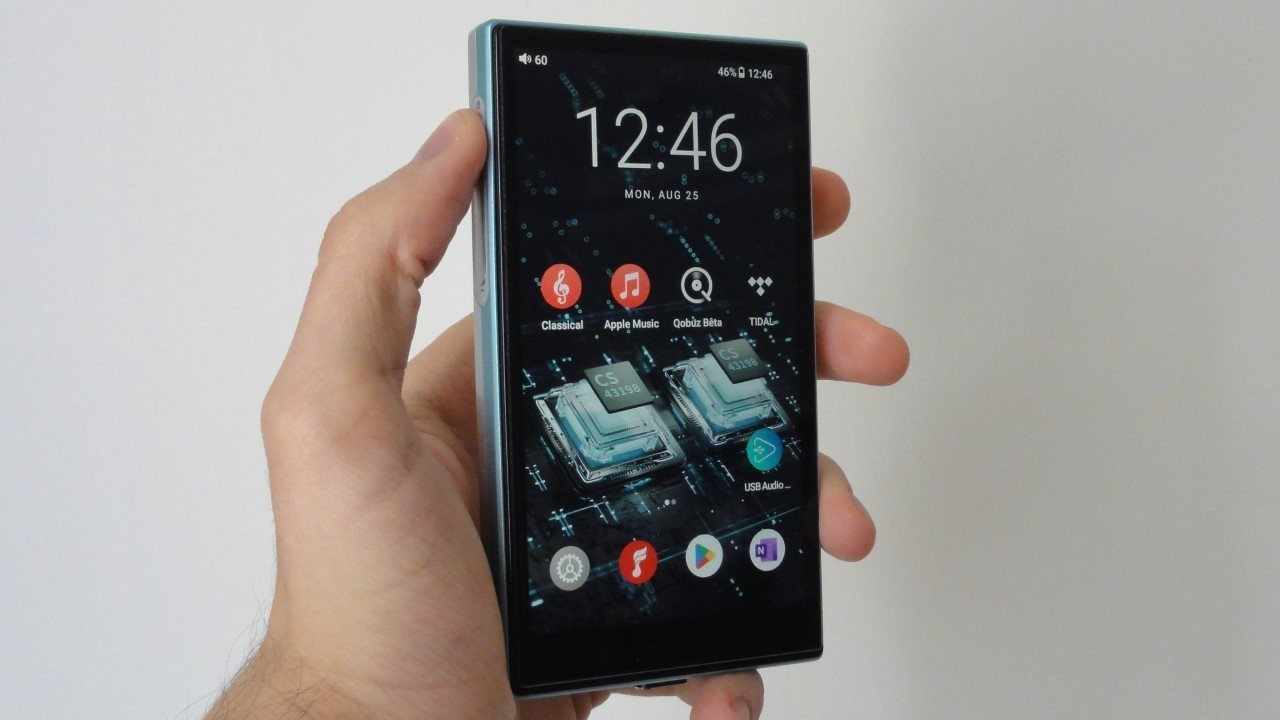
The component responsible for managing app execution in Android is the ActivityManagerService (AMS). It handles the lifetime of activities and services, adjusts the priorities of each process, and works in conjunction with the LMKD (Low Memory Killer Daemon) to terminate processes when available RAM is low.
The LMKD is responsible for monitoring RAM usage and deciding which processes should be terminated. Its goal is to maintain operating system stability. To operate, the Low Memory Killer Daemon uses the following mechanisms:
• RAM monitoring: It uses memory information and can be configured to act based on the vmpressure level (memory pressure level), which is classified as low, medium, or critical.
• Configurable thresholds: Process termination is based on memory thresholds (low memory thresholds), which are defined in the lowmemorykiller policies. These limits are set according to the amount of free memory or memory pressure levels (vmpressure).
• Process priority classification (OOM score): Each process has an OOM (Out Of Memory) score calculated based on its importance and priority. The LMKD will terminate processes with higher OOM scores (those that are less important for maintaining system stability).
• Consideration of PSI (Pressure Stall Information): The LMKD uses PSI data.
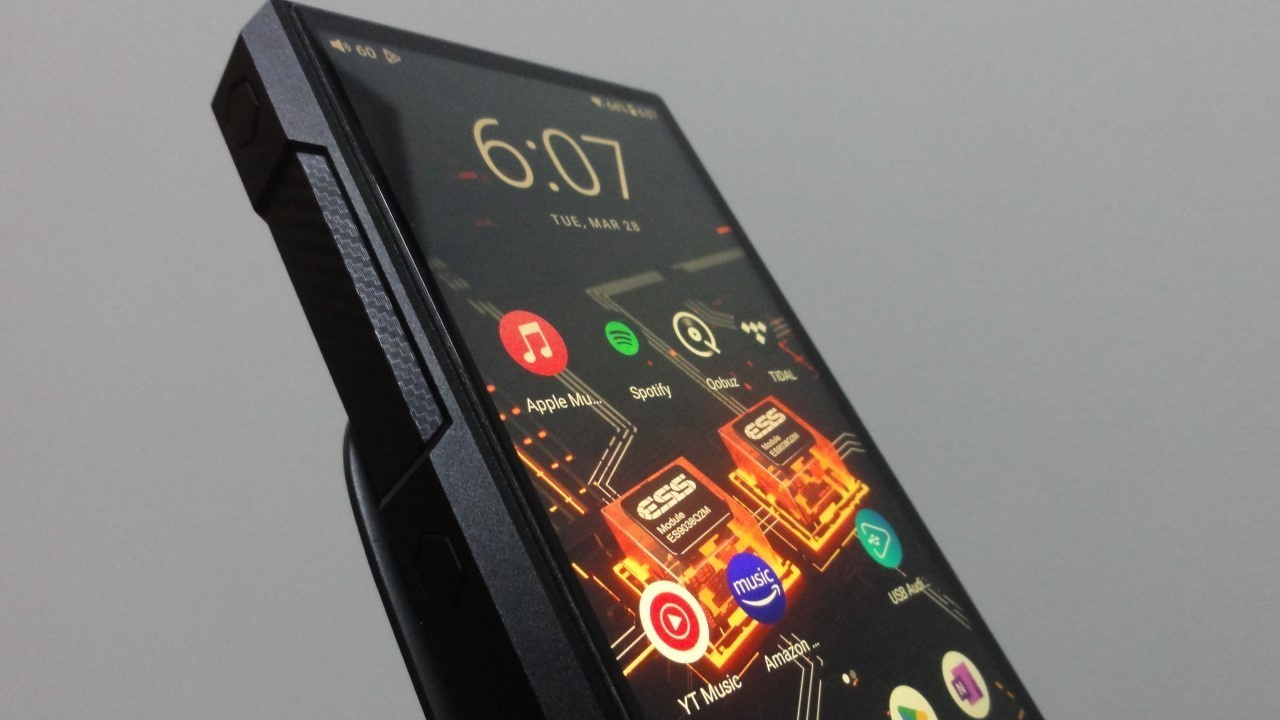
PSI measures the time during which the system is being delayed (stalling) due to insufficient available resources (free CPU, sufficient RAM, or available data read/write bandwidth). In practice, it helps prevent performance drops, micro-stutters (jank/stutter), and FPS drops, improving overall responsiveness. To do so, it monitors three main resources.
The OOM score (Out-Of-Memory score) is the metric used by the LMKD in Android to determine which processes should be terminated first when available RAM is low. The higher the score, the greater the likelihood that the process will be terminated.
Android assigns the OOM score based on the process priority level (adj) and the amount of memory it uses.
The adj (adjustment level) is how Android classifies processes according to their importance to the user and to the system. It determines which process should be protected or discarded first when available memory becomes scarce.
There is a hierarchy for adj levels, which works as follows:
• adj “-1000” – Critical system processes that should never be terminated – OOM score “-1000”
• adj “0” – Foreground app or service (Foreground Service or FGS) interacting with the user – OOM score “0”
• adj “1” – Visible app, which is visible but not directly interacting – OOM score “100”
• adj “2” – Perceptible app, indirectly perceived (e.g., playing music) – OOM score “200”
• adj “3–6” – Background services – OOM score “300–600”
• adj “7–8” – Previous app, the last app used before the current one – OOM score “700–800”
• adj “9” – Cached app, not currently in use – OOM score “900”
• adj “15” – Empty app, with no active activities or services – OOM score “1000”
Every time the user switches applications, the adj value is recalculated automatically in real time.
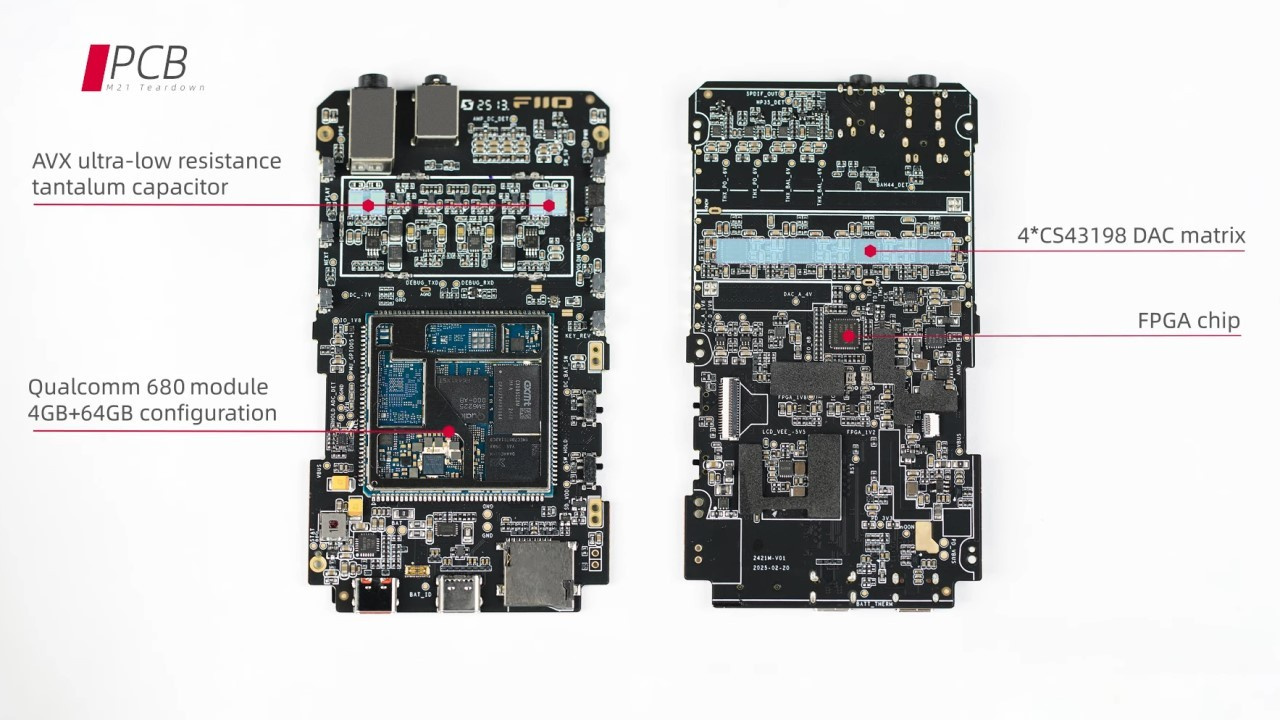
What happens when we open a music app on Android?
When a music application is opened on Android for the first time, it is classified as a foreground app. This causes the AMS to set its adj and OOM score to “0”. As a result, the app has high priority and will not be terminated by the LMKD.
When the screen is turned off but the music app continues playing a track, the AMS sets the adj to “1” (visible app) or “2” (perceptible app), and the OOM score to 100 or 200, depending on the case. In this way, the music app remains active unless the system needs to free memory.
When playback is paused and there is no interaction with the music app for a certain period of time, the process type changes to “background services.” This causes the AMS to reduce the adj level to between 3 and 6, and the OOM score to a value between 300 and 600. At this point, the process can be selected for termination if the system needs to reclaim memory.
More control over foreground and background app execution in Android 13
In Android 13, a new feature called the FGS Task Manager (Foreground Services Task Manager) was implemented, giving users greater visibility and control over apps that run long-lasting tasks in the background, even if they are technically running as foreground services.
The FGS Task Manager was introduced in response to certain applications that use foreground services to remain “alive” indefinitely, bypassing Android’s background execution restrictions.
This results in a notification being shown to the user whenever an app runs foreground processes for an extended period (usually more than 20 minutes). In addition, the user has the option to stop these applications directly, without having to enter the system settings.
Differences in AMS behavior in Android 10, 12, and 13
Most Android DAPs currently on the market use Android 10, Android 12, or Android 13. Newer versions of the operating system feature a more advanced ActivityManagerService (AMS), allowing for more intelligent resource usage and a smoother user experience. The main differences are outlined below.
Process management (adj/OOM):
• Android 10: More basic, with priorities defined mainly by type (foreground, background, etc.).
• Android 12: More refined, with better differentiation between background process types.
• Android 13: More dynamic adjustments, considering more contextual information and real usage state.
Foreground Services (FGS):
• Android 10: No specific category for this type of app.
• Android 12: Introduction of service types (MEDIA_PLAYBACK, LOCATION, etc.).
• Android 13: Mandatory validation of service type plus FGS Task Manager (user control).
Notifications and their influence on adj:
• Android 10: Notifications keep processes alive, without distinction of importance.
• Android 12: Same behavior as Android 10.
• Android 13: Low-priority notifications no longer guarantee a high adj value.
Management of inactive processes:
• Android 10: Basic and reactive.
• Android 12: Improved tracking via Watchdog and garbage collection (GC).
• Android 13: Proactive, with more accurate detection of unnecessary processes and faster cleanup.
Resource usage monitoring:
• Android 10: Basic statistics (battery/CPU).
• Android 12: More metrics, integration with BatteryStats.
• Android 13: The AMS actively participates in decisions to keep or kill processes based on excessive resource consumption.
User control over active processes:
• Android 10: Limited.
• Android 12: Mild indication via notifications.
• Android 13: The FGS Task Manager displays running processes and allows direct termination.
Conclusion
Recent versions of Android have introduced significant improvements in resource management (RAM, CPU and GPU processing, and internal or external storage read/write operations). When combined with the optimizations implemented by Digital Audio Player (DAP) manufacturers, as explained in this article, the overall user experience tends to be positive, even when using an older chipset (“processor”).
Share:



No comments have been made yet, be the first!